IPTV device setup: Smart TV, Firestick & Android box
Pick your hardware below for exact steps. Whether you stream on a Smart TV, an Amazon Firestick, or an Android box, IPTV UK is up and running in under five minutes — no VPN needed, in time for the Premier League weekend and the Bank Holiday binge.
TL;DR
- Smart TV (Samsung/LG): install Smart IPTV, add your M3U URL by MAC address, reload.
- Firestick: install IPTV Smarters Pro, log in with Xtream Codes, watch.
- Android: install IPTV Smarters Pro from Google Play, Xtream login, watch.
- Every device follows the same pattern: install a player, sign in with your welcome-email details, and stream — in under five minutes.
- No VPN required, and a wired or 5GHz connection keeps the picture buffer-free.
- Time
- < 5 min
- You need
- Welcome email
- Devices
- Smart TV / Fire / Android
- VPN
- Not required
What is IPTV device setup?
IPTV device setup is the simple process of installing a player app on your television or streaming device and signing it in with your IPTV login, so it can stream live channels and on-demand video. Whatever the hardware — a Smart TV, an Amazon Firestick, an Android box, a phone or a tablet — the pattern is always the same: install a player, enter the details from your welcome email, and watch. It needs no technical knowledge and, in most homes, takes under five minutes.
The key thing to understand is that your device and your subscription are two separate things that work together. The subscription — from a service such as IPTV UK — is the account that grants access to the content. The device is simply the screen you watch on, running a free player app that turns your login into live telly. Because the two are independent, the same login works across every device you own, so setting up a second screen is as quick as the first.
That independence is exactly why IPTV device setup is so forgiving. There's no proprietary receiver to register, no engineer to book, and nothing physical to install beyond, at most, plugging a streaming stick into an HDMI port. You download a free app from an official store, tell it where your account lives, and it loads. The whole exercise is closer to adding an email account to a new phone than to wiring up a satellite dish — a few fields, a few seconds, and you're watching.
This guide covers the three devices British households use most — the Smart TV, the Firestick and the Android box — with exact steps for each in the tabbed guide below, followed by deeper walkthroughs, the settings that keep the picture smooth, and troubleshooting for the rare occasions something doesn't click first time. Whichever screen you watch on, you'll find your setup here.
Before you start
To set up IPTV on any device you need just three things: the device itself, a free player app, and your IPTV UK welcome email with your login details. Have all three to hand and every setup below is a five-minute job. No VPN, no card details for the trial, and no technical background required — just the details from that one email, which arrives the moment you start your free trial.
Your welcome email
It holds your Xtream Codes login or M3U URL — the details that connect any device to your account. Keep it open in another tab before you begin.
A stable connection
Use Ethernet or your router's 5GHz band on the main telly for the smoothest, buffer-free picture — stability matters more than raw speed. Test your line speed.
No VPN needed
Because IPTV UK streams rights-cleared content, there's nothing to mask and no VPN to configure — connect directly and you're away.
About five minutes
Install the app, sign in, let the guide populate, and you're watching. Our 24/7 support is on hand if anything needs a second pair of eyes.
How to set up IPTV: the universal three-step method
Whatever your device, how to set up IPTV comes down to the same three steps: install a player app, sign in with your login, and let the guide load. Learn this pattern once and you can set up any device on any screen — the app and the login field differ, but the logic never changes. It is the master method behind every device-specific guide on this page.
The first step is always to install a player from the device's official app store — Smart IPTV on a Samsung or LG television, IPTV Smarters Pro on a Firestick or Android device. The app is free and, until you sign in, empty; it contains no channels of its own. That is exactly how a legitimate setup should look, because the content comes from your subscription, not the app.
The second step is to sign in. On a Firestick or Android device you enter your Xtream Codes username, password and server URL; on a Smart TV you register your M3U URL against the television's MAC address. Both sets of details come from your IPTV UK welcome email, and both are best copied and pasted rather than typed, to avoid the stray character that causes most first-time failures.
The third step is simply to let it load and watch. The app pulls down your channels, on-demand library and programme guide, drops you on the home screen, and you open Live TV. That is how to set up IPTV on anything with a screen — three steps, under five minutes, no technical background required. Everything that follows on this page is that method, applied to a specific device.
Pick your device
Choose your device below for the exact steps. Each follows the same three-part pattern — install a player, sign in, watch — with only the app and the login method differing. The tabs are keyboard-accessible; the deeper walkthroughs for each device follow further down the page. Prefer a personalised, printable checklist? Build one in seconds with our setup wizard.
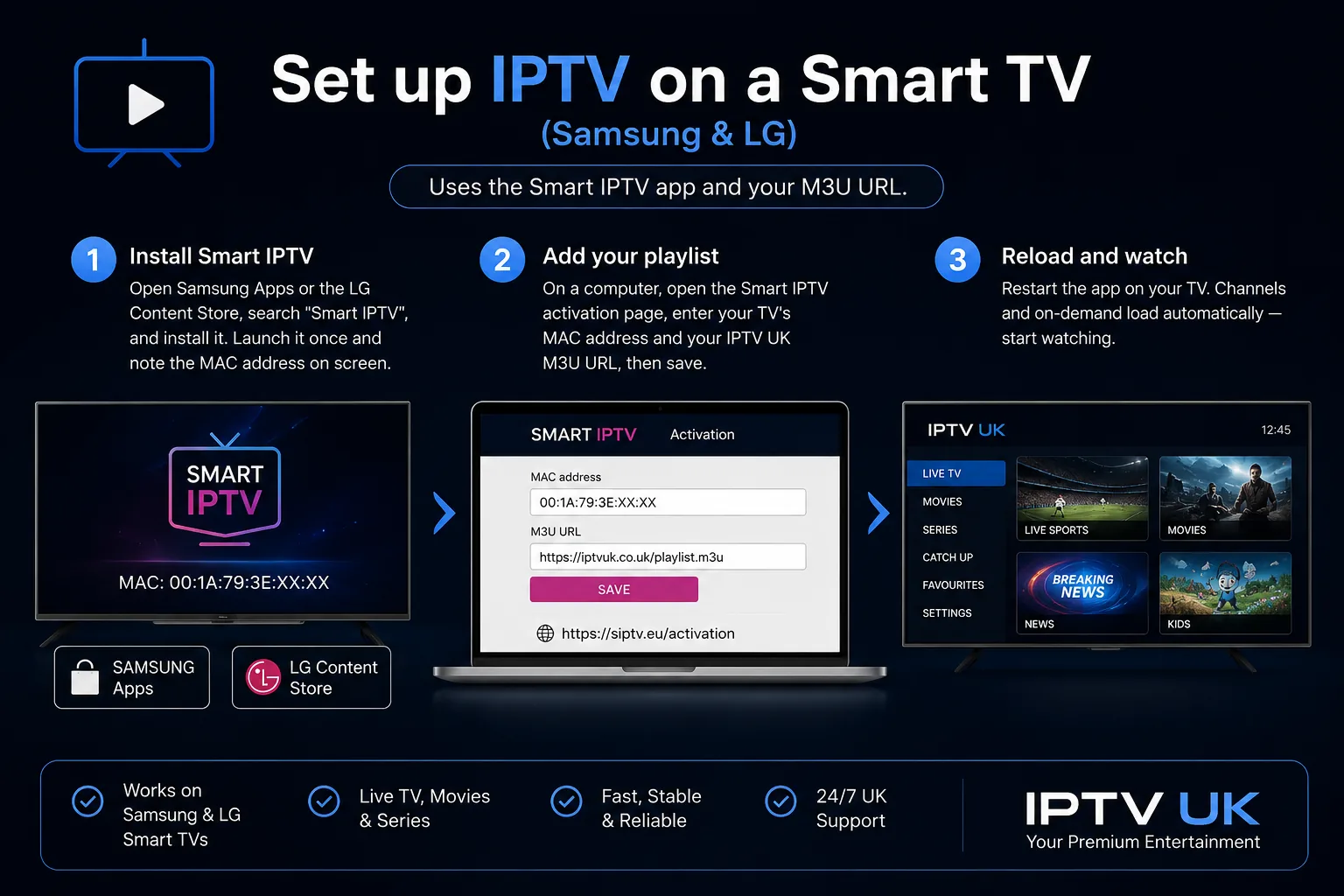
Set up IPTV on a Smart TV (Samsung & LG)
Uses the Smart IPTV app and your M3U URL.
Install Smart IPTV
Open Samsung Apps or the LG Content Store, search "Smart IPTV", and install it. Launch it once and note the MAC address on screen.
Add your playlist
On a computer, open the Smart IPTV activation page, enter your TV's MAC address and your IPTV UK M3U URL, then save.
Reload and watch
Restart the app on your TV. Channels and on-demand load automatically — start watching.
Set up IPTV on Amazon Firestick
Uses IPTV Smarters Pro and your Xtream Codes login. For the complete walkthrough, see our IPTV Firestick guide.
Install IPTV Smarters Pro
From the Firestick home screen, search the Amazon Appstore for "IPTV Smarters Pro" and install it.
Log in with Xtream Codes
Open the app and choose Login with Xtream Codes API.
Enter your credentials
Paste the username, password, and server URL from your welcome email, then select Add User.
Start watching
The app syncs your channels and VOD. Open Live TV and press play.
Set up IPTV on Android
Phones, tablets, and Android TV boxes.
Install from Google Play
Open Google Play and install IPTV Smarters Pro.
Choose Xtream Codes login
Open the app and select Login with Xtream Codes API.
Enter credentials and watch
Paste your username, password, and server URL from the welcome email, tap Add User, and start streaming.
Smart TV IPTV setup (Samsung & LG) in depth
Smart TV IPTV setup on a Samsung or LG television uses the Smart IPTV app: install it from the TV's store, note the MAC address it shows, then register that MAC with your M3U URL on the Smart IPTV website and reload. It's the tidiest setup of all, because the television itself becomes the player — no streaming stick, no box, nothing extra to plug in or charge.
Samsung and LG televisions run their own operating systems — Tizen on Samsung, webOS on LG — and Smart IPTV is built specifically for both. You'll find it through the TV's app store: the Smart Hub on a Samsung, the LG Content Store on an LG. Install it, open it once, and it displays your television's unique MAC address — the string of characters you'll use to link your playlist to that specific set.
Registering your playlist
Because Smart IPTV loads by MAC address rather than a username and password, the setup happens partly on a second device. On a phone or computer, open the official Smart IPTV upload page, enter your TV's MAC address and paste your M3U URL from the welcome email, and save. Back on the television, close and reopen the app, and your channels, on-demand library and programme guide load automatically. A small one-time activation may apply to the app itself; your IPTV UK subscription is separate.
Would you rather sign in with an Xtream Codes login than an M3U link? SmartOne IPTV is a different app that’s set up the same way, by MAC address on its website, and it also runs on Hisense TVs, Android TV and Fire TV.
Getting it right on a Samsung or LG
For the steadiest picture on a Smart TV, a wired Ethernet connection is well worth it for live sport, and modern Samsung and LG sets handle 4K beautifully over ordinary British broadband. If the app ever disappears after a software update, simply reinstall it — your activation lives against the MAC address, not the app install, so your playlist returns the moment you reload. For a fuller, TV-specific walkthrough, our dedicated Smart IPTV guide for Samsung & LG covers every detail.
Firestick IPTV setup in depth
Firestick setup uses IPTV Smarters Pro: search the Amazon Appstore for it, install, open it and choose Login with Xtream Codes API, then paste your username, password and server URL and select Add User. The Amazon Fire TV Stick is the most popular IPTV device in the UK, because it's inexpensive, pocket-sized, and turns any television with an HDMI port into a complete IPTV setup in minutes.
From the Firestick home screen, search for IPTV Smarters Pro in the Amazon Appstore and install it — the app is free. Open it, accept the terms, and choose the Xtream Codes login, which pulls your live channels, on-demand library and full programme guide in one go. Paste the three details from your welcome email, select Add User, and open Live TV to start watching. Most people are streaming inside a couple of minutes.
The hardware-decoder tip
The one setting worth knowing on a Firestick is the hardware decoder. If 4K ever stutters on a low-powered stick, open Settings → Player Selection in the app and choose the hardware decoder — it offloads the video to the Firestick's dedicated chip and smooths playback. It's the single biggest smoothness lever the app offers, and the first thing to try if the picture wobbles on a good connection.
If the app isn't in the store
On the rare device where IPTV Smarters Pro isn't listed, you can sideload it with the free Downloader app after enabling Apps from Unknown Sources — a couple of extra minutes, covered step by step in our dedicated IPTV Firestick guide. For live sport especially, a wired connection via an Ethernet adapter gives the steadiest possible picture, and a quick restart before the big match clears any leaked memory.
Android box IPTV setup in depth
Android box setup installs IPTV Smarters Pro from Google Play, then signs in with Xtream Codes — the same method that works on Android phones and tablets. An Android TV box behaves much like a streaming stick with more headroom: extra RAM and storage, a full app store, and, on most models, an Ethernet port for a rock-steady wired connection.
On an Android phone, tablet or TV box, open Google Play, install IPTV Smarters Pro, and sign in with the Xtream Codes method — username, password and server URL from your welcome email. The interface is identical across every Android device, so once you've set up one, the rest follow without thinking. Where a particular box lacks the Play Store listing, the app can be sideloaded from its official source in the same way as on a Firestick.
Why an Android box suits power users
The appeal of an Android box is the headroom. The extra RAM keeps the programme guide and on-demand artwork snappy, the storage lets you install other apps alongside your player, and the Ethernet port gives you the most dependable connection for live sport — plug the box straight into the router and peak-time Wi-Fi congestion never touches you. For a household that wants the most flexible, most reliable big-screen setup, an Android box is the enthusiast's pick.
As on any Android device, the hardware decoder setting is worth selecting for smooth 4K, and keeping both the app and the box's firmware updated heads off most problems before they start. A capable box paired with a wired connection is about as trouble-free as IPTV device setup gets. Our IPTV box guide covers the specs worth looking for if you're choosing one.
Setting up IPTV on other devices
Beyond the Smart TV, Firestick and Android box, IPTV device setup also works on Apple devices, computers, and MAG or Enigma2 set-top boxes — the same install-and-sign-in pattern applies everywhere. Whatever screen you own, there is a clean route to the same login. The cards below cover the other devices British households use.
iPhone, iPad & Apple TV
Install the IPTV Smarters player from the App Store — sometimes listed as Smarters Player — and sign in with Xtream Codes, exactly as on Android.
Windows PC & Mac
Use VLC to play your M3U URL for a quick watch, or a desktop IPTV player with Xtream Codes for a full guide. A handy second screen.
MAG & Enigma2
MAG boxes connect through a portal using the box’s MAC address, and Enigma2 receivers load an M3U URL — a common route for those who prefer a traditional box. MAG box setup guide
Other streaming sticks
Any Android or Google TV stick installs IPTV Smarters Pro from its store and signs in with Xtream Codes, just like a Firestick.
The unifying point is that IPTV UK works on any device that can install a standard player app and sign in with an Xtream Codes or M3U login — you are never locked into one piece of proprietary hardware. Our device compatibility checker confirms your exact device in two clicks. If your device isn't listed here, the odds are it still follows the same install-and-sign-in pattern, and our player setup guides cover the apps in detail. When in doubt, our 24/7 support can point you to the right app for your screen and stay with you until it is working.
IPTV device setup compared: time, apps and best-for
Every IPTV device setup takes under five minutes, and the differences come down to the app, the login method and which device suits your television. The table sets the three main routes side by side; the charts below show how quick each is and how little bandwidth high-quality video really needs.
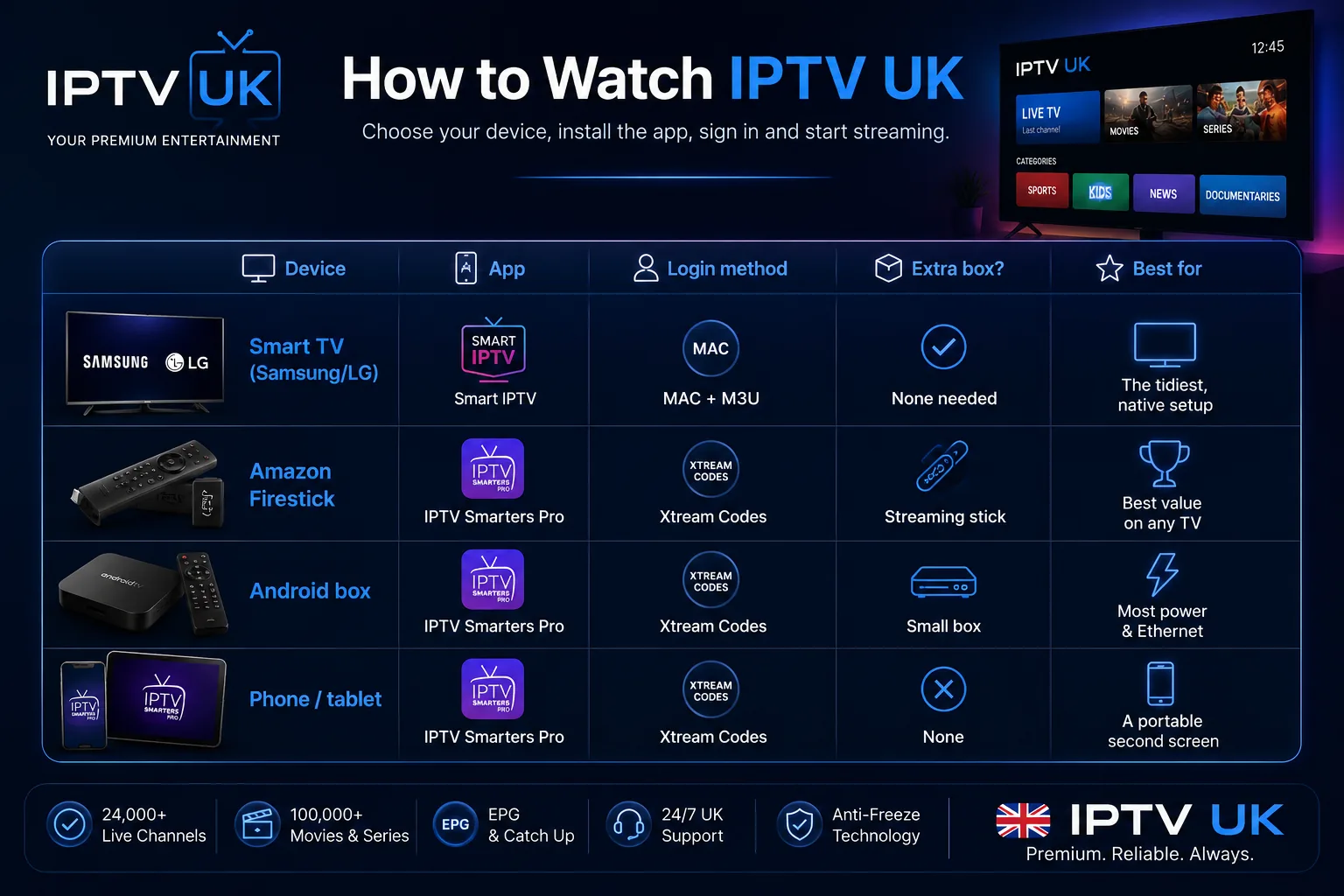
| Device | App | Login method | Extra box? | Best for |
|---|---|---|---|---|
| Smart TV (Samsung/LG) | Smart IPTV | MAC + M3U | None needed | The tidiest, native setup |
| Amazon Firestick | IPTV Smarters Pro | Xtream Codes | Streaming stick | Best value on any TV |
| Android box | IPTV Smarters Pro | Xtream Codes | Small box | Most power & Ethernet |
| Phone / tablet | IPTV Smarters Pro | Xtream Codes | None | A portable second screen |
Time to first stream, by device
Approximate minutes from opening the app to live playback. Lower is faster. Illustrative, based on typical UK setups.
Even the longest route is quicker than making a cup of tea. The Smart TV takes a little longer because you register the playlist on a second device.
Bandwidth headroom by picture quality
Recommended steady throughput per single stream. A stable connection matters far more than a high peak.
A typical British fibre line clears the 4K figure with room to spare — which is why a steady connection, not a fast one, is what keeps the picture smooth.
What to check before buying an IPTV device
If you are buying a device for IPTV, check five things: 4K with HEVC support, 2GB or more of RAM, an official operating system with an app store, a wired or strong 5GHz connection, and a recognised brand that issues updates. Nail those and the device plays high-quality streams smoothly for years; skimp on them and you invite the stutter that no amount of setup can cure. Most homes, though, already own something that does the job.
The specs that matter
4K and HEVC decoding is the single most important spec, because it is what unpacks modern high-quality streams without stutter. 2GB of RAM or more keeps the guide and on-demand artwork snappy, where a 1GB bargain box is the usual cause of slow menus. An official operating system with a genuine app store lets you install trusted players and receive updates — which rules out the no-name "loaded" boxes entirely. And a wired or strong 5GHz connection is what actually stops buffering. A recognised brand that keeps issuing updates rounds it off, so the device is still flawless several football seasons from now.
You may not need to buy anything
Here is the honest part: most British households already own a device that runs IPTV perfectly. A recent Samsung or LG Smart TV needs nothing extra; a games console or an older streaming stick may already be capable; and if you have a Firestick from a previous setup, it is ready to go. The advice is always to try the service on the kit you already have before spending a penny — and only buy new hardware if there is a genuine gap to fill.
When you do need to buy, a 4K streaming stick is the best value for most homes, an Android box the choice for power and a wired connection. For the full breakdown of the specs worth paying for and the options compared, our IPTV box guide and best IPTV UK framework cover the decision in detail, so you buy once and buy well, rather than replacing a bargain box that stutters every other season.
Choosing the right device for IPTV
The best device for IPTV depends on your television: a modern Samsung or LG needs no extra box, a 4K streaming stick is the best value for any TV, and an Android box gives the most power and an Ethernet port. There's no single right answer — the ideal choice is the one that matches the telly you own and how your household likes to watch. The cards below help you decide.
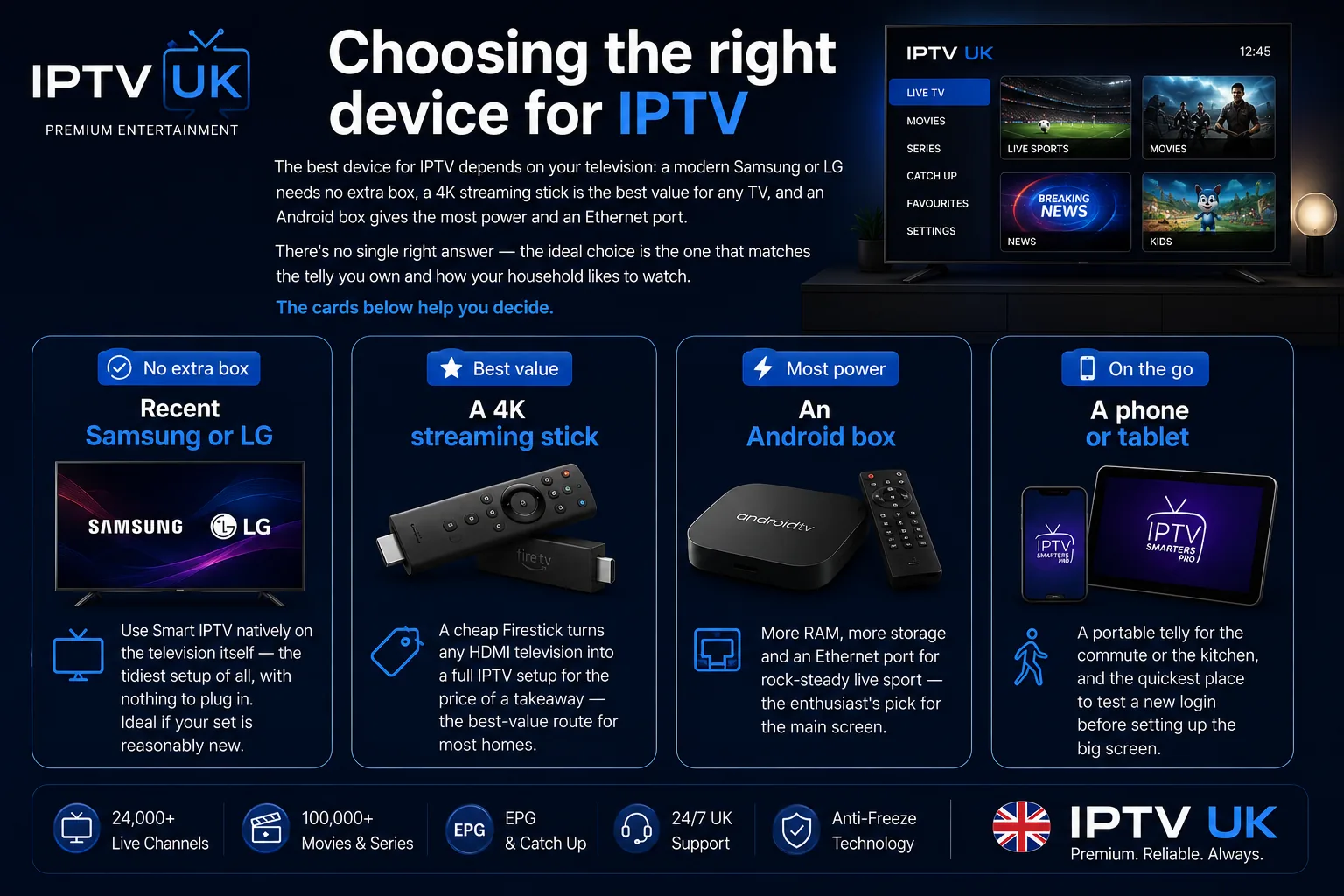
Recent Samsung or LG
Use Smart IPTV natively on the television itself — the tidiest setup of all, with nothing to plug in. Ideal if your set is reasonably new.
A 4K streaming stick
A cheap Firestick turns any HDMI television into a full IPTV setup for the price of a takeaway — the best-value route for most homes.
An Android box
More RAM, more storage and an Ethernet port for rock-steady live sport — the enthusiast's pick for the main screen.
A phone or tablet
A portable telly for the commute or the kitchen, and the quickest place to test a new login before setting up the big screen.
Most British households end up using more than one: the Smart TV or a Firestick for the main event, a tablet in the kitchen, a phone on the train. Because your IPTV UK login works across every device, that's not several setups to maintain — it's one account, on whatever screen suits the moment. If you're weighing up hardware before you buy, our IPTV box guide and best IPTV UK buyer's framework cover the decision in full.
One subscription, every device: multi-screen setup
Your IPTV UK login works across every device at once, so the same channels and on-demand library appear on the living-room telly, a bedroom stick, a tablet and a phone — all from a single account. Setting up a second or third screen is exactly the same quick job as the first, and every one draws from the same subscription.
Because the account is independent of the hardware, there is nothing to duplicate. You set up each device once — install the player, paste the same login — and it joins the household's shared line-up. The football can be on the big screen in the lounge, a film in the bedroom and cartoons in the kitchen, all at the same time, each device showing the identical guide and catalogue. For a busy family, that is much of the appeal.
The one thing to know is the simultaneous-connection allowance on your plan, which sets how many screens can watch at once. If a second screen reports that a stream is in use, that is the allowance talking rather than a setup fault — a different thing with an easy answer, and worth checking before a big Premier League weekend when every telly in the house wants the game. Size the plan to the household and multi-room viewing becomes effortless.
Practically, the recipe for a smooth multi-device home is the same as for a single one, applied throughout: wire in the main screen, put the rest on 5GHz, and keep each device's app updated. Do that once across the house and the whole family's viewing simply works, on whatever screen anyone happens to pick up. Our IPTV channels guide covers what is available to watch across all of them.
Getting the best picture: connection and settings
The two things that most affect your picture are the connection to your device and the decoder setting in your player — get both right and IPTV streams smoothly in up to 4K. A few one-time choices during setup mean you rarely think about buffering or picture quality again, whatever the device.
Wire it in, or use 5GHz
The single biggest lever is the connection. A wired Ethernet link to your main streaming device removes the interference and congestion that affect Wi-Fi, and is transformative for live sport in 4K. Where a cable won't reach, use your router's 5GHz band and keep the device within clear line of sight. Stability beats raw speed every time — a steady connection is what keeps the football flowing on a busy Saturday.
Choose the hardware decoder
In your player's settings, select the hardware decoder so high-quality streams are handled by your device's dedicated video chip rather than its main processor. This is the fix for 4K stutter on a low-powered stick, and it's the first setting to change on any new device. Match the output resolution to your television, too — set a 4K set explicitly to 4K rather than leaving it on auto — and enable HDR where both device and TV support it.
Sort the audio and keep things updated
Set the audio to match your setup — the TV's speakers, or passthrough to a soundbar — to avoid sound drifting out of sync with the picture. Finally, keep both the player app and the device's firmware updated; an up-to-date pairing is the least likely to stutter, and most devices update themselves once you switch it on. With those settings sorted, the device is configured for the long haul.
Keeping your device setup secure and legitimate
A secure IPTV device setup comes down to two habits: install the player only from your device's official app store, and keep your login to yourself. Get those right and your setup is as safe as any mainstream app on the device — a clean player, your own details, nothing dubious in the chain.
Install from official app stores
Always install your player from the device's official store — Samsung Apps, the LG Content Store, the Amazon Appstore, Google Play or the App Store. The genuine app is a clean, empty player that contains no channels until you sign in, which is exactly how a legitimate setup should look. Avoid any device or app sold "pre-loaded" with content; it is unnecessary and a clear red flag.
Look after your login
Your Xtream Codes login or M3U URL is personal to your account — treat it like a password and do not share it around. IPTV UK distributes only rights-cleared content in the regions it serves, delivered through standard apps and your own login, so there is no VPN to configure and nothing to disguise. If you ever think your details have been seen by someone else, our team can reset them quickly.
Keep everything updated
Finally, keep both the player app and the device's firmware current. Updates keep the apps compatible, patch security issues and often improve playback. Most devices update themselves once you enable it — a small setting that means your setup stays secure and smooth for years without you thinking about it. For the wider picture on a trustworthy service, our guide on whether IPTV is legal in the UK sets out the distinction in plain terms.
Troubleshooting IPTV device setup
Almost every IPTV device setup problem comes down to one of three things: a mistyped login, an unstable connection, or the wrong decoder setting. Work through them in that order and the vast majority of issues clear in a minute or two. The golden rule is to change one thing at a time so you know which fix did the job.
The device won't connect
A device that won't connect after setup is almost always a typing error. Re-check the server URL first — it must include http:// (or https://) and the port number — then the username and password, or the MAC address and M3U URL on a Smart TV. Copy and paste each detail straight from your welcome email rather than typing it. If everything is definitely correct and it still won't connect, our 24/7 support team can verify your account in moments.
The picture buffers or stutters
Buffering is nearly always the connection rather than the setup. Switch the device to Ethernet if you can, or move it onto 5GHz Wi-Fi closer to the router, and choose the hardware decoder in the player. Restart the device, then the router. If a single channel struggles while everything else is flawless, that source is simply busy — try it again shortly. Our guide to fixing IPTV buffering runs through every fix in order.
There's no programme guide
A missing guide usually means you logged in with an M3U URL rather than Xtream Codes. On a Firestick or Android device, log in again with the Xtream Codes API method and allow a minute for the guide to populate. On a Smart TV, the guide loads from your playlist, so give it a moment after reloading and check the EPG option is enabled.
The app is missing or crashes
If the player isn't in your device's store, use an alternative supported app or sideload the official one where the device allows it. If an installed app crashes, clear its cache and restart, and make sure both the app and the device software are updated. On older hardware, a restart before a big event keeps things clean. Our player setup guides cover the alternatives for every device.
IPTV device setup with no technical know-how
You do not need any technical knowledge to set up IPTV — if you can add an email account to a phone or install an app, you can complete a device setup. It is one of the most common worries people have before they start, and one of the quickest to disappear once they do. There is no configuration file, no hidden step and nothing to program.
The whole exercise is a short form. You install a free app, you paste in a few details from an email, and you press a button. Everything technical — how the stream is delivered, how the picture is decoded, how the guide is built — happens automatically, upstream, with nothing for you to touch. The apps are designed for ordinary viewers, not engineers, and the on-screen prompts walk you through each step in plain language.
The one habit that makes it foolproof is to copy and paste rather than type. A long server URL or M3U link is easy to mistype, so pasting each detail straight from your welcome email removes the only real stumbling block. Get that right and the rest is a matter of pressing next. If a screen ever looks unfamiliar, there is no need to guess.
And you are never on your own. Our 24/7 live support chat can walk you through any device, at any hour, resend your welcome email, or check a login in moments — so even the least confident setup has a safety net. Between the simplicity of the apps and a team on hand whenever you need one, IPTV device setup is genuinely within reach of anyone, whatever their comfort with technology.
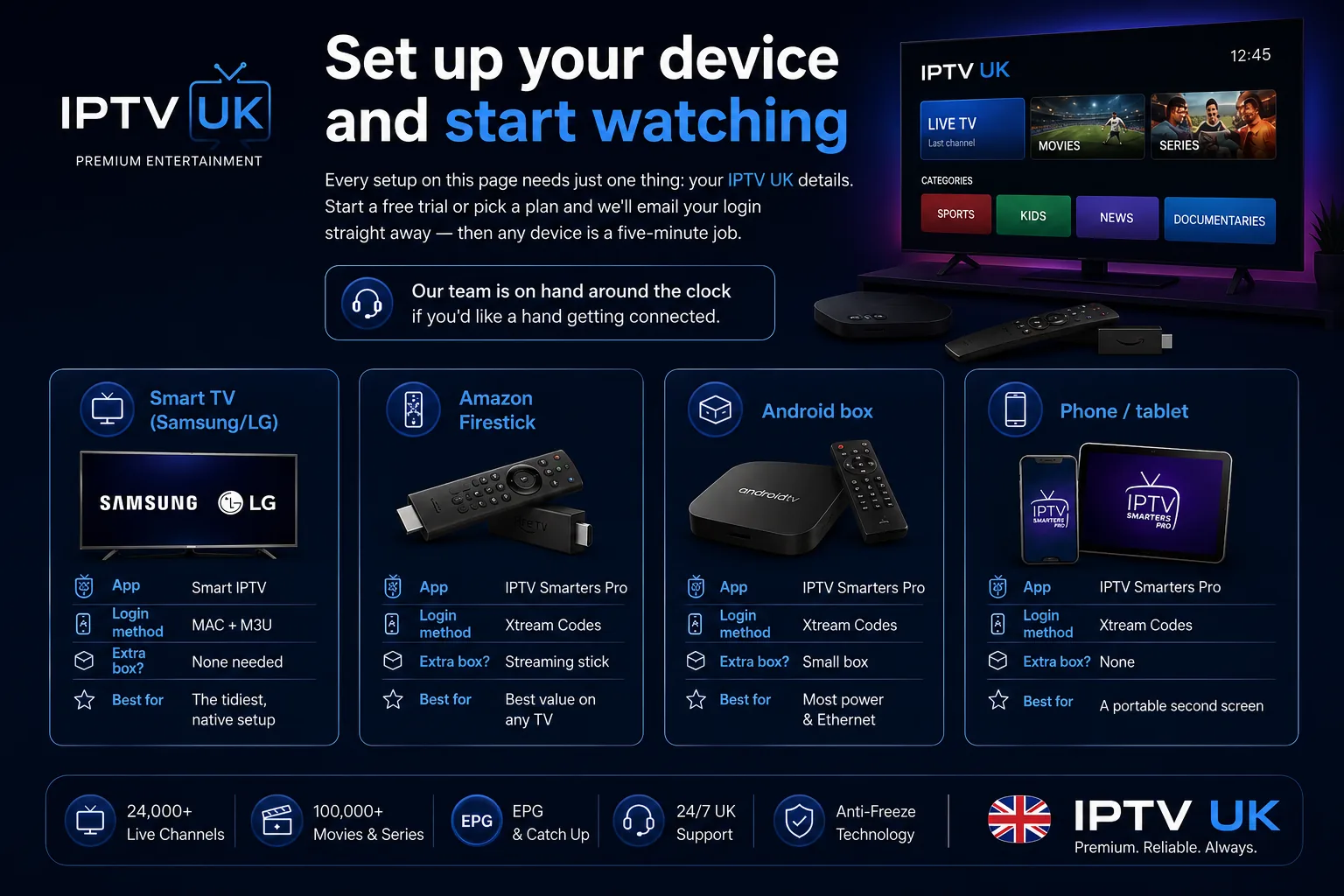
Set up your device and start watching
Every setup on this page needs just one thing: your IPTV UK details. Start a free trial or pick a plan and we'll email your login straight away — then any device is a five-minute job. Our team is on hand around the clock if you'd like a hand getting connected.
Room by room: setting up IPTV around the home
The ideal IPTV device differs by room: a wired Smart TV or box for the main living-room screen, a streaming stick for the bedroom, a tablet in the kitchen, and a pocket stick for travel. Matching the device to how each room is used gives the whole household a setup that just works, wherever anyone happens to be watching.
The living room is the main event, and it deserves the most dependable setup: a modern Samsung or LG running Smart IPTV, or a capable box or streaming stick, ideally wired in by Ethernet so the Premier League weekend holds rock-steady in 4K. This is the screen where reliability matters most, so it is worth the extra minute to run a cable and choose the hardware decoder.
The bedroom asks less: a cheap streaming stick on 5GHz Wi-Fi is perfect for a late film or the catch-up, and drops the picture to HD without anyone minding on a smaller screen. The kitchen is the natural home of a tablet or phone — a portable telly propped up while the tea cooks, the news or a box-set keeping you company. And for travel, a streaming stick in the suitcase turns any hotel or holiday-let television into your own setup the moment it is plugged in and signed in.
Because a single IPTV UK login covers them all, none of this is extra subscriptions or separate accounts — it is one service, set up once per screen, following the household around the house and beyond. Wire the main telly, put the rest on 5GHz, size the plan to how many watch at once, and every room is sorted. That is the quiet luxury of a well-planned IPTV setup: the right screen, ready in every room, whatever the moment calls for. Plan it once, and the house looks after itself for years.
Your IPTV device through a British year
A well-set-up IPTV device should simply disappear, leaving you with steady telly through every fixture, film and Bank Holiday the calendar throws at it. The point of getting the setup right once is that you never think about it again — you just pick up the remote and watch, whatever the season and whatever the weather.
It earns its keep first on a Premier League weekend. Saturday lunchtime kick-off, mates round, the kettle on: the device wakes instantly, the channel list is already there, and the picture holds in crisp 4K while the rain lashes the window. There's no dish to lose signal and no scramble for a working stream at five to kick-off — just the match, on the screen you set up months ago and haven't touched since.
Through the long dark stretch of a British winter, the same device turns a grim Tuesday into an ad-free box-set binge, and come the Bank Holiday it carries a full day of films and catch-up from the one screen in the corner. And when summer arrives and the family decamps to a cottage or a villa abroad, a streaming stick goes in the suitcase and plugs into whatever television is there — the same login, the same setup, home from home in minutes.
That's the quiet reward of getting IPTV device setup right: do it once, properly, and it serves you season after season. There is a real comfort in that reliability — no dish to be scrambled by a winter gale, no aerial to work loose, no engineer to wait in for — just a device you set up in five minutes and never had to think about again, ready with whatever you fancy whenever you switch it on.
Common IPTV device setup mistakes to avoid
The most common IPTV device setup mistakes are typing the login instead of pasting it, using the wrong login method, streaming over weak 2.4GHz Wi-Fi, and buying a "loaded" device. Each is easy to avoid once you know it, and steering clear of them means your setup works first time and keeps working.
Typing the login by hand
The single commonest mistake is typing a long server URL or M3U link rather than pasting it. One wrong character — a missing colon, an http where it should read https, a stray space — and the login fails. Always copy and paste each detail straight from your welcome email; it removes the biggest cause of first-time trouble at a stroke.
Using the wrong login method
On a Firestick or Android device, choose Xtream Codes rather than the M3U option, so you get the full programme guide. Picking M3U by mistake is why some people find their guide missing after setup. On a Smart TV, the M3U-and-MAC method is the right one — matching the method to the device avoids a frustrating half-hour.
Streaming over weak Wi-Fi
Leaving the device on old, congested 2.4GHz Wi-Fi three rooms from the router is a recipe for buffering that has nothing to do with the setup itself. Get the device onto a wired connection or 5GHz from the start, and the picture stays steady. It is a setup decision, not an afterthought.
Buying a "pre-loaded" device
Finally, never buy a device sold "fully loaded" with content. A legitimate setup uses a clean app and your own login; anything shipped with channels baked in is a red flag and entirely unnecessary. Buy a clean device from a recognised source, or use the one you already own, and bring your own subscription to it.
IPTV device setup glossary
A quick, plain-English glossary of the terms you'll meet during IPTV device setup — so nothing on the screen is a mystery. Keep it to hand the first time; by the second device, you won't need it.
Player app. The free app that turns your subscription into watchable telly on a device — Smart IPTV on a Samsung or LG TV, IPTV Smarters Pro on a Firestick or Android.
Xtream Codes API. The recommended login method on Firestick and Android: a username, password and server URL that pull live TV, on-demand and the full programme guide automatically.
M3U URL. A single web link containing your whole playlist, used to set up Smart IPTV on a Samsung or LG television. Pasted, with your MAC address, on the Smart IPTV upload page, and best copied straight from the welcome email rather than typed out by hand.
MAC address. A unique identifier for your television's network hardware, shown by Smart IPTV. You link your playlist to it so the TV knows which line-up to load.
EPG (Electronic Programme Guide). The on-screen schedule showing what's on now and next. It populates automatically with the Xtream Codes login.
Hardware decoder. The player setting that hands video decoding to your device's dedicated chip, keeping 4K smooth. The first fix for any stutter, and the first setting worth changing on any new device before you settle in to watch.
Welcome email. The message IPTV UK sends after you subscribe or start a trial, containing your login details — your Xtream Codes username, password and server URL, plus your M3U link. Every setup on this page starts here, so keep it open in another tab before you begin and you will never be left hunting for a detail mid-setup.
IPTV device setup FAQ
How do I set up IPTV on my device?
Install a player app on your device, sign in with the login from your IPTV UK welcome email, and start watching. On a Smart TV use Smart IPTV with your M3U URL; on a Firestick or Android device use IPTV Smarters Pro with Xtream Codes. Most setups take under five minutes.
What do I need to set up IPTV?
You need three things: a compatible device, a player app installed on it, and your IPTV UK welcome email with your login details. No VPN and no technical knowledge are required, and a stable connection keeps the picture smooth.
How do I set up IPTV on a Smart TV?
On a Samsung or LG Smart TV, install Smart IPTV from the app store and note the MAC address it shows. On a computer, enter that MAC address and your M3U URL on the Smart IPTV upload page and save, then reload the app on the TV. See our Smart IPTV guide for detail.
How do I set up IPTV on a Firestick?
Search the Amazon Appstore for IPTV Smarters Pro and install it, open it and choose Login with Xtream Codes API, then paste your username, password and server URL from your welcome email. Select Add User and open Live TV. Our Firestick guide covers it in full.
How do I set up IPTV on an Android box?
On an Android phone, tablet or TV box, install IPTV Smarters Pro from Google Play, choose Login with Xtream Codes API, and enter your username, password and server URL from the welcome email. Tap Add User and start streaming.
Which device is best for IPTV?
For most homes a 4K streaming stick offers the best value, a modern Samsung or LG Smart TV is the tidiest with no extra box, and an Android box gives the most power and an Ethernet port. The best device is the one that suits your TV and how you like to watch.
Do I need a VPN to set up IPTV?
No. IPTV UK distributes only rights-cleared content in the regions it serves, so no VPN is required for normal home use. A player app, your login and a stable internet connection are all you need.
Why won't my IPTV device connect after setup?
A device that won't connect is almost always a mistyped login or MAC address. Copy and paste the details straight from your welcome email rather than typing them, check the server URL includes http:// and the port, and reload. If it still fails, our 24/7 support can verify your account.
Related guides and trusted references
For neutral background, the Wikipedia overview of the Smart TV explains the platforms, and the Amazon Fire TV entry covers the Firestick. For our own step-by-step guides, each written for British viewers, start with the pages below.