Serving UK & Ireland for 9+ years 24/7 Live support chat Rights-cleared content
TL;DR
IPTV buffering is almost always your network or device, not the service.
The four fixes that solve most cases: switch to wired or 5GHz Wi-Fi, choose the hardware decoder, close background apps, and restart your box.
If only one channel buffers, it's that source — not your setup. Try another.
Speed target: ~10 Mbps for HD, ~25 Mbps for 4K — and consistency beats a high peak.
Still stuck after everything? Our 24/7 support can check your account and server in minutes.
Main cause
Wi-Fi / device
Top fix
Wired or 5GHz
4K speed
~25 Mbps
Time to fix
Minutes
Why does my IPTV keep buffering?
IPTV buffering is almost always caused by your home network or device, not the IPTV service itself. Slow or congested 2.4GHz Wi-Fi, an underpowered streaming stick, or the wrong player decoder account for the overwhelming majority of cases — and every one of them has a quick fix you can do yourself in minutes. Understanding which of these is behind your buffering is the fastest route to stopping it. Prefer to be walked through it step by step? Try our interactive IPTV troubleshooter.
Buffering happens when your player can't fetch the next few seconds of video quickly enough to keep playing smoothly, so it pauses to "buffer" — to fill its buffer back up. The stream itself arrives over your ordinary broadband, passes through your router and Wi-Fi, and is decoded by your device before it reaches the screen. A weak link anywhere along that chain — a congested Wi-Fi signal, a tired streaming stick, a player set to the wrong decoder — causes the stutter you see. The good news is that the chain is short, and each link is easy to check.
It helps enormously to separate the two questions that actually matter: does everything buffer, or just one channel? If a single channel stutters while the rest play flawlessly, the problem is that particular source, and there's nothing wrong with your setup at all. If everything buffers, the cause is your network or device, and the fixes below will sort it. That one diagnostic split saves most people a great deal of needless fiddling.
Most common
Wi-Fi & network
Congested 2.4GHz Wi-Fi or a busy line is the number-one cause — and a wired or 5GHz connection is the number-one fix.
Hardware
Underpowered device
A cheap or ageing streaming stick runs low on memory after a long session; a restart and the hardware decoder usually settle it.
Settings
Wrong decoder
The software decoder struggles with 4K on low-powered devices; switching to the hardware decoder offloads the work and smooths it.
Not you
A single bad source
If one channel buffers while the rest are perfect, it's that feed, not your connection — try another and report it.
"Nine times out of ten, IPTV buffering is fixed in the first two minutes — a wired connection and the hardware decoder settle almost everything."— IPTV UK support desk
How to fix IPTV buffering: the 7 fixes, in order
To fix IPTV buffering, work through these seven fixes in order — switch to a wired or 5GHz connection, choose the hardware decoder, restart your box, close background apps, check your speed, lower the quality if needed, and test one channel against all. Most people are sorted by step three, and almost everyone by step five. Do them in sequence and change one thing at a time so you know which fix did the job.
Use a wired or 5GHz connection
Old 2.4GHz Wi-Fi is the number-one cause of IPTV buffering. Plug your box into Ethernet if you can, or switch to your router's 5GHz band. This single change fixes the majority of cases — do it first.
Switch to the hardware decoder
In your player (for example IPTV Smarters Pro), open Settings → Player Selection and choose the hardware decoder (HW). It offloads video to your device's dedicated chip and smooths 4K on low-powered sticks. The first fix to try for stutter on a good connection.
Restart your streaming box
Streaming sticks and cheap Android boxes leak memory over time. A full restart — unplug for ten seconds and power back on — clears it, and is the quickest reliable fix after a long session or before a big match.
Close background apps
Other apps and downloads compete for bandwidth and memory. Close them before streaming, and pause any big downloads elsewhere in the house — especially on a Firestick, where memory is tight.
Check your speed
Run a speed test on the same device you watch on. Aim for about 10 Mbps for HD and 25 Mbps for 4K. Consistency beats peak speed, so a steady 20 Mbps is better than a spiky 100 Mbps.
Lower the stream quality
If your connection is borderline, drop a single channel from 4K to HD in the player. Smooth HD beats stuttering 4K every time — and it's often the difference between watching the match and watching a spinning wheel.
Test one channel versus all
If only one channel buffers, the problem is that specific source, not your setup — try another and report it. If everything buffers, it's your network or device, so loop back to step one.
That sequence resolves the vast majority of IPTV buffering, usually in a couple of minutes. The order matters: the connection fixes (steps one, three and four) address the most common causes first, the settings fix (step two) handles device stutter, and the diagnostic steps (five to seven) tell you whether the problem is even yours to fix. The sections below go deeper on the fixes that matter most.
What actually causes IPTV buffering
The great majority of IPTV buffering traces back to the home network — congested or 2.4GHz Wi-Fi — followed by underpowered devices and the wrong decoder setting, with the service itself responsible only in a small minority of cases. The chart below shows the typical split, and the one beneath it shows how little bandwidth high-quality video really needs when everything is set up well.
What causes IPTV buffering
Typical breakdown of buffering causes in UK homes. Illustrative, based on common support cases.
Wi-Fi / home network55%
Underpowered device20%
Wrong decoder / settings12%
A single bad source8%
Account / server region5%
More than 85% of buffering is the home network, the device or a setting — all of which you can fix yourself in minutes.
How much speed IPTV really needs
Recommended steady throughput per single stream. A steady connection matters far more than a high peak.
SD (576p)3 Mbps
HD (720p)6 Mbps
Full HD (1080p)10 Mbps
4K Ultra HD25 Mbps
A typical British fibre line clears the 4K figure many times over — which is why a stable connection, not a fast one, is what stops buffering.
Symptom
Most likely cause
The fix
Everything buffers
Wi-Fi / network
Wired or 5GHz
Stutters only in 4K
Software decoder / device
Hardware decoder
Buffers after a long session
Device memory leak
Restart the box
Buffers in the evening
Peak-time congestion
Wired + lower quality
One channel only
That specific source
Try another, report it
Everything fails after all fixes
Account / server region
Contact support
IPTV buffering, freezing and pixelation: what each symptom means
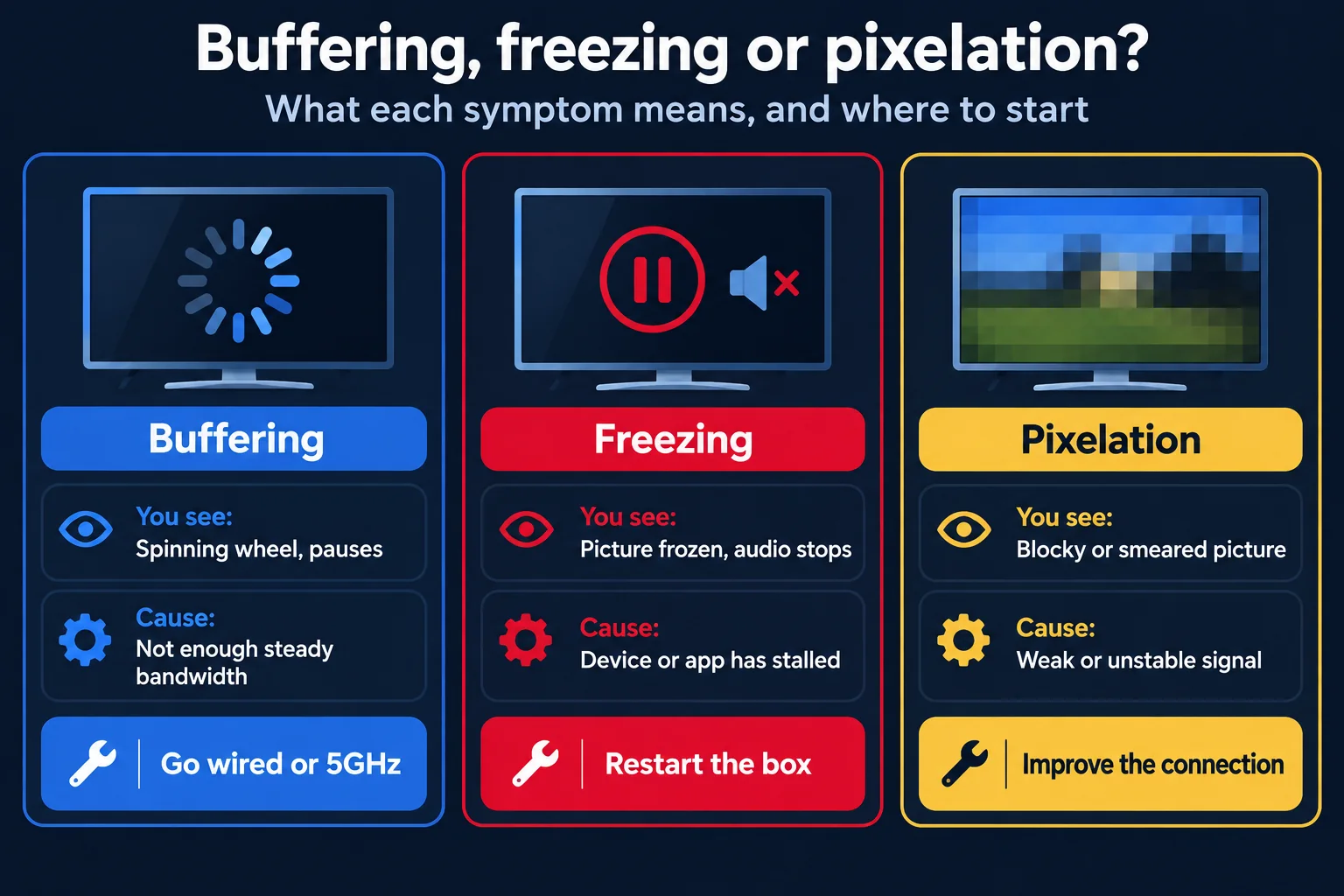
Buffering, freezing and pixelation are three different symptoms with different causes: buffering is a bandwidth or connection problem, freezing is usually the device or app, and pixelation points to a weak or unstable signal. Telling them apart points you straight to the right fix rather than trying everything at random.
Buffering, freezing and pixelation have different causes, so each has a different first fix.
What you see
What it usually means
Where to start
Spinning wheel, pauses
Buffering — not enough steady bandwidth
Wired or 5GHz
Picture frozen, audio stops
Device or app has stalled
Restart the box
Blocky or smeared picture
Weak or unstable signal to the device
Improve the connection
Audio out of sync
Decoder or audio-output setting
Switch decoder
App crashes to home screen
Low memory on the device
Clear cache, restart
Buffering — the spinning wheel and the periodic pauses — is the classic bandwidth symptom, and it is what most of this guide addresses: fix the connection and it goes away. Freezing, where the picture locks solid and the audio stops, is more often the device or app stalling, so a restart is the first move. Pixelation — a blocky, smeared picture that keeps playing — signals a weak or wobbling signal reaching the device, so improving the connection settles it. They can overlap, but starting with the right symptom saves time, and the fixes are all drawn from the same short list.
Wired vs Wi-Fi: the number-one buffering fix
The single most effective fix for IPTV buffering is switching from Wi-Fi to a wired Ethernet connection, or at least to your router's 5GHz band. Old 2.4GHz Wi-Fi is the number-one cause of buffering in British homes, because it's slow, short-range and shared with half the gadgets in the house and the neighbours' networks besides. Fix the connection to your box and you fix most buffering at a stroke.
A wired Ethernet link is the gold standard. It removes interference and congestion entirely, giving your box a clean, constant signal that doesn't wobble when someone else in the house starts a download or the microwave goes on. For live sport in 4K especially, a cable is transformative — it's the difference between a rock-steady picture through a full Saturday of fixtures and a stutter at the worst possible moment. If your box has an Ethernet port and your router is within cable's reach, use it.
If you can't run a cable
Where a cable won't reach, the next best thing is the 5GHz Wi-Fi band. Most modern routers broadcast both 2.4GHz and 5GHz; the 5GHz band is faster and far less congested, at the cost of a shorter range. Connect your box to it, and keep the box within clear line of sight of the router where you can — buried behind a thick wall or a metal media unit, any Wi-Fi struggles. A mesh node or a powerline adapter in the same room as the telly often transforms reliability for a modest outlay.
The counter-intuitive truth worth repeating is that stability beats raw speed. A rock-steady 30 Mbps connection will out-perform an erratic 200 Mbps one for live television, because a stream can't pause and re-buffer the way a download can — it has to arrive on time, frame after frame. When people blame "the IPTV" for stuttering, the cause is nearly always the last few metres of flaky Wi-Fi between the router and the box. Sort that, and the picture locks in for the night.
Router and network settings that reduce buffering
A few router settings quietly reduce IPTV buffering: use the 5GHz band, place the router well, keep its firmware updated, and — on a busy line — enable QoS to prioritise streaming. These are one-time tweaks that improve the whole household streaming, not just your IPTV, and none takes more than a few minutes. The cards below cover the ones that matter most.
Band
Use 5GHz, not 2.4GHz
Connect your streaming device to the 5GHz band — faster and far less congested. If your router hides both under one name, split them or pick the 5GHz network.
Placement
Position the router well
Keep the router out in the open, off the floor, and away from thick walls and metal. Line of sight to the streaming device makes a real difference to Wi-Fi.
Updates
Update the firmware
An out-of-date router can be slower and less stable. Check for a firmware update in its admin page — many update automatically, but it is worth confirming.
Priority
Enable QoS
Many routers offer Quality of Service to prioritise streaming or a specific device, smoothing playback when the line is busy with other traffic.
Beyond the settings, the physical layout of your network is often the real lever. If the streaming device is far from the router, a mesh node or a powerline adapter in the same room brings a strong, steady signal to the telly for a modest outlay — frequently the single best upgrade a buffering household can make. And if you can run a short Ethernet cable to the main device, that beats every Wi-Fi tweak combined. The goal throughout is the same: a clean, uncontested path from the router to the box.
Hardware vs software decoder: smoothing 4K
If your connection is fine but the picture still stutters in 4K, switch your player from the software decoder to the hardware decoder — it's the single biggest smoothness lever the app offers. The hardware decoder hands the video to your device's dedicated chip, which unpacks high-quality streams effortlessly and keeps the device cool; the software decoder makes the main processor do the work, which underpowered sticks struggle with.
In most players — IPTV Smarters Pro and the others — you'll find the option under Settings → Player Selection or a similarly named menu, usually shown as HW (hardware), HW+ or SW (software). The rule of thumb is simple: use the hardware decoder for smooth 4K on any modest device, and only fall back to the software decoder if a specific channel refuses to play, since a very small number of unusual streams prefer it.
This one setting resolves a surprising share of "buffering" that isn't really a connection problem at all. A cheap streaming stick running the software decoder on a 4K stream is asking its little processor to do something it can't quite manage, and the result is stutter that looks exactly like a network problem. Switch to the hardware decoder and the same stick plays the same stream flawlessly. If your speed test is healthy but the picture still wobbles, this is the first place to look — and for a fuller walkthrough, our IPTV Smarters Pro setup guide covers the setting in detail.
Speed and bandwidth: how much you really need
You need around 10 Mbps of steady throughput for HD and 25 Mbps for stable 4K — but consistency matters far more than peak speed, so a steady 20 Mbps beats a spiky 100 Mbps. Most British broadband comfortably clears these figures, which is why buffering is so rarely about raw speed and so often about stability and the last few metres of your home network.
Run a speed test on the same device you actually watch on, and at the same time of day you notice the buffering. Testing on a laptop wired to the router tells you little about a Firestick struggling on Wi-Fi three rooms away — it's the device's real-world connection that matters. If the speed on the streaming device is well below the figures above, you've found your problem, and the wired-or-5GHz fix is your answer.
Why consistency beats peak
The reason a steady 20 Mbps outperforms a spiky 100 Mbps is that live television has no slack. A file download can grab a burst of speed and slow down without you noticing; a live stream has to deliver a steady flow of frames in real time, and any dip below what the stream needs causes an immediate stutter. That's why the goal isn't the biggest headline number — it's a connection that holds its level, which is exactly what a wired link provides. For the technical background, the Wikipedia overview of bandwidth explains the concept in neutral terms.
It's worth remembering, too, that every simultaneous stream in the house adds to the total. Two 4K streams need roughly double the bandwidth of one, so a household watching the football in the lounge, a film in the bedroom and cartoons in the kitchen is asking a fair bit of the line at once. Most fibre connections cope easily, but on a slower line it's the reason an evening of multi-room viewing can stutter when a single stream is fine.
Device-specific buffering fixes
Buffering fixes differ slightly by device: a streaming stick usually needs a restart and the hardware decoder, an Android box benefits from Ethernet, and a Smart TV app needs a cache clear and an update. The core causes are the same everywhere, but knowing the quirks of your particular device gets you to a fix faster. The cards below cover the common ones.
Streaming stick
Firestick & sticks
Restart it (unplug ten seconds), choose the hardware decoder, and close background apps — memory is tight on a stick, so these three settle most stutter.
Android box
Android TV box
Use its Ethernet port for a wired connection, keep the firmware updated, and clear the player's cache — a box has more power but benefits most from a wired link.
Smart TV
Smart TV app
Clear the app's cache, make sure both the app and the TV's software are updated, and prefer a wired connection to the set for live sport.
Phone & tablet
Phone & tablet
Stay on 5GHz Wi-Fi or a strong mobile signal, close other apps, and lower the quality on a weak connection — mobiles buffer most on a poor signal.
Whatever the device, the underlying logic is identical: give it a clean, steady connection, don't ask its processor to do more than it can, and clear out anything hogging memory. Match those principles to your particular kit and the buffering goes away. For step-by-step setup on each device, our device setup guides and IPTV box guide cover the hardware in full.
Fixing IPTV buffering on a Firestick specifically
A Firestick buffers most often because it is short on memory and running the software decoder — so the fix is to restart it, switch to the hardware decoder, clear the player cache, and connect it to 5GHz or Ethernet. The Fire TV Stick is by far the most popular IPTV device in the UK, and also the one people ask about most, because its modest memory shows under pressure. The good news is that its buffering is among the easiest to cure.
Restart it properly
A Firestick leaks memory over a long session, and a tired stick stutters. The most reliable restart is to unplug it from the power for ten seconds and plug it back in — a deeper reset than the menu restart. Do this after a marathon session, and as a habit before a big match, and you will head off most Firestick buffering before it starts.
Use the hardware decoder and clear the cache
In your player, set the hardware decoder so the stick is not asking its small processor to decode 4K in software. Then clear the app cache in Settings → Applications → Manage Installed Applications, which frees memory and clears out anything clogging the player. Together these two steps resolve a large share of Firestick stutter that a connection fix alone would not.
Give it a strong connection
The Firestick is Wi-Fi only, so its connection is often the weak link. Get it onto the 5GHz band, keep it within reach of the router, and if the signal is poor add a mesh node nearby. Some households use an Ethernet adapter to wire a Firestick in, which is the gold standard for live sport. If yours is an older or Lite model struggling with 4K, stepping up to a 4K Max is a worthwhile upgrade — our IPTV Firestick guide covers the models and the setup in full.
A quick diagnosis: network, device or source?
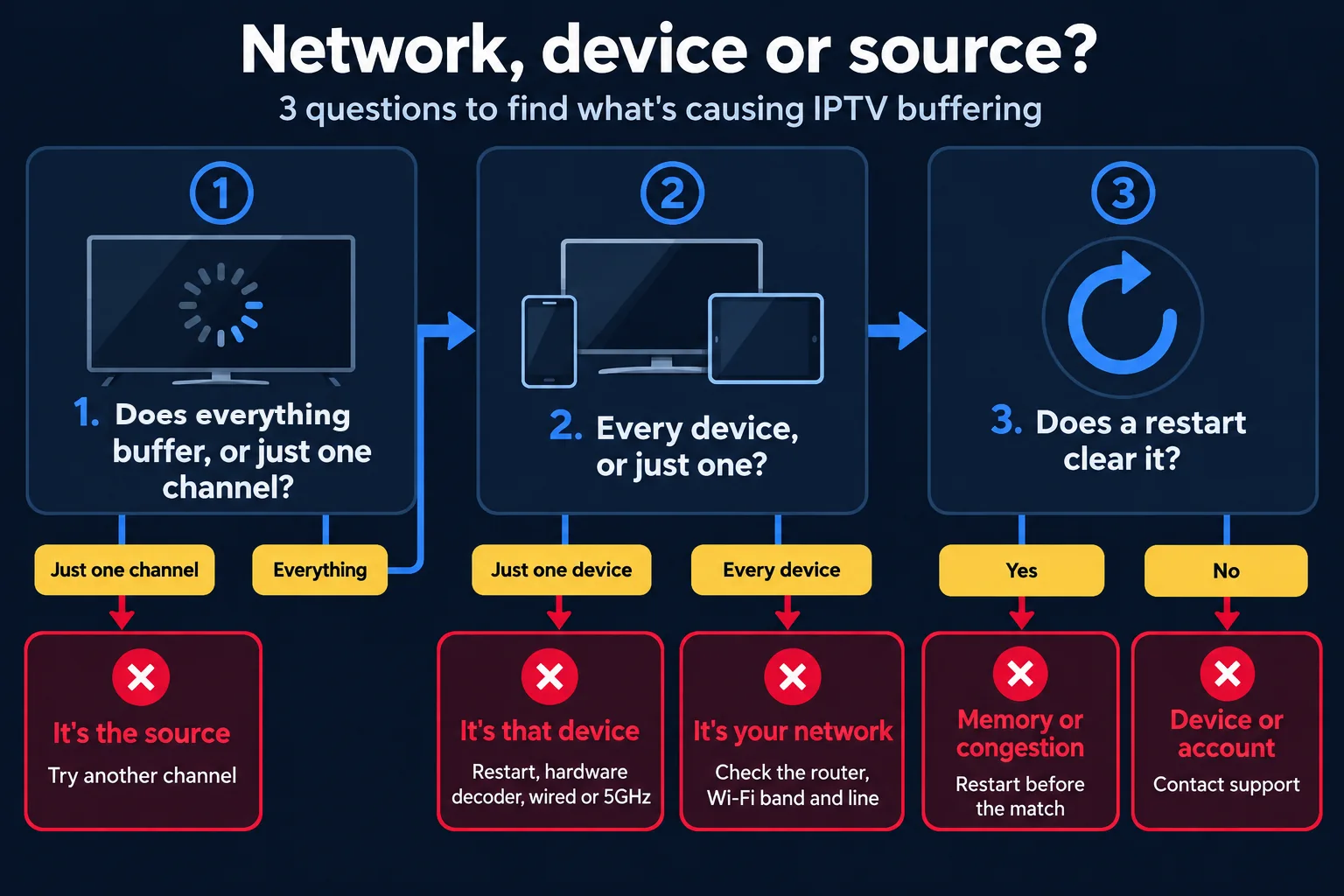
To diagnose IPTV buffering fast, ask three questions in order: does everything buffer or just one channel, does it happen on every device or only one, and does it clear after a restart? The answers point straight to whether the cause is your network, your device or a single source — and therefore which fix to reach for. It is a two-minute triage that saves a lot of guesswork.
Three questions, asked in order, tell you whether the network, the device or a single source is causing the buffering.
Question 1: everything, or one channel?
Start here, because it is the most decisive. If only one channel buffers while the rest play perfectly, the cause is that specific source — your setup is fine, so try another channel and report the one that struggles. If everything buffers, the cause is your network or device, and you move to the next question.
Question 2: every device, or just one?
If everything buffers on one device but plays fine on another (say, it stutters on the Firestick but not the phone), the problem is that device or its connection — restart it, choose the hardware decoder, and check it is on 5GHz or wired. If it buffers on every device, the cause is the shared part of the chain: your network, so focus on the router, the Wi-Fi band and the line.
Question 3: does a restart clear it?
Finally, restart the box and the router. If the buffering clears after a restart, it was leaked memory or congestion — and a pre-match restart will keep it away. If it returns quickly even after a clean restart on a good connection, you have narrowed it down to either an underpowered device or, in the rare remaining cases, the account or server side, which support can check. Three questions, and you know exactly where to aim.
When IPTV buffering is not your setup
In a small minority of cases, IPTV buffering isn't your network or device at all — it's a single problematic source, or, more rarely, your account or server region. Knowing how to tell the difference stops you wasting time tuning a setup that's already fine, and points you straight to the real fix.
The clearest signal is the one-channel test. If a single channel buffers while every other channel plays perfectly, your connection and device are demonstrably fine — the problem is that specific feed, and the answer is simply to try another channel and report the one that struggles so it can be checked. No amount of router-restarting will fix a single busy source, and it's not meant to.
Rarely — the small slice at the bottom of the causes chart — persistent buffering across everything, even after all the fixes, points to something on the account or server side: a line that needs refreshing, or a server region that isn't the best match for where you are. This is exactly where a real provider earns its keep. Because IPTV UK runs on stable infrastructure refined over more than nine years, the provider side is rarely the issue; but when it is, our 24/7 live support chat can verify your account and server in minutes and put it right, rather than leaving you to guess.
When to contact support — and what to tell them
Contact support when buffering persists across every channel and every device after you have tried a wired connection, the hardware decoder and a restart — and tell them exactly what you have already tested. A few specific details turn a slow back-and-forth into a quick fix, because they let the team skip straight to the likely cause.
By the time it is worth contacting support, you will usually have established that the problem is shared across your whole setup and survives the standard fixes — which points to the account or server side rather than your home network. That is genuinely ours to check, not yours to keep guessing at, and it is exactly what a 24/7 support team is for. There is no need to keep restarting the router for the tenth time when the pattern already tells you it is upstream.
What to tell them
The details that speed things up are simple: does it affect one channel or all of them, one device or every device, what connection you are on (wired, 5GHz or 2.4GHz), your speed-test result on the streaming device, and which fixes you have already tried. Armed with that, the team can check your line, your account and the best server region for you in minutes, rather than walking you back through steps you have already done. It is the difference between a two-minute fix and a frustrating half-hour.
Because IPTV UK runs on infrastructure refined over more than nine years of serving the UK and Ireland, the provider side is rarely the culprit — but when it is, it is fixed quickly and properly. Our 24/7 live support chat is there whenever you need it, whatever the hour, including five minutes before kick-off.
Buffering that won't quit? We'll sort it.
If you've worked through every fix and it's still stuttering, it may be your account or server region — and that's ours to check, not yours to guess. Our team is on the live chat around the clock. New here? Try the service free on your own setup and see how steady it holds.
The best way to stop IPTV buffering is to prevent it — with a wired or 5GHz connection, a device that's up to the job, the hardware decoder selected, and a quick restart before big events. A few one-time choices at setup mean you rarely think about buffering again, which is exactly how a good streaming setup should feel.
Start with the connection, because it's the biggest lever. If you can run an Ethernet cable to your main streaming device, do it once and forget it; if you can't, get the box onto 5GHz and, if the signal is weak, add a mesh node or powerline adapter. This single decision removes the most common cause of buffering permanently, rather than fixing it after the fact each time.
Next, the device. A modestly specified but capable streaming device — 4K, HEVC support, 2GB or more of RAM — plays high-quality streams smoothly, where a bargain no-name box stutters no matter what you do. Choose the hardware decoder in your player, keep the firmware and app updated, and you've eliminated the device side of the equation. Our IPTV box guide covers the specs that matter if you're buying.
The pre-match habit
Finally, a small habit worth adopting: restart the box before a big event. On older or low-powered hardware, a quick restart before the Premier League weekend or the big fight night clears the memory and gives you the cleanest possible run — the digital equivalent of warming the telly up before kick-off. It heads off the one stutter you'd least want, at the moment you'd least want it. Set up well and this becomes the only maintenance you ever need.
When to upgrade: device, connection or both
If buffering keeps returning despite every fix, it is usually a sign to upgrade the weakest link — a tired streaming device, a poor connection to it, or occasionally both. Most buffering is solved by settings and a restart, but a small number of homes are held back by hardware or a network layout that no amount of tweaking will overcome. Knowing when to spend, and on what, saves a lot of ongoing frustration.
Upgrade the device if...
Consider a new streaming device if yours is a bargain no-name box, a very old stick, or a model that stutters on 4K even with the hardware decoder and a strong connection. A capable device — 4K, HEVC support, 2GB or more of RAM — plays high-quality streams smoothly where an underpowered one never quite manages. It is often the cheapest possible fix: a good streaming stick costs little more than a takeaway and cures device-side buffering outright. Our IPTV box guide sets out the specs worth paying for.
Upgrade the connection if...
Look at the connection if the buffering follows every device rather than one, or if the streaming device is a long way from the router. The fixes here are rarely a whole new broadband package — usually it is a mesh node or powerline adapter to carry a strong signal to the telly, or a short Ethernet run to the main device. These modest upgrades transform reliability far more reliably than paying for a faster headline speed you were not actually short of.
The honest guidance is to spend where the weak link actually is, not where it is easiest. Diagnose first — using the three questions above — then upgrade the specific thing holding you back. For most homes that is a strong connection to a capable device, and once both are in place, buffering becomes a memory rather than a routine. The households that never seem to suffer buffering are rarely the ones on the fastest broadband; they are the ones who sorted the connection to a capable device once and then simply forgot about it. It is a one-time investment that pays back every single evening afterwards.
Buffering during the big match: keeping live sport steady
Live sport in 4K is the most demanding thing you'll stream, so a borderline connection shows up there first — but a wired link, the hardware decoder and a pre-match restart keep the football rock-steady. There's no worse moment for a buffer than a goal-mouth scramble, which is precisely why the sport is where getting your setup right pays off most.
Picture the classic British Saturday: the lunchtime kick-off, mates round, the kettle on, the rain lashing the window. This is peak-time for the home network — your household and half the street online at once — and the most demanding content of the week, all colliding at the worst possible moment. It's no wonder the odd household sees a stutter here even when the rest of the week is flawless. The fixes, happily, are the same as ever, just applied with a little foresight before kick-off.
The winning routine is simple. Wire the box in if you possibly can, so peak-time Wi-Fi congestion never touches you. Choose the hardware decoder so the 4K plays smoothly. Restart the box in the half-hour before kick-off to clear any leaked memory. And keep a fallback in mind: if the line is truly borderline on the day, dropping that one channel from 4K to HD gives you a rock-steady picture that never misses the goal.
Do that, and the only thing spinning is the ball — not a loading wheel. That's the pub-banter test passed, whatever the British weather is doing outside. Ten minutes of preparation before a big match buys you ninety minutes of uninterrupted football, and once it becomes a habit you stop thinking about it at all. The cost of a stutter at the wrong moment is measured in groans from the sofa, not in minutes of your time, so the little routine is well worth the effort.
IPTV buffering myths and common mistakes
The biggest myth about IPTV buffering is that it's always the provider's fault — in reality, the home network and device cause the overwhelming majority, and a few common mistakes make it worse. Clearing up these misconceptions gets you to a fix faster and saves a lot of misplaced frustration.
"It must be the service"
It very rarely is. As the causes chart shows, more than 85% of buffering is the home network, the device or a setting — all of which you control. A premium service on stable infrastructure removes the provider side of the equation almost entirely, which is exactly why the fixes on this page work so reliably. Blaming the service first usually means fixing the actual cause last.
"I just need faster broadband"
Not usually. Since 4K needs only around 25 Mbps of steady throughput, most British lines already have ample speed — the problem is almost always the last few metres of Wi-Fi, not the headline figure. Paying for a faster package rarely helps if the box is still on congested 2.4GHz Wi-Fi three rooms from the router. Fix the connection to the box first.
"A VPN will help"
For buffering, a VPN usually hurts rather than helps, because it adds latency and can reduce speed. IPTV UK distributes only rights-cleared content in the regions it serves, so no VPN is needed for normal home use — and turning one off often improves playback noticeably. Don't add a layer you don't need and then blame the stream for the slowdown it caused.
"Restarting never does anything"
Restarting is one of the most effective fixes there is. Streaming sticks leak memory, and routers accumulate congestion; restarting both clears the slate in under two minutes and resolves a great deal of buffering. It's unglamorous, but the old advice to "turn it off and on again" endures precisely because it works.
Buffering in a multi-room household: several streams at once
When several people stream at once, buffering can appear even if a single stream is flawless — because every simultaneous 4K stream adds roughly 25 Mbps to the demand on your line and your Wi-Fi. A busy household is one of the commonest reasons an otherwise steady setup stutters of an evening, and the fixes are about spreading the load rather than any one device.
The arithmetic is simple. One 4K stream needs around 25 Mbps of steady throughput; two need roughly 50; three, around 75. So a household watching the football in the lounge, a film in the bedroom and cartoons in the kitchen is asking a fair amount of the line all at once. Most British fibre connections cope comfortably, but on a slower line, or over congested Wi-Fi, the total can tip past what the connection can steadily deliver — and the result is buffering that only shows up when the whole family is watching.
Spread the load
The first move is to get as many devices as possible onto a strong connection: wire in the main telly, put the rest on 5GHz, and add a mesh node if the far rooms are weak. That alone stops the Wi-Fi from being the bottleneck. If the line itself is the limit, dropping one or two of the simultaneous streams from 4K to HD roughly halves their demand, which is usually enough to steady the lot — and on a bedroom telly or a tablet, the difference is barely noticeable.
It is also worth checking your plan allows the number of simultaneous connections you actually use. If a second or third screen reports that a stream is in use, that is the plan allowance rather than buffering — a different thing with a different answer, and easily sorted. For a genuinely busy household, a wired main screen, 5GHz elsewhere and a plan sized to the family is the recipe for everyone watching at once without a stutter. Set that up once, and a full house on a Saturday afternoon becomes a non-event rather than a scramble.
IPTV buffering glossary
A quick, plain-English glossary of the terms you'll meet when fixing IPTV buffering — so nothing in the troubleshooting is a mystery.
Buffering. The pause while a player loads more of a stream because it can't fetch the next few seconds quickly enough. On a live stream it shows as a stutter or a spinning wheel. The data buffer is the short reserve of video the player keeps ahead of playback.
2.4GHz vs 5GHz Wi-Fi. The two Wi-Fi bands most routers broadcast. 2.4GHz has longer range but is slower and heavily congested; 5GHz is faster and cleaner but shorter range. For streaming, prefer 5GHz — or, better, a wired connection.
Ethernet. A wired network connection using a cable. The most reliable link for streaming, because it removes the interference and congestion that affect Wi-Fi, and the single best upgrade a buffering household can make where a cable can be run to the main device.
Hardware decoder. The player setting that hands video decoding to your device's dedicated chip, keeping 4K smooth. The software decoder makes the main processor do the work, which low-powered devices struggle with.
Bandwidth / throughput. The rate at which data reaches your device, measured in Mbps. For streaming, steady throughput matters more than a high peak speed, which is why a modest but consistent connection so often outperforms a fast but erratic one for live television.
Latency. The delay before data starts arriving. High latency — often added by a VPN — can contribute to buffering even when raw speed looks fine, which is one more reason to leave a VPN switched off for normal home viewing where none is needed.
Congestion. When too many devices share a connection at once, reducing the effective speed for each, which is why buffering so often peaks in the evening when the whole neighbourhood is online, and why a wired connection that sidesteps the shared Wi-Fi is such a dependable cure. It's why buffering often peaks in the evening.
EPG. The electronic programme guide. Unrelated to buffering, but worth a mention: a missing guide usually points to an M3U login rather than Xtream Codes, not a network fault.
IPTV buffering FAQ
Why does my IPTV keep buffering?
IPTV buffering is almost always caused by your internet connection or device, not the service. Slow or congested 2.4GHz Wi-Fi, an overloaded streaming stick, or the wrong player decoder are the most common causes, and each has a quick fix.
How do I stop IPTV buffering?
Switch to a wired or 5GHz connection, set your player to the hardware decoder, close background apps, and restart your box. Those four steps fix the vast majority of IPTV buffering. If only one channel buffers, it's that source, not your setup.
What internet speed do I need for IPTV?
Around 10 Mbps is enough for HD and 25 Mbps for stable 4K. A consistent connection matters more than peak speed, so a steady 20 Mbps outperforms a spiky 100 Mbps. Prefer a wired connection or 5GHz Wi-Fi.
Why does my IPTV buffer only in the evening?
Evening buffering is usually local network congestion, when your household and neighbourhood are all online at once. A wired connection avoids the household side, and it often clears as peak time passes. It's rarely the IPTV service itself. Slow only at night? Run our ISP throttling test to check.
Why does my IPTV buffer during live sport?
Live sport in 4K is the most demanding content, so a borderline connection shows up there first. Use a wired connection, choose the hardware decoder, restart the box before kick-off, and if needed drop that channel from 4K to HD for a rock-steady picture.
Does a VPN cause IPTV buffering?
A VPN can add latency and reduce speed, which may cause buffering. IPTV UK distributes only rights-cleared content in the regions it serves, so no VPN is required for normal home use — turning it off often improves playback.
Why does only one channel buffer while the rest are fine?
If a single channel buffers while others play perfectly, the problem is that specific source rather than your connection or device. Try another channel, and report the one that struggles so it can be checked. Your setup is fine.
Will restarting my router fix IPTV buffering?
Often, yes. Restarting the router clears congestion and re-establishes a clean connection, and restarting the streaming box clears leaked memory. Doing both after a long session resolves a great deal of buffering in under two minutes.
Is IPTV buffering the provider's fault?
Rarely. In the large majority of cases IPTV buffering is caused by your home network or device, both of which you can fix in minutes. A premium service on stable infrastructure removes the provider side, leaving only your setup to tune.
Related guides and trusted references
For neutral background, the Wikipedia overview of the data buffer explains what buffering actually is, and the bandwidth entry covers the speed side. For our own step-by-step guides, every one written for British viewers and kept up to date, start with the related pages below. Between them they cover the settings, the hardware and the setup that keep a stream steady, so you can fix the immediate buffering today and prevent it coming back tomorrow.