How to set up IPTV Smarters Pro
The complete UK setup for Firestick, Android, iOS and Smart TV — using your IPTV UK Xtream Codes login. Five minutes start to finish, and you're ready for the Premier League weekend and the Bank Holiday binge.
TL;DR
- Install IPTV Smarters Pro from your device's app store (or the APK on a Firestick).
- Open it and choose Login with Xtream Codes API.
- Paste the username, password & server URL from your IPTV UK welcome email.
- Tap Add User — it syncs, then open Live TV and watch.
- Time
- ~5 min
- Difficulty
- Easy
- Devices
- Fire / Android / iOS / TV
- You need
- Welcome email
What is IPTV Smarters Pro?
IPTV Smarters Pro is a free media-player app that turns an IPTV subscription into watchable television, with live channels, an on-demand library and a full programme guide. It is the most popular IPTV player in the UK because it runs on almost everything — Firestick, Android, iOS and Smart TV — and signs in with simple Xtream Codes credentials. Crucially, it is the player, not the subscription: you supply the login, and IPTV Smarters Pro displays the content.
That distinction is the single most important thing to understand, and the one that causes most confusion. Your subscription — from a service such as IPTV UK — is the account that grants access to the content. IPTV Smarters Pro is the window you view it through. The app is downloaded free from your device's store; it simply has nothing to show until you sign in. Search interest reflects this breadth: people look for it as "IPTV Smarters", "Smarters Pro", "IPTV Smarters Player", and even "ip smarters" or just "smarters" — all the same app, all set up the same way.
Its popularity is well earned. Because IPTV Smarters Pro presents the same clean, familiar interface on every platform, the skills transfer from one screen to the next: set it up once on a Firestick and you can set it up on a phone or a Smart TV without thinking. It pulls a proper electronic programme guide, sorts content into Live TV, Movies and Series, remembers your favourites, and plays in up to 4K where the source allows. For most British households, it is simply the way to watch IPTV.
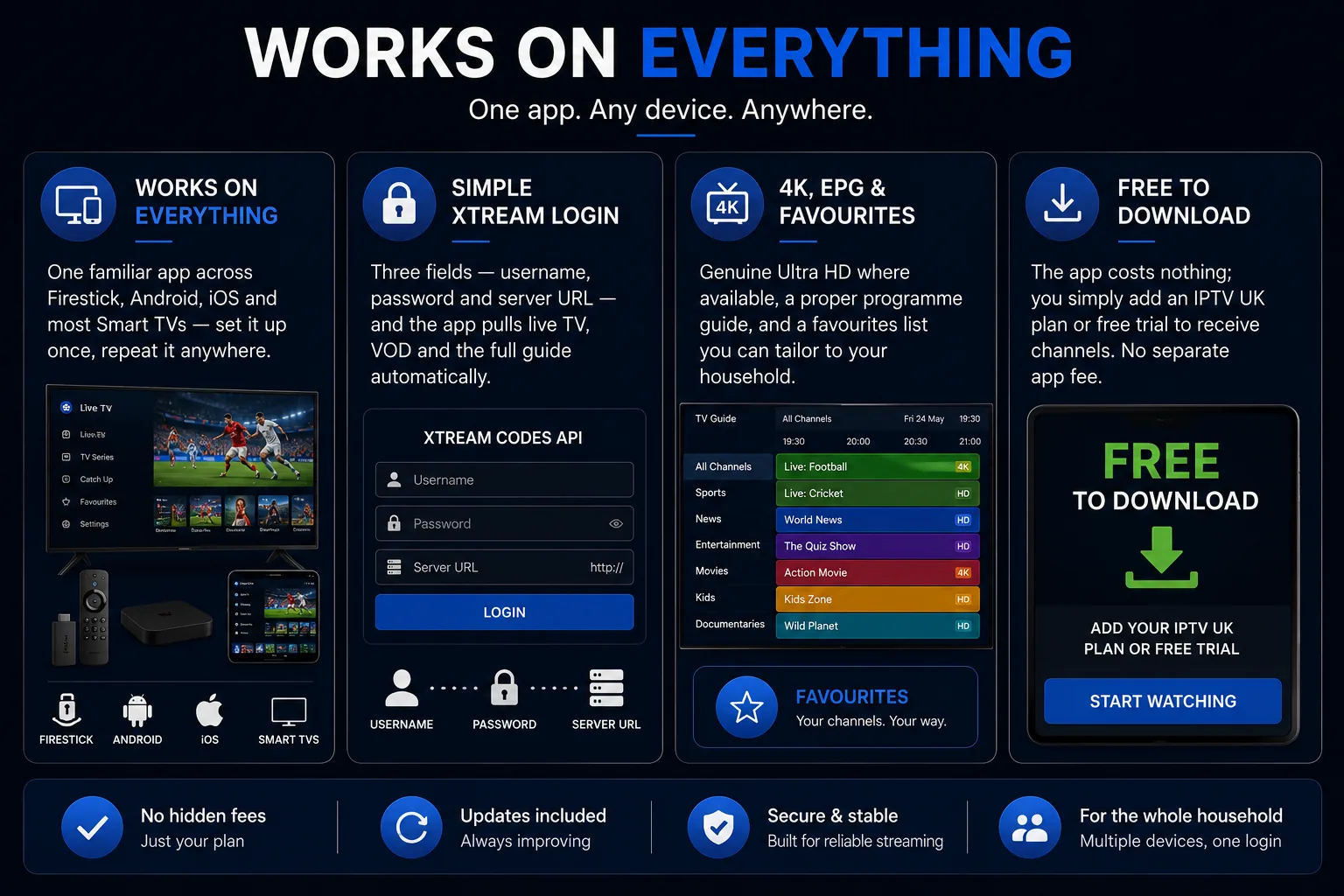
Works on everything
One familiar app across Firestick, Android, iOS and most Smart TVs — set it up once, repeat it anywhere.
Simple Xtream login
Three fields — username, password and server URL — and the app pulls live TV, VOD and the full guide automatically.
4K, EPG & favourites
Genuine Ultra HD where available, a proper programme guide, and a favourites list you can tailor to your household.
Free to download
The app costs nothing; you simply add an IPTV UK plan or free trial to receive channels. No separate app fee.
Before you start
To set up IPTV Smarters Pro you need just two things: the free app, and your IPTV UK welcome email. That email contains your Xtream Codes username, password and server URL — the three details that connect the app to your account. No VPN is required, and no technical knowledge beyond copying and pasting.
Have the welcome email open in another tab or on your phone before you begin, because every method below assumes those details are to hand. If you've started a free trial or a plan and can't find the email, check your spam folder, or ask our 24/7 support team to resend it. The server URL is the field worth double-checking: it must include http:// (or https://) and the port number, exactly as written. Type nothing by hand that you can paste instead — it removes the single most common cause of a failed login at a stroke, and gets you to the football a minute or two sooner.
The best way to set up IPTV Smarters Pro
The best way to set up IPTV Smarters Pro is the Xtream Codes method: install the app, choose "Login with Xtream Codes API", paste your username, password and server URL, and press Add User. It is the four-step method that works identically on every device, and it's the one we recommend because it pulls your live channels, on-demand library and full programme guide in one go.
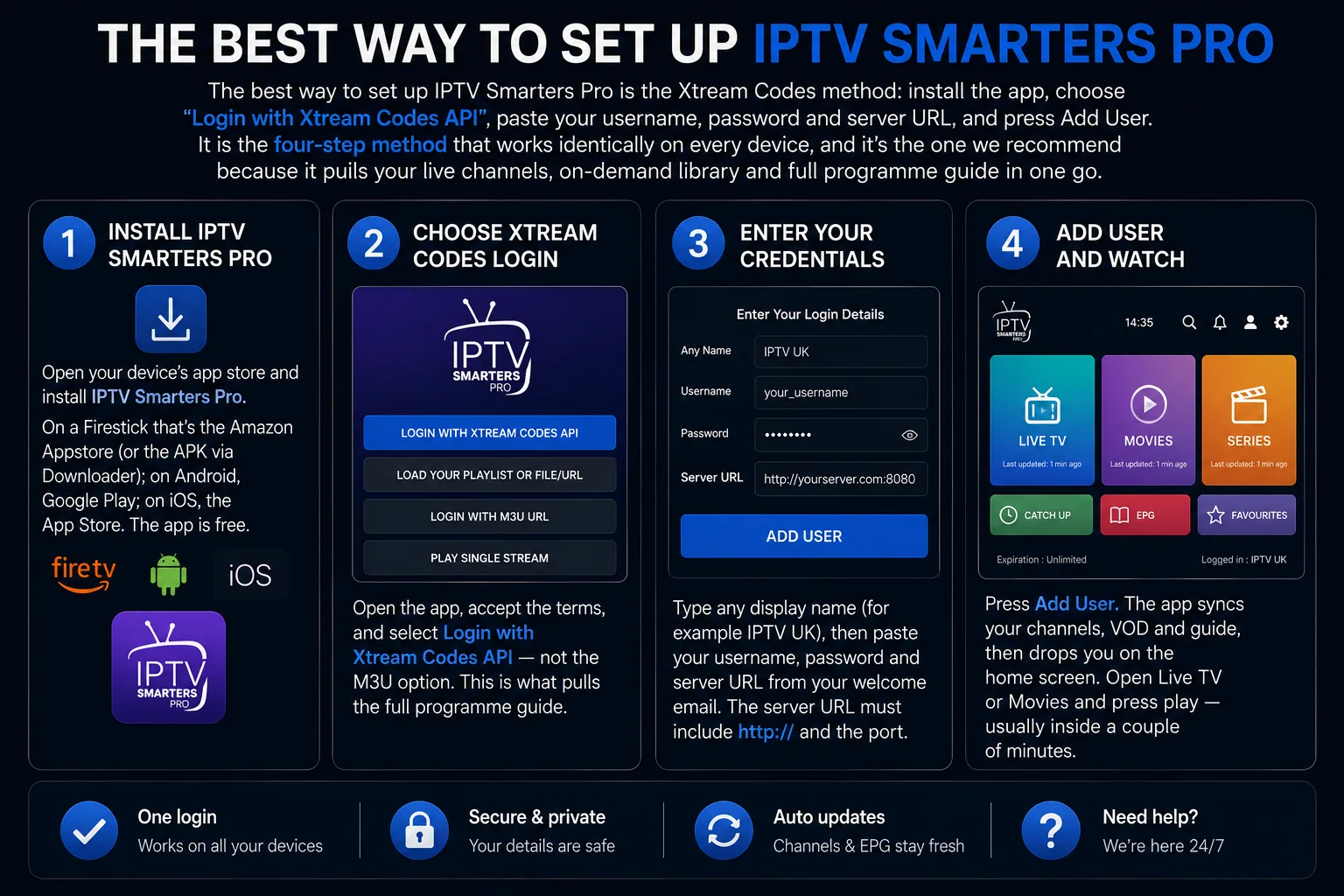
Install IPTV Smarters Pro
Open your device's app store and install IPTV Smarters Pro. On a Firestick that's the Amazon Appstore (or the APK via Downloader); on Android, Google Play; on iOS, the App Store. The app is free.
Choose Xtream Codes login
Open the app, accept the terms, and select Login with Xtream Codes API — not the M3U option. This is what pulls the full programme guide.
Enter your credentials
Type any display name (for example IPTV UK), then paste your username, password and server URL from your welcome email. The server URL must include http:// and the port.
Add user and watch
Press Add User. The app syncs your channels, VOD and guide, then drops you on the home screen. Open Live TV or Movies and press play — usually inside a couple of minutes.
That genuinely is the whole of it. The reason IPTV Smarters Pro feels intimidating before you try it — and trivial afterwards — is that the process is a four-field form dressed up as something technical. Do it once and the next device is muscle memory: the same details, pasted into the same boxes, on whatever screen you fancy watching on next.
How to install IPTV Smarters Pro on a Firestick
To install IPTV Smarters Pro on a Firestick, search the Amazon Appstore for it and install, then log in with Xtream Codes — or, if it isn't in the store, sideload the APK with the free Downloader app. The Fire TV Stick is the most popular device for IPTV Smarters Pro in the UK, because it's cheap, pocket-sized and runs the app beautifully.
The simplest route is the Amazon Appstore. From the Firestick home screen, search for IPTV Smarters Pro, select it and choose Get or Download. Once installed, open it and follow the Xtream Codes steps above. For most people, that's all there is to it.
Installing the IPTV Smarters Pro APK via Downloader
If the app isn't available in the Appstore on your particular device, you can sideload the IPTV Smarters Pro APK — the Android installer file — using the free Downloader app. First, on your Firestick, open Settings → My Fire TV → Developer Options and switch on Apps from Unknown Sources. Then install Downloader from the Appstore, open it, and enter the address of the official IPTV Smarters APK to fetch and install it. Only ever use the official IPTV Smarters source for the APK; it contains no channels and needs your subscription login to do anything. For the full sideloading walkthrough, our IPTV Firestick guide covers it step by step.
The hardware-decoder tip for Firestick
On a low-powered stick, if 4K stutters, switch the app to the hardware decoder in Settings → Player Selection. This offloads the video to the Firestick's dedicated chip and is the single biggest smoothness lever the app offers — more on that in the settings section below.
How to set up IPTV Smarters Pro on Android
To set up IPTV Smarters Pro on Android, install it from Google Play (or the APK), open it, choose Login with Xtream Codes API, and paste your username, password and server URL. The same method works on Android phones, tablets and Android TV boxes — the interface is identical, so once you've done it on one Android device, the rest follow without thinking.
On an Android phone or tablet, the Google Play route is the easiest: search for IPTV Smarters Pro, install it, and sign in with Xtream Codes. On an Android TV box, you'll find it in the box's app store in exactly the same way. Where a particular box lacks the store listing, the IPTV Smarters Pro APK can be sideloaded just as on a Firestick, using a file manager or the Downloader app — again, only from the official source.
Android is also the most flexible platform for the app. A phone makes an excellent portable telly for the commute or the kitchen worktop, and it's the quickest place to test a new login before you set up the big screen. Because your IPTV UK login works across devices, the same details that set up the living-room stick will set up the phone in your pocket — one account, many screens.
How to use IPTV Smarters Pro on iPhone & iPad
On iPhone and iPad, install the IPTV Smarters player from the App Store — it is sometimes listed as Smarters Player Lite — then choose Xtream Codes login and enter your details. Apple's strict app review means the iOS version occasionally appears under a slightly different name, but the connection method is unchanged: three Xtream fields, pasted from your welcome email.
Open the App Store, search for IPTV Smarters or Smarters Player, and install the free app. Launch it, choose the Xtream Codes login, and paste your username, password and server URL. As on every other platform, you can also load an M3U URL instead, though the Xtream method gives you the richer programme guide. An iPhone or iPad makes a superb second screen — the football on the big telly, the catch-up in the kitchen — all from the same IPTV UK account.
If you ever can't find the exact "IPTV Smarters Pro" name on the App Store, don't worry: the IPTV Smarters player family shares the same setup, so any official listing from the same developer signs in identically. When in doubt, our 24/7 support team can point you to the right one for your device.
How to set up IPTV Smarters Pro on a Smart TV
On an Android-based Smart TV, install IPTV Smarters Pro from the TV's app store and log in with Xtream Codes, exactly as on a phone. Many modern televisions run Android TV or Google TV, and on those the app is a native, first-class citizen — no extra box required.
From the television's home screen, open the app store, search for IPTV Smarters Pro, install it, and sign in with your Xtream Codes details. The big-screen layout is the same familiar Live TV, Movies and Series interface, controlled by the remote that came with the telly. It's the tidiest way to watch on an Android TV: the set itself becomes the player.
A word on Samsung and LG. Those televisions run their own operating systems — Tizen and webOS — rather than Android, and IPTV Smarters Pro isn't available natively on them. On a Samsung or LG, the native route is Smart IPTV instead, which our dedicated Smart IPTV guide for Samsung & LG walks through; alternatively, plug in a cheap streaming stick and run IPTV Smarters Pro on that. Either way, you're never without a way to watch on the big screen.
IPTV Smarters Pro across your devices, compared
IPTV Smarters Pro installs slightly differently on each platform but works identically once you're in — so the best set up IPTV Smarters Pro offers is simply the route that matches the device in front of you. The table below shows how to install it on each, whether you'll ever need the APK, and which device each suits best.
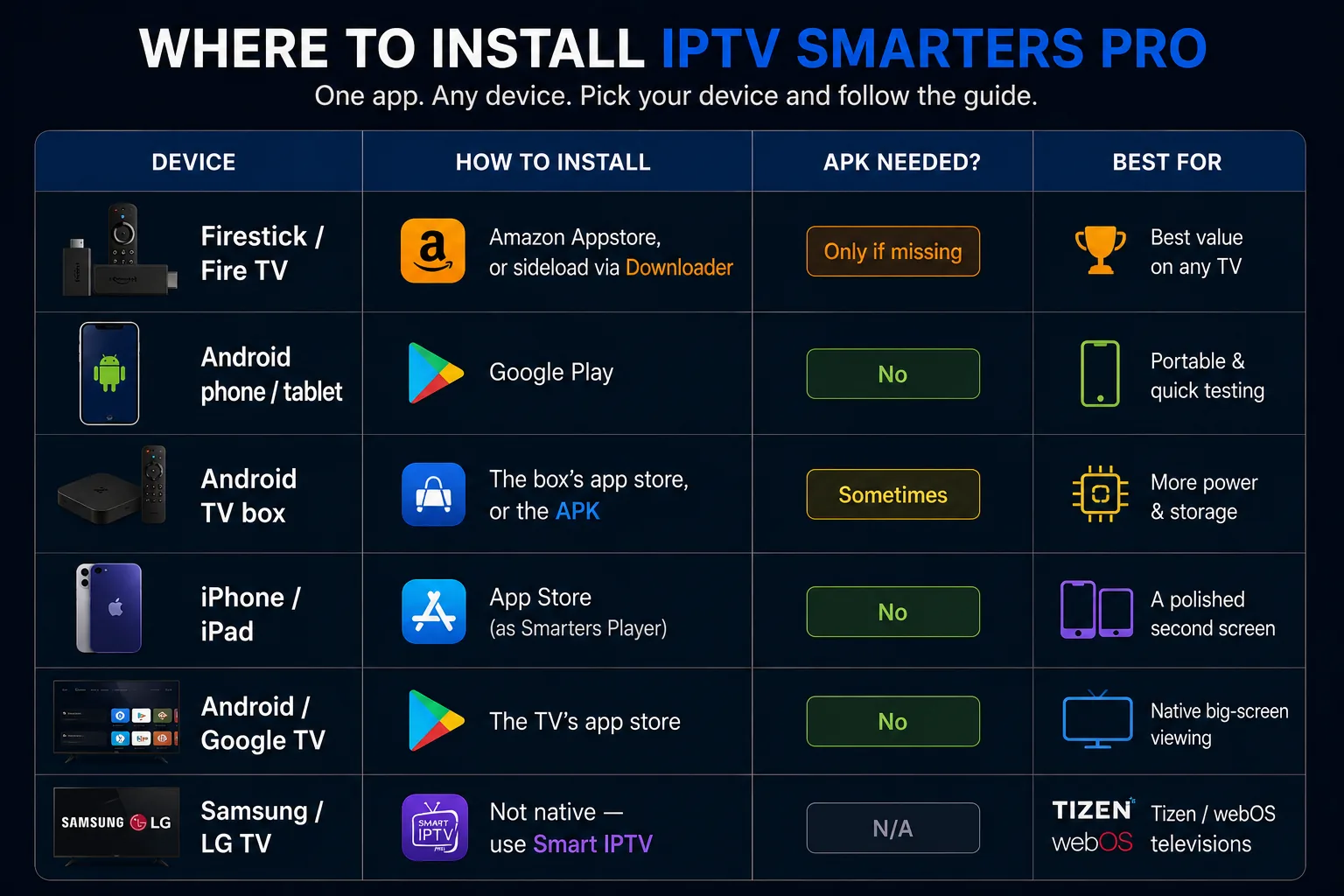
| Device | How to install | APK needed? | Best for |
|---|---|---|---|
| Firestick / Fire TV | Amazon Appstore, or sideload via Downloader | Only if missing | Best value on any TV |
| Android phone / tablet | Google Play | No | Portable & quick testing |
| Android TV box | The box's app store, or the APK | Sometimes | More power & storage |
| iPhone / iPad | App Store (as Smarters Player) | No | A polished second screen |
| Android / Google TV | The TV's app store | No | Native big-screen viewing |
| Samsung / LG TV | Not native — use Smart IPTV | N/A | Tizen / webOS televisions |
Read it as a quick decision aid. On a Firestick, the Amazon Appstore is the first port of call and the APK is only a fallback; on Android and iOS, the app store does everything; on an Android or Google TV, the set itself becomes the player. The one exception is a Samsung or LG television, which runs its own operating system rather than Android — there, the native route is Smart IPTV, or you add a streaming stick and run IPTV Smarters Pro on that. Whatever you own, there is a clean path to the same five-minute Xtream Codes setup.
Xtream Codes vs M3U in IPTV Smarters Pro
IPTV Smarters Pro offers two login methods — Xtream Codes and M3U — and Xtream Codes is the better choice because it pulls the full programme guide automatically. Both get you watching, but the practical difference is the EPG: Xtream Codes loads live TV, on-demand and a complete guide from three fields, while a plain M3U link loads your playlist quickly but doesn't always carry the full guide.
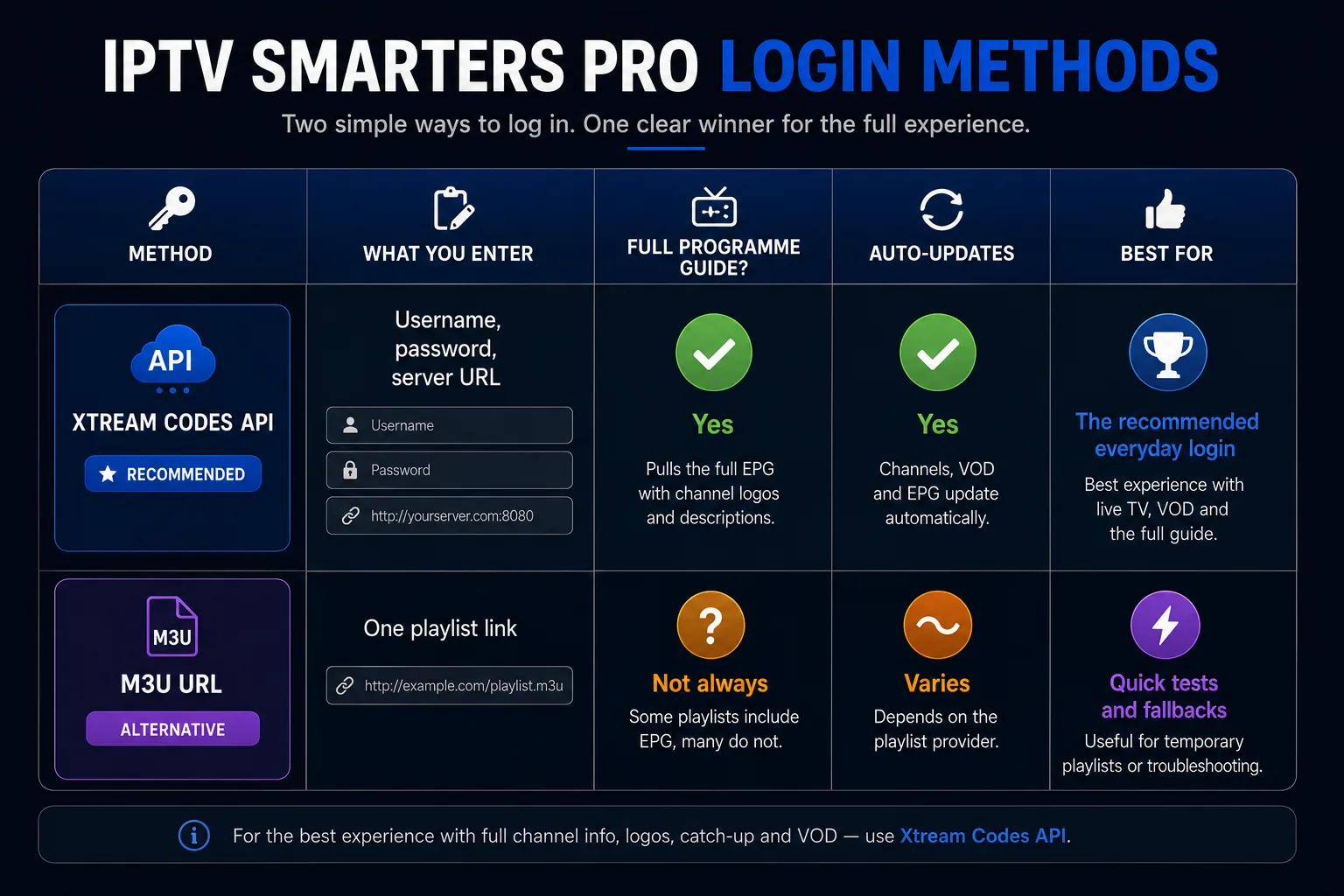
| Method | What you enter | Full programme guide? | Auto-updates | Best for |
|---|---|---|---|---|
| Xtream Codes API | Username, password, server URL | Yes | Yes | The recommended everyday login |
| M3U URL | One playlist link | Not always | Varies | Quick tests and fallbacks |
The recommendation is simple: use Xtream Codes wherever you can. Three short fields buy you a richer, self-updating experience. Keep the M3U option in reserve for a quick test on an unfamiliar device, or where a particular setup only offers a playlist link. Both come from the same IPTV UK welcome email, so you always have the choice.
IPTV Smarters Pro vs other IPTV players
IPTV Smarters Pro is the best all-round IPTV player because it runs on almost every device and signs in with simple Xtream Codes — but TiviMate, IBO Player and Smart IPTV each suit specific setups. None is "better" in the abstract; the right one depends on your device and what you want from the guide. The table puts them side by side.
| Player | Best platforms | Login method | Best for |
|---|---|---|---|
| IPTV Smarters Pro | Firestick, Android, iOS, Android TV | Xtream Codes / M3U | The everyday all-rounder |
| TiviMate | Android TV, Fire TV | Xtream Codes / M3U | Power users wanting the best guide |
| IBO Player | Smart TVs, Android | MAC + device key portal | A portal-based Smart TV app |
| Smart IPTV (SIPTV) | Samsung & LG TVs | MAC + M3U portal | Native on Tizen / webOS |
For most people, the honest answer is that IPTV Smarters Pro is the one to start with: it's free, familiar across devices, and quick to set up. Reach for TiviMate if you're on an Android TV box or Fire TV Stick and want its highly customisable guide and recording features; reach for Smart IPTV if you own a Samsung or LG and want a native app with no extra hardware. Whichever you choose, your IPTV UK login is identical, so you can switch any time — our player setup guides cover every option in detail.
IPTV Smarters Pro performance and requirements
IPTV Smarters Pro is light on resources: choosing the hardware decoder keeps 4K smooth on even a modest device, and a single 4K stream needs only around 25 Mbps of steady throughput. The two charts below put numbers to it — how much the decoder choice affects smoothness, and how little bandwidth high-quality video really asks of your broadband.
Smooth 4K playback by decoder & device
Estimated share of live sessions that play back without stutter. Illustrative, based on typical UK setups.
The lesson is clear: on any device that stutters, switch to the hardware decoder first. It's the single biggest smoothness lever IPTV Smarters Pro offers.
Bandwidth headroom by picture quality
Recommended steady throughput per single stream. Headline line speed can be far lower than you'd expect.
A typical British fibre line clears the 4K figure with room to spare. Stability beats raw speed — a steady connection keeps the picture locked through the Saturday fixtures.
The reassuring takeaway is that IPTV Smarters Pro asks very little of your kit. The app is small, the streams are efficiently compressed, and the right decoder setting does most of the heavy lifting. If your device comfortably plays a standard streaming service in HD, it already has the headroom for a polished IPTV Smarters Pro setup — the only variables worth attending to are the decoder choice and a steady connection.
IPTV Smarters Pro settings worth knowing
A few settings transform IPTV Smarters Pro from working to polished: the hardware decoder, favourites, the EPG, parental controls and the external player. None takes more than a moment, and together they make the app feel bespoke to your household rather than generic. The cards below cover the ones worth changing first.
Hardware decoder
In Settings → Player Selection, choose the hardware decoder (HW or HW+) to play 4K smoothly and keep the device cool. The first fix for any stutter.
Favourites
Star the handful of channels you actually watch into a favourites group, and skip the endless scroll. The single change that most improves daily use.
Programme guide (EPG)
With Xtream Codes the EPG loads automatically; if times look wrong, check the time-zone setting so the guide matches the UK schedule.
Parental controls
Set a PIN to lock adult categories during setup rather than later — a one-time job that keeps the kids' view tidy on a wet half-term.
External player
If a stubborn channel won't play, set an external player to handle that stream — a handy fallback that covers the rare format the built-in player struggles with.
Refresh the playlist
When new channels are added, a quick refresh in settings pulls the latest list — the first thing to try if a channel you expect isn't showing.
Pro tips for the best IPTV Smarters Pro experience
Beyond the basics, a few habits make IPTV Smarters Pro genuinely pleasant to live with: lean on search, set up multiple screens, use the catch-up archive, and restart before the big match. These are the touches that separate a working setup from a polished one, and none takes more than a moment.
Use search instead of scrolling
With thousands of channels and a vast on-demand library, the fastest way around IPTV Smarters Pro is the search box, not the scroll wheel. Type the first few letters of a channel, film or programme and the app jumps straight to it — far quicker than thumbing through categories on a Firestick remote when kick-off is minutes away.
Watch on more than one screen
Your IPTV UK login works across devices, so the same details set up the living-room Firestick, a bedroom Android box and a phone in your pocket. Whether you can watch several at once depends on your plan's simultaneous-connection allowance — worth checking before a busy Premier League weekend when every screen in the house wants the football.
Make the most of catch-up
Where your playlist supports it, IPTV Smarters Pro offers a catch-up archive on the programme guide, letting you rewind to something that aired earlier in the week. It's the quiet feature that turns a missed match or a forgotten episode into a non-event — just scroll back along the guide and press play.
Sort and tidy for the household
Hide the categories you never watch, star the ones you do, and the interface becomes your own short, familiar line-up rather than an endless list. On a shared family telly, a quick tidy-up at setup pays off every single evening afterwards.
Restart before the big night
On older or low-powered hardware, a quick restart of the device before a major fixture clears the memory and gives you the cleanest possible run — the digital equivalent of warming the telly up before kick-off. It's a small habit that heads off the one stutter you'd least want, at the worst possible moment.
Get your login and set up IPTV Smarters Pro
Everything on this page needs just one thing: your IPTV UK details. Start a free trial or pick a plan and we'll email your Xtream Codes login straight away — then IPTV Smarters Pro is a five-minute job on any device. Our team is on hand around the clock if you'd like a hand getting connected.
Troubleshooting IPTV Smarters Pro
Almost every IPTV Smarters Pro problem comes down to one of three things: a mistyped login, the wrong decoder, or an unstable connection. Work through them in that order and the vast majority of issues clear in a minute. The golden rule is to change one thing at a time so you know which fix did the job.
"Invalid credentials" or "login failed"
This is the most common snag and almost always a typing error. Re-check the server URL first — it must include http:// (or https://) and the port number — then the username and password. A stray space or a single wrong character is enough to fail a login, so copy and paste from your welcome email rather than typing. If the details are definitely correct and it still won't connect, our 24/7 support team can verify your account.
Buffering or stutter
First switch the app to the hardware decoder in Settings → Player Selection — this fixes most 4K stutter on its own. Then address the connection: use a wired link or 5GHz Wi-Fi, restart the device, and close background apps. On a Firestick, a quick restart clears most buffering. If only one channel struggles while the rest are flawless, that source is simply busy — try it again shortly. Our guide to fixing IPTV buffering runs through every fix in order.
No programme guide (EPG)
A missing guide usually means you logged in with an M3U URL rather than Xtream Codes. Log out, log back in with the Xtream Codes API method, and allow a minute for the EPG to populate. The guide that ships with your IPTV UK login is configured for UK times, so once it appears it should match the telly schedule you expect.
The app crashes or shows no channels
Clear the app's cache in your device settings and restart it, and make sure both the app and the device's software are fully updated. If no channels appear after a successful login, refresh the playlist in the app's settings. Persistent crashes on very old or under-powered hardware are usually a sign the device is at its limit — a clean restart before a big match is a sensible habit.
Is IPTV Smarters Pro free? The app vs the subscription
The IPTV Smarters Pro app is completely free to download — there is no "IPTV Smarters Pro subscription" for the app itself. What you pay for is the IPTV service that feeds it, such as IPTV UK. The app is the player; the subscription is the content. Understanding that split clears up the most common question people have about the cost of IPTV Smarters Pro.
When you install IPTV Smarters Pro from your device's store, you pay nothing for the app, and it will keep working for free indefinitely. It simply has nothing to play until you sign in with an active IPTV account. That account — your IPTV UK subscription or free trial — is what delivers your live channels, on-demand library and programme guide. So when someone searches for an "IPTV Smarters Pro subscription", what they actually need is an IPTV subscription to use with the free app.
This is also why no VPN and no hidden fees come into it. IPTV UK distributes only rights-cleared content in the regions it serves, delivered through the standard, free IPTV Smarters Pro app and your personal login. You download the app once for free, add your subscription, and that's the whole arrangement — the player and the content, kept cleanly separate, exactly as it should be. It is worth saying plainly, because so much online muddies it: you will never be asked to pay for the IPTV Smarters Pro app, and any site claiming to sell you the app itself is best avoided. The free app, plus a legitimate subscription such as IPTV UK, is the entire and only arrangement you need.
Keeping IPTV Smarters Pro secure and legitimate
A secure IPTV Smarters Pro setup comes down to three habits: install the app only from official sources, use the official APK if you sideload, and keep your login to yourself. Get those right and your setup is as safe as any mainstream app — a clean player, your own credentials, nothing dubious in the chain.
Install from official sources
Always install IPTV Smarters Pro from your device's official store — the Amazon Appstore, Google Play or the App Store. The genuine app is a clean, empty player that contains no channels until you sign in, which is exactly how a legitimate setup should look. Avoid any site offering a "loaded" version pre-filled with content; it's both unnecessary and a red flag.
The APK: only from the official source
If you sideload the IPTV Smarters Pro APK on a Firestick, take it only from the official IPTV Smarters source. A copy from an unknown website is the usual route to tampered or out-of-date software, and it's entirely avoidable. The official APK contains no channels and needs your subscription login to work — there is nothing pre-loaded, by design.
Look after your login
Your Xtream Codes details are personal to your account — treat them like a password and don't share them around. IPTV UK distributes only rights-cleared content in the regions it serves, delivered through the standard free app and your personal login, so there's no VPN to configure and nothing to disguise. If you ever think your details have been seen by someone else, our team can reset them quickly. For the wider view on a trustworthy service, our guide on whether IPTV is legal in the UK sets out the distinction in plain terms.
IPTV Smarters Pro across a British year
A well-set-up IPTV Smarters Pro should simply disappear, leaving you with steady telly through every fixture, film and Bank Holiday the calendar throws at it. The point of getting the setup right once is that you never think about it again — you just open the app and watch.
It earns its keep first on a Premier League weekend. Saturday lunchtime kick-off, mates round, the kettle on: you open IPTV Smarters Pro, your starred channels are already there, and the picture holds in crisp 4K while the rain lashes the window. There's no dish to lose signal and no scramble for a working stream at five to kick-off — just the match, exactly when you want it. That's the pub-banter test, and a properly set-up player passes it without anyone noticing it's there.
Then comes the long dark stretch of winter, when the evenings draw in by half four and a box-set becomes a survival strategy. The on-demand library in the Movies and Series tabs turns a grim Tuesday into an ad-free binge. By the time a Bank Holiday Monday rolls around — that gloriously empty day with nowhere to be — the same app carries you through films, catch-up and whatever the kids have decided is the programme of the moment, on whichever screen suits.
And because the same login works everywhere, the setup travels with the household: the big telly for the football, a tablet in the kitchen, a phone on the train, a Firestick thrown in the suitcase for a week away. That's the quiet reward of getting IPTV Smarters Pro right — do it once, properly, and it serves you season after season, whatever the British weather is doing outside. There is a real comfort in that reliability: no dish to be scrambled by a winter gale, no aerial to work loose, no engineer to wait in for. Just a free app, a single login, and the same steady picture whether it is a balmy Bank Holiday or a wet Wednesday in February. For most British homes, that quiet dependability is the whole point of getting IPTV Smarters Pro set up properly in the first place.
Who IPTV Smarters Pro is for
IPTV Smarters Pro suits almost anyone with an IPTV subscription and a Firestick, Android device, iPhone, iPad or Android TV — it's the default choice for the majority of UK households. If you own a Samsung or LG television and want a native app, Smart IPTV is the better fit; for everyone else, Smarters Pro is hard to beat.
It's the natural pick for the cord-cutter who wants one familiar app on a cheap Firestick, the family juggling the match in the lounge and cartoons in the bedroom across several devices, and the traveller who slips a stick into hand luggage and signs in wherever they land. Because the same login and the same interface follow you from screen to screen, there's nothing new to learn each time — which is precisely why it remains the most-searched IPTV player in the UK and Ireland, under every name from "iptv smarters" to "smarters pro" to "ip smarters".
The honest summary is that the best set up IPTV Smarters Pro can give you is the one that matches your hardware and takes five minutes to complete. Own a Firestick, an Android device or an Android TV? Smarters Pro is the cleanest route there is. Own a Samsung or LG? Reach for Smart IPTV instead. Either way, the content behind your IPTV UK login is identical — the player is simply the window you watch through. And because the app costs nothing and the setup takes minutes, there is little to lose in trying it: install IPTV Smarters Pro, sign in with a free trial, and see how the picture holds on your own telly before committing to anything. For the overwhelming majority of British viewers, that brief experiment ends the same way, with Smarters Pro becoming the app the whole household opens without a second thought.
A quick tour of the IPTV Smarters Pro interface
The IPTV Smarters Pro home screen is split into three clear sections — Live TV, Movies and Series — with the programme guide and settings a click away, so everything is exactly where you'd expect it. Once you've signed in, the layout is the same on every device, which is much of why the app feels so familiar from one screen to the next.
Live TV
The Live TV area is the heart of the app and where most British households spend their evenings. Channels are arranged into categories down one side — sport, entertainment, news, kids and so on — with the channel list in the middle and a small preview window so you can see what's on before you commit. Your favourites, if you've starred any, sit at the top for instant access; on a Premier League weekend, that means the football is two clicks away rather than a long scroll. The electronic programme guide runs alongside, showing what's on now and next on each channel.
Movies and Series
The Movies and Series tabs hold the on-demand library — films and box-sets you can start any time, with no waiting and no ad breaks. Each is sorted into categories and searchable, and most entries show a poster, a synopsis and the running time, so browsing feels closer to a polished streaming service than a plain channel list. For the long winter evenings and the Bank Holiday binge, this is where IPTV Smarters Pro really earns its keep: a full season queued up, episode rolling into episode.
The programme guide (EPG)
The programme guide is the grid that turns a wall of channels into a proper telly schedule. With the Xtream Codes login it populates automatically, showing the day's programmes channel by channel; where your playlist supports catch-up, you can scroll back along it to something that aired earlier and press play. A guide configured for UK times — as your IPTV UK playlist is — means the schedule matches the telly you know, right down to the teatime news.
Settings
Tucked into the settings are the handful of options that matter most: Player Selection, where you choose the hardware decoder for smooth 4K; the parental PIN for locking adult categories; the EPG and time-zone options; and the playlist refresh that pulls newly added channels. You'll visit settings once or twice when you first set up, and rarely again — which is exactly the point. A few minutes spent here at the start makes every evening afterwards effortless.
That, in a nutshell, is the whole interface: three tabs for what you watch, a guide to tell you when it's on, and a settings panel to tune it once. It's deliberately uncomplicated, and that simplicity is precisely why IPTV Smarters Pro suits everyone from the seasoned cord-cutter to the relative who just wants the football to come on when they press the button.
What you can watch on IPTV Smarters Pro
Once IPTV Smarters Pro is set up, a single app gives you every content category — live sport, live channels and news, films on demand, box-sets and series, kids' programming and international channels. Everything sits behind one login, sorted into Live TV, Movies and Series and tied together by the programme guide.
| Category | What's inside | Top quality |
|---|---|---|
| Live sport | Football, the Premier League weekend, boxing, rugby, racing and big PPV nights | Up to 4K |
| Live channels & news | Entertainment, documentaries, rolling news and music | HD–4K |
| Films (on demand) | New releases and a deep back-catalogue, watch any time | Up to 4K |
| Box-sets & series | Full seasons for an ad-free binge, episode after episode | HD–4K |
| Kids & family | Cartoons, family films and the programme of the moment | SD–HD |
| International | Channels from across Europe, Asia and beyond | SD–HD |
The headline is range, all behind one login. Because every category lives in the same app, IPTV Smarters Pro becomes the one the whole household reaches for — the match for one person, the box-set for another, the cartoons for the little ones on a wet morning. For a fuller breakdown of what's available, see our IPTV channels and content guide, which breaks down every category in detail. The breadth is the point: one free app, one login, and the whole household catered for, from the die-hard sports fan to the kids on a wet morning to whoever has claimed the sofa for a box-set marathon.
IPTV Smarters Pro glossary
A quick, plain-English glossary of the terms you'll meet when setting up IPTV Smarters Pro — so nothing on the screen is a mystery. Keep it to hand the first time; by the second device, you won't need it.
IPTV Smarters Pro. The free player app that turns an IPTV subscription into watchable telly. Also searched as IPTV Smarters, Smarters Pro, IPTV Smarters Player, ip smarters or simply smarters — all the same app.
Xtream Codes API. The recommended login method: a username, password and server URL that pull live TV, on-demand and the full programme guide automatically.
M3U URL. A single web link containing your whole playlist. Quick to load, but it doesn't always carry the full guide; best kept as a fallback.
APK. The Android installer file for the app. On devices without an app-store listing, such as some Firesticks, you sideload the IPTV Smarters Pro APK from the official source using the Downloader app.
EPG (Electronic Programme Guide). The on-screen schedule showing what's on now and next. It populates automatically with Xtream Codes.
Hardware decoder. The playback setting that hands video to your device's dedicated chip, keeping 4K smooth. The first fix for any stutter, found under Player Selection.
Welcome email. The message IPTV UK sends after you subscribe or start a trial, containing your Xtream Codes username, password and server URL. Every setup on this page starts here.
IPTV Smarters Pro FAQ
Why does IPTV Smarters Pro say "invalid credentials"?
Almost always a typo or a trailing space. Re-enter the username and password exactly as in your welcome email, and make sure the server URL includes http:// (or https://) and the port number. Copy and paste rather than type where possible.
Is IPTV Smarters Pro free?
The IPTV Smarters Pro app is free to download. You still need an active IPTV UK subscription or free trial to log in and stream — the app is only the player. There is no separate "IPTV Smarters Pro subscription"; you pay for an IPTV service such as IPTV UK.
How do I fix buffering in IPTV Smarters Pro?
Use a wired or 5GHz Wi-Fi connection, switch the app to the hardware decoder in Player Selection, and close background apps. On a Firestick, a quick restart clears most buffering.
How do I install IPTV Smarters Pro on a Firestick?
Search the Amazon Appstore for IPTV Smarters Pro and install it, then log in with Xtream Codes. If it isn't in the store, sideload the APK using the free Downloader app after enabling Apps from Unknown Sources. Our Firestick guide covers it in full.
What is the IPTV Smarters Pro APK and is it safe?
The IPTV Smarters Pro APK is the Android installer file, used to sideload the app on devices such as a Firestick that don't have Google Play. Only install it from the official IPTV Smarters source; it contains no channels and needs your subscription login to work.
How do I set up IPTV Smarters Pro on Android?
Install IPTV Smarters Pro from Google Play (or the APK), open it, choose Login with Xtream Codes API, and paste your username, password and server URL from your welcome email. The same method works on phones, tablets and Android TV boxes.
How do I use IPTV Smarters Pro on an iPhone or iPad?
Install the IPTV Smarters player from the App Store — it is sometimes listed as Smarters Player Lite — then choose Xtream Codes login and enter your details. The setup is identical to other platforms.
Can I use IPTV Smarters Pro on a Samsung or LG Smart TV?
On Android-based Smart TVs, install it from the app store and log in with Xtream Codes. Samsung (Tizen) and LG (webOS) TVs don't run Smarters Pro natively; on those, use Smart IPTV instead, or add a streaming stick.
Should I use Xtream Codes or M3U in IPTV Smarters Pro?
Use Xtream Codes wherever possible. It pulls your live TV, on-demand library and full programme guide from a username, password and server URL. An M3U URL is a single link that loads your playlist quickly but doesn't always carry the complete guide.
Why is there no programme guide (EPG)?
A missing guide usually means you logged in with an M3U URL rather than Xtream Codes. Log in again with the Xtream Codes API method and allow a minute for the EPG to populate. The IPTV UK guide is configured for UK times.
Do I need a VPN for IPTV Smarters Pro?
No. IPTV UK distributes only rights-cleared content in the regions it serves, so no VPN is required for normal use at home. The app, your login and a stable internet connection are all you need.
Related guides and trusted references
For the official background, the Wikipedia overview of the Android APK format explains the installer file in neutral terms, and the Amazon Fire TV overview covers the platform behind the Firestick. For our own step-by-step guides, every one written for British viewers and kept current for the latest devices and app versions, start with the related pages below and pick the route that matches the screen in your living room.