Smart IPTV: setup for Samsung & LG Smart TVs
Smart IPTV (SIPTV) is the most popular native player for Samsung and LG Smart TVs. Here's what it is, and how to load your IPTV UK playlist in under five minutes — no Firestick, no box, just the telly you already own, ready for the Premier League weekend and the Bank Holiday binge.
TL;DR
- Smart IPTV (SIPTV) is a player app for Samsung and LG Smart TVs — it runs natively on the telly, with no extra box or Firestick.
- You need two details: your TV's MAC address (shown in the app) and your IPTV UK M3U URL (from your welcome email).
- Setup takes under five minutes: install the app, upload your M3U against the MAC on the Smart IPTV website, then reload.
- It's the player, not the subscription — pair it with an IPTV UK plan or free trial to receive channels.
- A small one-time activation fee applies to the app after its trial; that's separate from your IPTV UK plan.
- For
- Samsung / LG TV
- You need
- M3U URL + MAC
- Time
- < 5 min
- Extra box?
- No
What is Smart IPTV?
Smart IPTV (often shortened to SIPTV) is a third-party player app for Samsung and LG Smart TVs that plays an IPTV playlist you load by your television's MAC address. It does not provide any channels itself — it is the player, not the subscription. Pair it with a premium service such as IPTV UK and the television becomes a complete streaming setup, with live channels, an on-demand library and a full programme guide, and nothing extra plugged into the HDMI port.
The distinction between the player and the subscription is the single most important thing to understand about Smart IPTV, and the one that trips most people up. Your subscription is the account that grants access to the content; the player is the software that displays it. Smart IPTV is purely the latter — a beautifully simple app whose only job is to take a playlist and turn it into watchable telly on a Samsung or LG screen. Supply it with your IPTV UK playlist and it does the rest; without a playlist, it shows nothing at all.
What makes Smart IPTV so popular in British living rooms is what it removes. There is no streaming stick to buy and hide behind the set, no Android box to power and update, no extra remote to lose down the back of the sofa. The app lives on the television itself, so the telly you already own becomes the whole setup. Switch on, open the app, and you are watching — exactly the experience most households want from a modern Smart TV in the first place.
It earns its place through that native simplicity. Because Smart IPTV is built specifically for Samsung's Tizen and LG's webOS operating systems, it feels like part of the television rather than a bolt-on. It boots quickly, the remote that came with the TV controls it, and the picture is handled by the set's own video hardware — which on a modern 4K Samsung or LG is excellent. For a household that has invested in a good telly, Smart IPTV is the route that lets that investment do the work.
How Smart IPTV works: MAC address and M3U
Smart IPTV works by linking your TV's unique MAC address to your IPTV playlist on the Smart IPTV website, so the app knows which line-up to load each time you open it. You provide two pieces of information — the MAC address your television shows, and the M3U URL from your IPTV UK welcome email — and the activation page ties them together. From then on, the app simply fetches your playlist whenever it starts.
It helps to picture the three parts at work. First, the MAC address is a unique identifier for your television's network hardware, written as six pairs of characters. Every networked device has one, and Smart IPTV uses yours as the key that identifies your specific telly. Second, the M3U URL is a single web link that contains your entire channel and on-demand playlist; it is the part that actually carries your IPTV UK content. Third, the upload page on the Smart IPTV website is where you marry the two: you enter your MAC, paste your M3U, and save.
Why the MAC matters
Because the playlist is registered against a MAC address, your Smart IPTV setup is tied to that individual television. That has two practical consequences. It means each set in the house is activated separately — a Samsung in the lounge and an LG in the bedroom each have their own MAC and their own one-time activation. And it means that if you ever replace the television, the new set has a new MAC, so you simply re-register your M3U against it. The playlist itself never changes; only the device key does.
Why the M3U is all you paste
Unlike some players that ask for a username, password and server separately, Smart IPTV takes a single M3U link that bundles everything together. That makes the upload quick — one field, one paste — though it is also why accuracy matters: an M3U link is long, and a character dropped while typing will stop it loading. The reliable habit is to copy and paste your M3U URL straight from the welcome email rather than typing it by hand.
Smart IPTV setup, step by step
To set up Smart IPTV, install the app on your Samsung or LG TV, note its MAC address, upload your M3U URL against that MAC on the Smart IPTV website, and reload the app. The four steps below are the universal method; the next two sections cover the small differences between Samsung and LG. Whichever you own, the whole job takes about five minutes and needs nothing but the television and your welcome email.
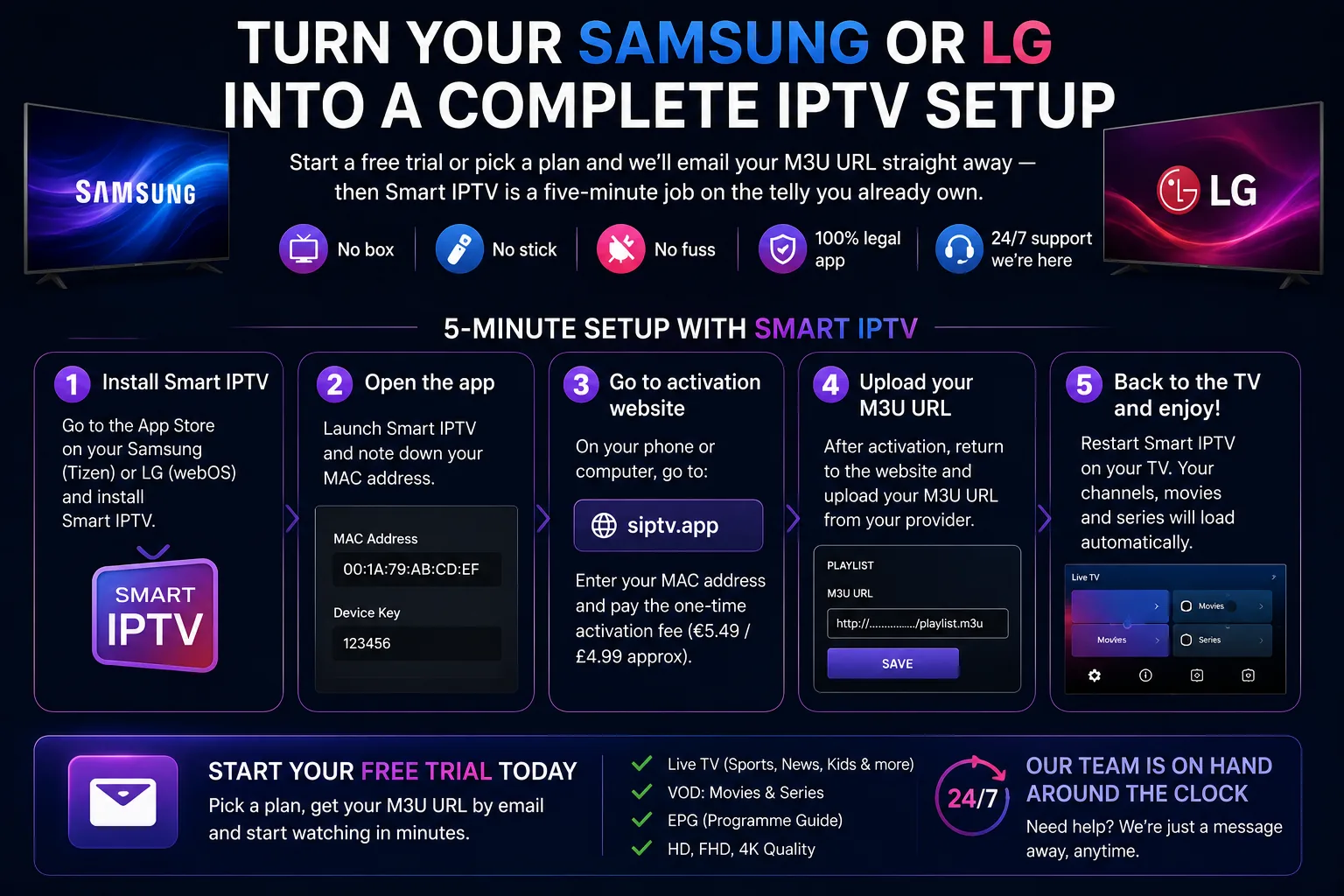
Install Smart IPTV on the TV
Open your television's app store — Samsung Apps on a Samsung, the LG Content Store on an LG — search for Smart IPTV, and install it. Launch it once; it will display your TV's MAC address on the main screen. Write that down exactly.
Open the Smart IPTV upload page
On a phone or computer, go to the official Smart IPTV upload page. Enter your television's MAC address in the MAC field so the site knows which TV to link your playlist to.
Add your M3U URL and save
Paste your IPTV UK M3U URL from your welcome email into the playlist field, give it a name if asked, and Save. A small one-off activation may apply to the app at this point; your IPTV UK subscription is separate.
Reload the app and watch
Back on the television, close and reopen Smart IPTV. Your channels, on-demand library and programme guide load automatically. Open the live list, pick a channel and press play — the telly is now a complete IPTV setup.
If anything stalls, it is almost always one of two things: a MAC address that doesn't match, or an M3U link with a stray character. Re-check both against the welcome email and the app screen, save again, and reload. For a clean, native Smart TV IPTV setup, that really is the whole of it — a couple of fields entered once, and the television does the rest for the life of the subscription.
Smart IPTV on Samsung (Tizen)
To set up Smart IPTV on a Samsung TV, open the Smart Hub or Samsung Apps store, install Smart IPTV, note the MAC address it shows, then add your M3U URL against that MAC on the Smart IPTV upload page and reload. Samsung's Tizen operating system is one of the two platforms Smart IPTV is built for, so the app is a native, first-class citizen on a modern Samsung set — no workarounds required.
On a Samsung television, you'll find Smart IPTV through the Smart Hub — the home screen that appears when you press the home button on the remote. Open the apps area, search for "Smart IPTV", and install it just as you would any other app. The first time you launch it, the app's main screen displays your MAC address; this is the number you'll register your playlist against. Samsung sets show the MAC clearly on that first screen, so there's no digging through menus required.
Finding the MAC on a Samsung TV
The Smart IPTV app shows your MAC address on its welcome screen, which is the easiest place to read it. If you ever need to confirm it independently, a Samsung TV also lists its MAC address under Settings → Support → About This TV (or General → Network → Network Status on some models), shown as the wired or wireless MAC. The value the app displays is the one to use for activation.
Samsung-specific tips
For the steadiest picture on a Samsung, a wired Ethernet connection to the TV is well worth it for live sport, and most Samsung sets handle 4K Smart IPTV streams beautifully over ordinary British broadband. If the app ever disappears after a software update — occasionally Samsung's store reshuffles apps — simply reinstall it; your activation is tied to the MAC, not the app install, so your playlist returns the moment you reload. A Samsung Smart IPTV setup, once done, is genuinely set-and-forget.
Smart IPTV on LG (webOS)
To set up Smart IPTV on an LG TV, open the LG Content Store, install Smart IPTV, note the MAC address it displays, then enter that MAC and your M3U URL on the Smart IPTV upload page and restart the app. LG's webOS is the second platform Smart IPTV is made for, so on a modern LG television the app installs and runs natively, exactly as it does on Samsung.
On an LG set, the app store is the LG Content Store, reached from the webOS home bar along the bottom of the screen. Search for "Smart IPTV", install it, and open it once to reveal your MAC address on the app's main screen. From there the process is identical to Samsung: register that MAC with your M3U URL on the Smart IPTV website, save, and reload the app on the telly.
Finding the MAC on an LG TV
As with Samsung, the Smart IPTV app shows your LG TV's MAC address on its first screen, which is the simplest place to read it. To confirm it from the TV itself, look under Settings → Network → Wired or Wi-Fi Connection → Advanced, where webOS lists the MAC address. Use the value shown by the app for activation, and you won't go wrong.
LG-specific tips
LG's webOS is smooth and quick, and Smart IPTV takes full advantage of it, with snappy menus and fast channel changes on recent models. As on any television, a wired connection gives the most reliable live sport, and 4K streams play cleanly on LG's excellent panels. If a webOS update ever moves or hides the app, reinstalling it restores everything instantly, because your playlist lives against the MAC address rather than the app itself. For LG owners, Smart IPTV is the natural, native way to turn the television into a full IPTV setup.
Smart TV IPTV setup: the alternatives compared
Smart IPTV is the best native Smart TV IPTV setup for Samsung and LG owners, but it isn't the only option — a streaming stick with a free player, or another portal-based Smart TV app, will also do the job. The right choice depends on the television you own and whether you'd rather avoid a one-time fee. The table below lays out where each approach fits.
Not to be confused with SmartOne IPTV: that’s a different app from a different developer, with its own website and activation. It also runs on Samsung and LG TVs, as well as Hisense, Android TV and Fire TV, and accepts Xtream Codes logins as well as M3U links.
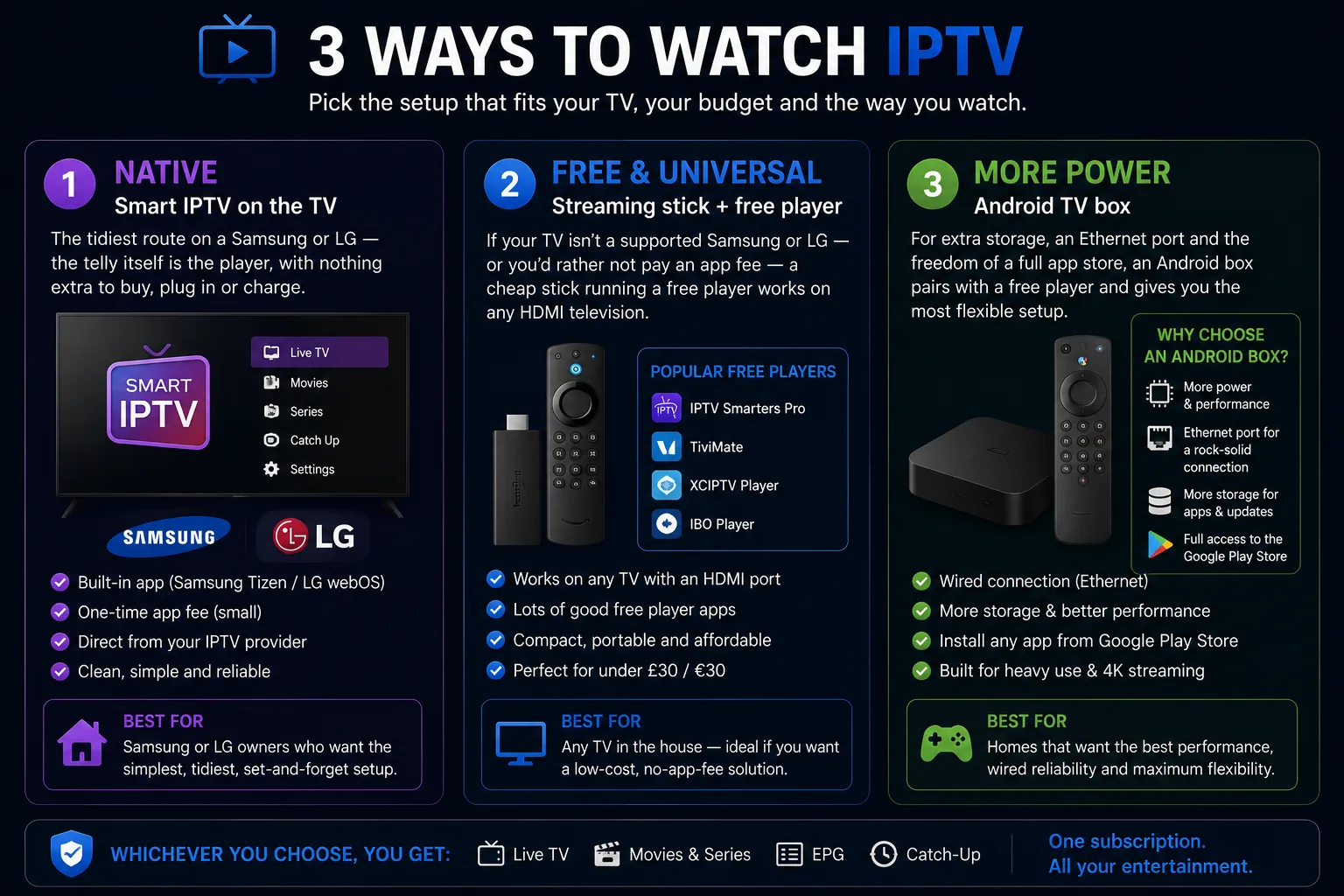
| Setup | Runs on | How you connect | One-off fee | Full EPG | Best for |
|---|---|---|---|---|---|
| Smart IPTV (SIPTV) | Samsung & LG TVs (native) | MAC + M3U upload | Small, one-time | Yes | No extra box on a Samsung/LG |
| Streaming stick + free player | Any HDMI TV | Xtream Codes / M3U in-app | None | Yes | Free, works on any television |
| Other portal-based TV app | Samsung, LG, Android | MAC + key portal | Small, one-time | Yes | An alternative native app |
| Android TV / box player | Android TVs & boxes | Xtream Codes / M3U in-app | None | Yes | More power and storage |
Smart IPTV on the TV
The tidiest route on a Samsung or LG — the telly itself is the player, with nothing extra to buy, plug in or charge. A small one-time app fee, then set-and-forget.
Streaming stick + free player
If your TV isn't a supported Samsung or LG — or you'd rather not pay an app fee — a cheap stick running a free player works on any HDMI television.
Android TV box
For extra storage, an Ethernet port and the freedom of a full app store, an Android box pairs with a free player and gives you the most flexible setup.
For the household that owns a recent Samsung or LG, the recommendation is simple: Smart IPTV is the cleanest possible setup, and the small one-time fee buys you a native app that just works. If your television isn't a supported model, or you'd prefer a free route, a streaming stick is the obvious alternative — our IPTV player setup guides cover every app in detail, and our IPTV Firestick guide walks through the streaming-stick route end to end.
Smart IPTV performance and requirements
Smart IPTV is light on your connection: a single 4K stream needs only around 25 Mbps of steady throughput, and on a modern Samsung or LG TV playback is as reliable as any native app. The two charts below put numbers to it — how dependable each Smart TV setup is in everyday use, and how little bandwidth high-quality video really asks of your broadband.
Stutter-free playback by setup
Estimated share of live sessions that play back without buffering on each setup. Illustrative, based on typical UK homes.
On a current Samsung or LG, Smart IPTV is as steady as it gets. The gap that matters is below — the cost of leaning on ageing or under-powered hardware.
Bandwidth headroom by picture quality
Recommended steady throughput per single stream. Headline line speed can be far lower than you'd expect.
A typical British fibre line clears the 4K figure with room to spare. Stability beats raw speed — a steady connection to the TV is what keeps the picture locked.
The reassuring takeaway is that Smart IPTV asks very little of your setup. The app is light, your Samsung or LG handles the decoding with hardware built for 4K, and the streams are efficiently compressed. If your telly comfortably plays a standard streaming service in HD, it already has the headroom for a polished Smart IPTV setup — the only variable worth attending to is keeping the connection to the TV steady, ideally over Ethernet, which we return to in the troubleshooting section below.
Smart IPTV activation, fees and how the licence works
Smart IPTV offers a short free trial on the television, after which it charges a small one-time activation fee per device — a few pounds, paid once, for the app itself. That fee is entirely separate from your IPTV UK subscription: one is the player licence, the other is the content. Understanding the split prevents the most common confusion about Smart IPTV's cost.
When you first install Smart IPTV, it runs free for a trial period so you can confirm everything works on your TV. After the trial, the app asks for a one-off activation to keep using it on that television — a modest sum, roughly the price of a coffee, paid a single time rather than as a recurring charge. Because the activation is tied to the TV's MAC address, you pay it once per set: a Samsung in the lounge and an LG in the bedroom would each be activated separately.
What the fee does and doesn't cover
The activation fee covers the app — the player software running on your television — and nothing else. It does not provide any channels, and it is not paid to IPTV UK. Your channels, on-demand library and programme guide all come from your IPTV UK subscription or free trial, which is the part that actually delivers the content. In other words, Smart IPTV's fee is a one-time licence for the window, while IPTV UK is the view through it.
Prefer to avoid the app fee?
If you'd rather not pay even a small one-time charge, a streaming stick running a free player is the alternative: it works on any television and costs nothing beyond the stick itself. For many Samsung and LG owners, though, the convenience of a native app with no extra hardware is well worth a one-off few pounds — particularly when the result is set-and-forget for years. Either way, our team is on the 24/7 live support chat if you'd like a steer on which route suits your telly.
Getting the best picture and sound from Smart IPTV
A few minutes in your television's settings — choosing the right picture mode, wiring the connection and sorting the audio — unlocks the best picture and sound Smart IPTV can deliver. Samsung and LG sets ship on safe defaults, so a little deliberate tuning is well rewarded, and none of it is technical: it's a handful of toggles, done once, that make every fixture and film look its best.
Pick the right picture mode
On a Smart IPTV Samsung setup, choose the Movie or Filmmaker picture mode for the most natural, accurate image, and switch off any aggressive motion smoothing that can make football look oddly synthetic. On a Smart IPTV LG setup, the equivalent is the Cinema or Filmmaker mode, with TruMotion eased back for live sport. Both platforms also let you enable HDR on compatible content, which widens the range between the darkest and brightest parts of the picture — the single biggest visible upgrade on quality streams.
Use a wired connection where you can
For live television, a wired Ethernet link to the TV is the most reliable choice, because it removes the interference and congestion that affect Wi-Fi. If a cable won't reach, use the 5GHz band and keep the router within clear line of sight. Stability matters more than raw speed: a steady connection to the telly is what keeps the picture locked through a busy Saturday afternoon, whatever the British weather is doing to everyone else's aerial.
Sort the audio output
Set the television's audio to match your setup — the TV's own speakers, or passthrough to a soundbar or AV receiver. Getting this right prevents the most irritating fault of all, audio drifting a fraction out of sync with the picture, which is far more noticeable on a live broadcast than any softness in the image.
Keep the app and TV updated
Finally, keep both the Smart IPTV app and your television's firmware current. Samsung and LG push regular updates that improve stability and security, and an up-to-date pairing is the least likely to stutter. A telly that updates itself is one you never have to think about again — exactly the relationship you want with your Smart IPTV setup.
Smart IPTV on more than one TV at home
You can run Smart IPTV on several televisions at once — a Samsung in the lounge, an LG in the bedroom — by activating each set separately with its own MAC address. Because Smart IPTV ties your playlist to a television's unique MAC, each set is registered individually, but they all draw from the same IPTV UK playlist, so your line-up is identical on every screen.
The practicalities are straightforward. On each television, you install the Smart IPTV app, note that set's own MAC address, and upload your M3U URL against it on the Smart IPTV website — exactly the same routine, repeated per telly. A Smart IPTV Samsung in the living room and a Smart IPTV LG in the bedroom each get their own one-time activation, since the small app fee is charged per MAC. Your IPTV UK subscription, by contrast, is a single account that feeds them all.
Whether the household can watch several screens at the same moment depends on your plan's simultaneous-connection allowance rather than on Smart IPTV itself. A multi-stream plan lets the match play in the lounge while the kids' cartoons run in the bedroom and a film streams in the kitchen, all at once. If a second screen ever reports that a stream is in use, that's the allowance talking — and it's worth checking yours before a big Premier League weekend when every telly in the house wants the football.
For a large British family, that multi-room flexibility is much of the appeal: one playlist, the same channels everywhere, each television set up once and left alone. It turns every Samsung and LG in the house into part of the same coherent setup, controlled by the remotes everyone already knows.
Why choose IPTV UK for your Smart TV
IPTV UK pairs perfectly with Smart IPTV because it supplies a clean M3U playlist, genuine 4K streams, a UK-configured programme guide and round-the-clock support — everything the app needs to turn your Samsung or LG into a complete setup. Smart IPTV is only as good as the playlist behind it, and that is where a premium service earns its keep.
We have been serving the UK and Ireland for over nine years, which shows in the details that matter for a Smart TV setup: a stable network that holds steady during the Premier League weekend, a programme guide configured for British times so the schedule is right, and genuine Ultra HD streams that make full use of the panel in a modern Samsung or LG. There is no VPN to configure and nothing to disguise, because IPTV UK distributes only rights-cleared content in the regions it serves.
Just as importantly, there is someone to ask when you need a hand. Our 24/7 live support chat can resend your welcome email, check your M3U URL, or talk you through the MAC upload if a playlist won't load — whatever the hour, including five minutes before kick-off. And because we'd rather you were sure before you commit, a free trial lets you test Smart IPTV on your own television first, so you can see the picture hold on your actual broadband before paying a penny. For the wider buyer's view, our best IPTV UK guide sets out the criteria worth judging any provider against.
Troubleshooting Smart IPTV
Almost every Smart IPTV problem comes down to one of three things: a mismatched MAC address, a mistyped M3U URL, or an unstable connection to the television. Work through them in that order and the vast majority of issues clear in a minute or two. The golden rule is to change one thing at a time so you know which fix did the job.
My playlist won't load
This is the most common snag, and it's nearly always the MAC or the M3U. Confirm the MAC address you entered on the upload page exactly matches the one the app shows on the TV — a single wrong character will stop it. Then re-paste your M3U URL straight from your welcome email rather than typing it, save, and reload the app. If both are definitely correct and it still won't load, our 24/7 support team can verify your account in moments.
The app isn't in my TV's store
On a few older or regional models, Smart IPTV may not appear in the Samsung or LG store. If so, the simplest route is a streaming stick running a free player on the same television, or another supported Smart TV player. Our player setup guides cover the alternatives, so you're never stuck without a way to watch.
There's no programme guide (EPG)
Smart IPTV loads the programme guide automatically from your playlist. If it's missing, allow a minute for it to populate after reloading, and check the EPG option is enabled in the app's settings. The guide that ships with your IPTV UK playlist is configured for UK times, so once it appears it should match the telly schedule you expect.
The stream buffers or freezes
Buffering is a connection issue, not a setup one. A wired Ethernet link to the television is the most reliable fix; if you must use Wi-Fi, move the router closer or use the 5GHz band. Restart the TV and the router, and confirm your speed. If a single channel struggles while everything else is flawless, that source is simply busy — try it again shortly. Our guide to fixing IPTV buffering runs through every fix in order.
Turn your Samsung or LG into a complete IPTV setup
Start a free trial or pick a plan and we'll email your M3U URL straight away — then Smart IPTV is a five-minute job on the telly you already own. No box, no stick, no fuss, and our team is on hand around the clock if you'd like a hand getting connected.
Smart IPTV across a British year
A well-set-up Smart IPTV should simply disappear into the television, leaving you with steady telly through every fixture, film and Bank Holiday the calendar throws at it. The point of getting the setup right once is that you never think about it again — you just pick up the Samsung or LG remote you already know and watch.
It earns its keep first on a Premier League weekend. Saturday lunchtime kick-off, mates round, the kettle on: you press the home button, open Smart IPTV, and the picture holds in crisp 4K on your own telly while the rain lashes the window. There's no dish to lose signal and no stick to fish out — the app is right there on the Samsung or LG home screen, and the only argument is about the formation, not the feed. That's the pub-banter test, and a native Smart IPTV setup passes it without anyone noticing it's there.
Then comes the long dark stretch of winter, when the evenings draw in by half four and a box-set becomes a survival strategy. The on-demand library turns a grim Tuesday into an ad-free binge, all on the big screen in the corner of the room. By the time a Bank Holiday Monday rolls around — that gloriously empty day with nowhere to be — the same telly carries you through films, catch-up and whatever the kids have decided is the programme of the moment, with no extra device to wrangle.
And because the setup lives on the television, it suits the way British homes actually watch: the main event on the big Samsung or LG in the living room, the family gathered on the sofa, the remote everyone already knows. There's a quiet pleasure in that simplicity — no clutter behind the set, no second remote, just the telly doing the whole job, season after season, whatever the weather is doing outside.
That is the quiet reward of a native Smart IPTV setup: you sort it once, on the day you upload your playlist, and after that the technology gets out of the way entirely. There is no box to update, no stick to charge, no second remote to find — only the Samsung or LG you already own, turning into whatever you fancy at the press of a familiar button. It is, in the end, the same promise the telly has always made — that whatever the fixture and whatever the forecast, the screen in the corner will be ready when you are — delivered now by a free app and a single M3U link rather than a dish on the gable end.Is Smart IPTV right for your television?
Smart IPTV is the ideal choice if you own a reasonably recent Samsung or LG Smart TV and want the tidiest possible setup with no extra hardware; if you don't, a streaming stick is the better route. Knowing which camp you fall into takes about thirty seconds, and it saves both money and faff.
Start with the television. Smart IPTV is built specifically for Samsung's Tizen and LG's webOS platforms, so the first question is simply whether you own one of those. If you do — and most British living rooms with a flat-screen bought in the last several years do — then Smart IPTV turns that telly into a complete IPTV setup with nothing else to buy or plug in. The app sits on the home screen, the remote you already use controls it, and the picture is handled by the set's own 4K hardware. For that household, Smart IPTV is hard to beat.
It suits a few people especially well. The viewer who hates clutter loves that there's no box behind the set and no second remote to lose. The household with several Samsung and LG televisions can run the same playlist on every one, each activated against its own MAC. And the person who simply wants the telly to be the player — switch on, open the app, watch — gets exactly that, with a Smart IPTV Samsung or Smart IPTV LG setup that feels like part of the television rather than a bolt-on.
There are, equally, people for whom a streaming stick makes more sense. If your television isn't a supported Samsung or LG — an older set, a different brand, or a model without the app in its store — a cheap stick running a free player is the obvious answer, and it works on any HDMI screen. If you'd rather avoid even a small one-time app fee, the stick route is free beyond the cost of the stick itself. And if you want a player with built-in recording and a highly customisable guide, an Android-based stick running a player like TiviMate offers features Smart IPTV doesn't. None of those is a criticism of Smart IPTV; they're simply different needs.
The honest summary is that the best Smart TV IPTV setup is the one that matches your hardware. Own a recent Samsung or LG and value simplicity? Smart IPTV is the cleanest route there is. Own something else, or want recording and zero fees? Reach for a streaming stick instead. Either way, the content behind your IPTV UK login is identical — the only question is which window you watch it through, and our player setup guides cover every option in detail.
What you can watch on Smart IPTV
Once Smart IPTV is set up, a single app on your Samsung or LG gives you every content category — live sport, live channels and news, films on demand, box-sets and series, kids' programming and international channels. Everything lives behind one playlist, tied together by the programme guide, so the telly becomes the one place the whole household reaches for.
| Category | What's inside | Top quality |
|---|---|---|
| Live sport | Football, the Premier League weekend, boxing, rugby, racing and big PPV nights | Up to 4K |
| Live channels & news | Entertainment, documentaries, rolling news and music | HD–4K |
| Films (on demand) | New releases and a deep back-catalogue, watch any time | Up to 4K |
| Box-sets & series | Full seasons for an ad-free binge, episode after episode | HD–4K |
| Kids & family | Cartoons, family films and the programme of the moment | SD–HD |
| International | Channels from across Europe, Asia and beyond | SD–HD |
The headline is range, all delivered to the native app on your telly. Because every category sits behind the same playlist, Smart IPTV stops being a single-purpose app and becomes the one the whole household uses — the match for one person, the box-set for another, the cartoons for the little ones on a wet morning. For a fuller breakdown of what's available, see our IPTV channels and content guide, which breaks down every category available on your Samsung or LG television.
Keeping your Smart IPTV setup secure and legitimate
A secure Smart IPTV setup comes down to three habits: install the app only from your TV's official store, use the official Smart IPTV upload page, and keep your M3U URL to yourself. Get those right and your setup is as safe as any mainstream app on the television — a clean player, your own playlist, nothing dubious in the chain.
Install from the official TV store
Always install Smart IPTV from the Samsung Apps store or the LG Content Store on the television itself. The genuine app is a clean player that contains no channels until you upload your playlist — which is exactly how a legitimate setup should look. Avoid any site offering a "loaded" version or a sideloaded copy; on a Smart TV there is no need, and the official app is the trusted route.
Avoid "pre-loaded" playlists and clones
Treat anything advertised as "fully loaded" or sold with channels already attached as a red flag. A legitimate service gives you a clean app and your own M3U URL to upload; it never ships content baked in. IPTV UK distributes only rights-cleared content in the regions it serves, delivered through the standard Smart IPTV app and your personal playlist, so there is never anything pre-loaded. Our guide on whether IPTV is legal in the UK sets out the distinction in plain terms.
Look after your M3U URL
Your M3U URL is personal to your account — treat it like a password and don't share it around. If you ever think it has been seen by someone else, our team can reset it quickly. Keeping your welcome email somewhere safe, and not forwarding it on, is all the account hygiene most households will ever need. Treated sensibly, a Smart IPTV setup is no more exposed than any other app on a modern Samsung or LG television, and considerably tidier than most.
Smart IPTV glossary
A quick, plain-English glossary of the terms you'll meet when setting up Smart IPTV — so nothing on the screen is a mystery. Keep it to hand the first time; by the second television, you won't need it.
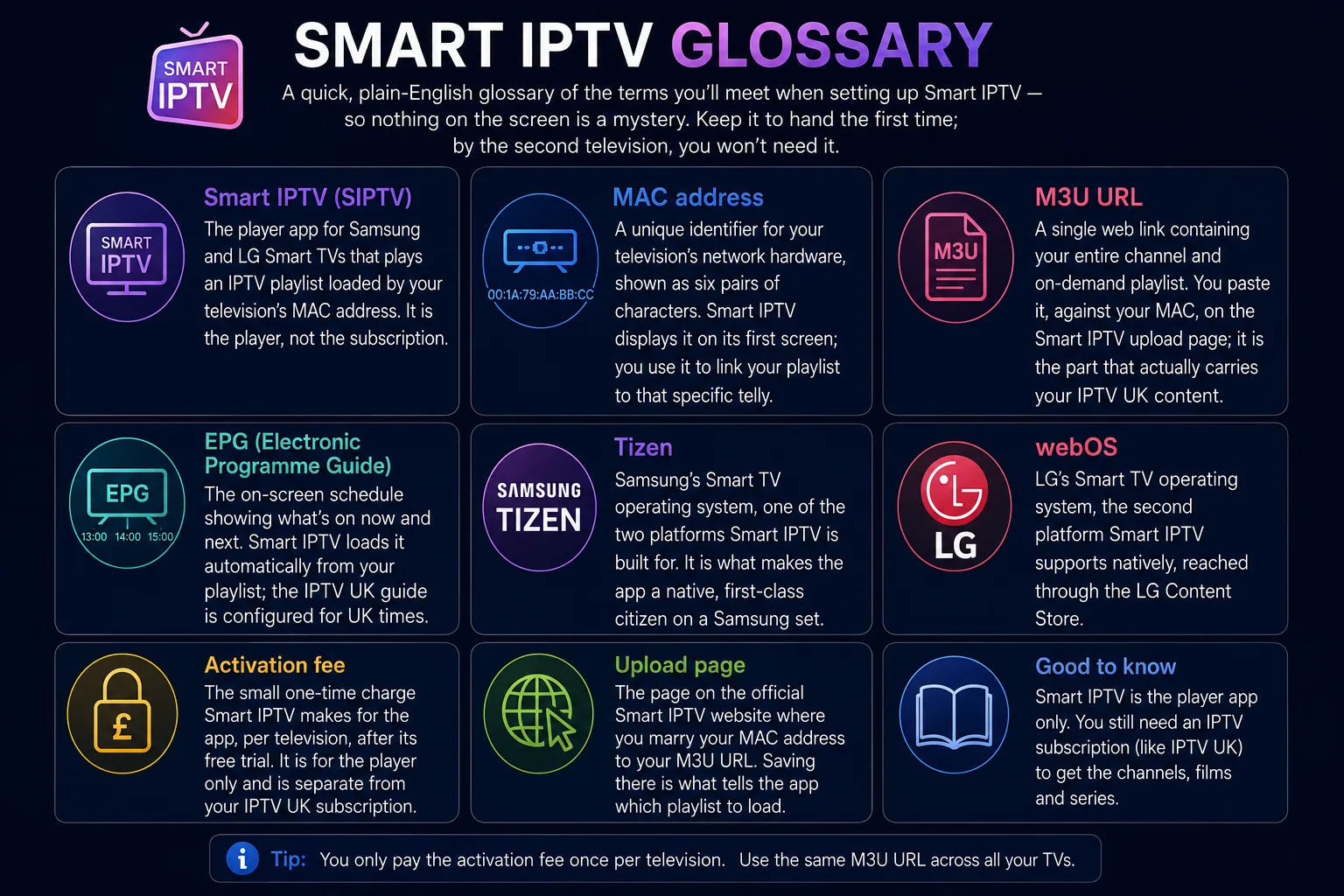
Smart IPTV (SIPTV). The player app for Samsung and LG Smart TVs that plays an IPTV playlist loaded by your television's MAC address. It is the player, not the subscription.
MAC address. A unique identifier for your television's network hardware, shown as six pairs of characters. Smart IPTV displays it on its first screen; you use it to link your playlist to that specific telly.
M3U URL. A single web link containing your entire channel and on-demand playlist. You paste it, against your MAC, on the Smart IPTV upload page; it is the part that actually carries your IPTV UK content.
EPG (Electronic Programme Guide). The on-screen schedule showing what's on now and next. Smart IPTV loads it automatically from your playlist; the IPTV UK guide is configured for UK times.
Tizen. Samsung's Smart TV operating system, one of the two platforms Smart IPTV is built for. It is what makes the app a native, first-class citizen on a Samsung set.
webOS. LG's Smart TV operating system, the second platform Smart IPTV supports natively, reached through the LG Content Store.
Activation fee. The small one-time charge Smart IPTV makes for the app, per television, after its free trial. It is for the player only and is separate from your IPTV UK subscription.
Upload page. The page on the official Smart IPTV website where you marry your MAC address to your M3U URL. Saving there is what tells the app which playlist to load.
Smart IPTV FAQ
What is Smart IPTV?
Smart IPTV (SIPTV) is a player app for Samsung and LG Smart TVs. It plays a playlist you load by your TV's MAC address — it's the player, not the subscription, so you still need a service such as IPTV UK.
How do I set up Smart IPTV?
Install the Smart IPTV app from your Samsung or LG TV's store and note the MAC address it shows. On a computer, open the official Smart IPTV upload page, enter that MAC address and your IPTV UK M3U URL, and save. Restart the app on the TV and your channels load — usually in under five minutes.
How do I set up Smart IPTV on a Samsung TV?
On a Samsung (Tizen) TV, open the Smart Hub or Samsung Apps store, search for Smart IPTV and install it. Launch it once to see your MAC address, then add your M3U URL against that MAC on the Smart IPTV upload page and reload the app.
How do I set up Smart IPTV on an LG TV?
On an LG (webOS) TV, open the LG Content Store, search for Smart IPTV and install it. Launch it to display your MAC address, enter that MAC and your M3U URL on the Smart IPTV upload page, save, and restart the app to load your channels.
Is Smart IPTV free?
Smart IPTV offers a short free trial on the TV, after which it charges a small one-time activation fee per device. That fee is for the app and is separate from your IPTV UK subscription.
What is a MAC address and where do I find it?
A MAC address is a unique identifier for your television's network hardware, shown as six pairs of characters. The Smart IPTV app displays it on its main screen when you first open it; you use it to link your playlist to that specific television.
Which TVs support Smart IPTV?
Smart IPTV runs on Samsung (Tizen) and LG (webOS) Smart TVs that have it in their app store. On other devices, such as a streaming stick or Android box, use IPTV Smarters Pro or a similar player instead.
Do I need a separate box or Firestick for Smart IPTV?
No. Smart IPTV runs natively on the Samsung or LG television itself, so no Firestick, Android box or other hardware is required. If your TV isn't a supported model, a streaming stick with IPTV Smarters Pro is the simplest alternative.
Why won't my Smart IPTV playlist load?
A playlist that won't load is almost always a mismatched MAC address or a mistyped M3U URL. Confirm the MAC on the upload page matches the one in the app exactly, re-paste the M3U URL from your welcome email, save, and reload. If it still fails, our 24/7 support team can check your account.
How do I get the programme guide (EPG) on Smart IPTV?
Smart IPTV loads the programme guide automatically from your playlist. If it’s missing, allow a minute for it to populate after reloading, and check the EPG option is enabled in the app’s settings. The guide that ships with your IPTV UK playlist is configured for UK times.
How much internet speed do I need for Smart IPTV?
Around 25 Mbps of steady throughput is comfortable for a single 4K stream, 10 Mbps for Full HD and 5–6 Mbps for HD. A stable connection matters more than a high headline figure, and a wired Ethernet link to the TV is the most reliable option for live sport.
Related guides and trusted references
For the official background, the official Smart IPTV website hosts the upload page and app details, while the Tizen and webOS overviews explain the Samsung and LG operating systems Smart IPTV runs on. For our own step-by-step guides, every one written for British viewers and kept current for the latest Samsung and LG televisions, start with the related pages below and pick the route that matches the telly in your living room.