IPTV Firestick: how to install IPTV on an Amazon Fire TV Stick
The Amazon Firestick is the simplest, most popular way to watch IPTV on any television — pocket-sized, plug-in-anywhere, and ready in minutes. This is the definitive guide to setting up IPTV on Firestick: the best apps, the right model, the fixes for buffering, and how to try it free before you pay a penny.
Answer
To install IPTV on a Firestick, add a player app — IPTV Smarters Pro or IBO Player from the Amazon Appstore, or TiviMate via the Downloader app — sign in with the login from your welcome email, and press play. Most Fire TV Sticks are streaming within five minutes, with no aerial, no dish and no VPN required.
- Setup is three steps: install a player app, sign in, and press play — usually inside five minutes.
- The best IPTV apps for Firestick are TiviMate, IPTV Smarters Pro and IBO Player — all run smoothly on the Fire TV Stick.
- The Fire TV Stick 4K Max is the best model for IPTV; the 4K and Lite work well too.
- No VPN needed. A rights-cleared service streams directly, so there is nothing to disguise on your Firestick.
- Try before you buy. A free trial lets you test stream quality on your own Firestick first, backed by 24/7 live support chat.
Why the Firestick is the perfect device for IPTV
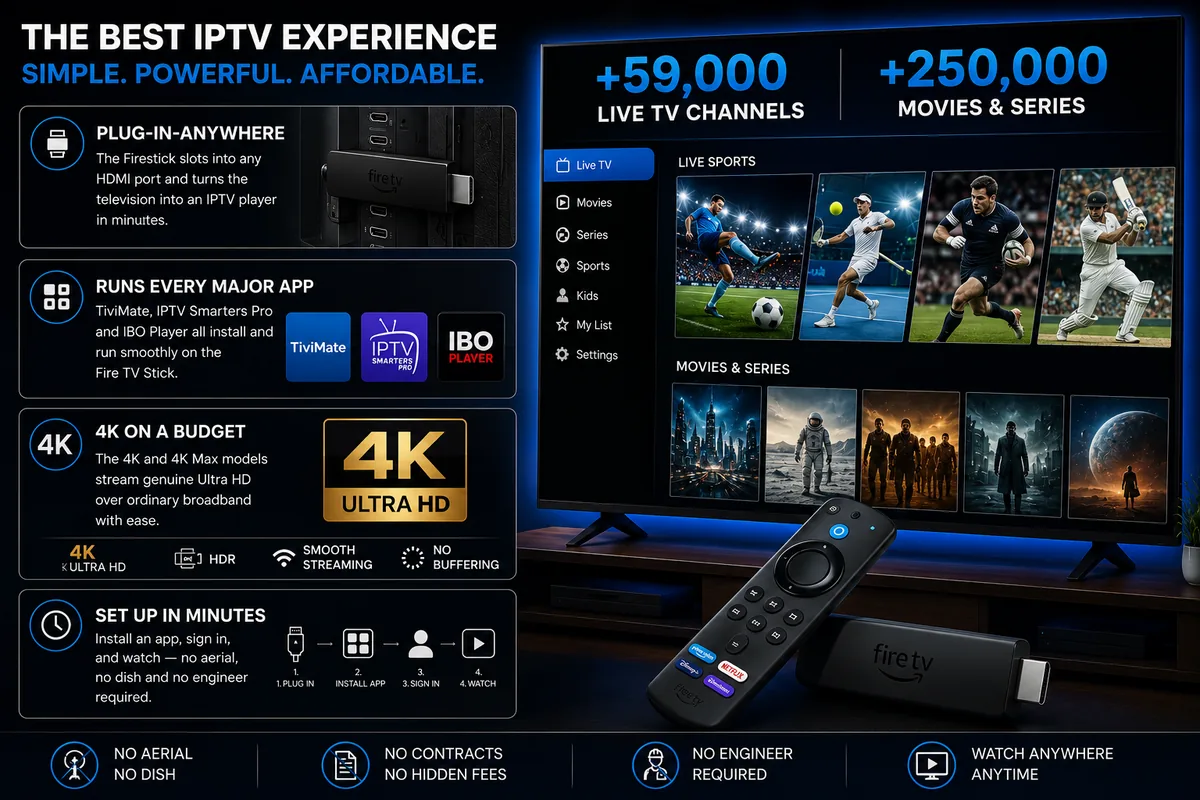
The Amazon Fire TV Stick is the most popular device for IPTV because it is inexpensive, pocket-sized, plugs into any television’s HDMI port, and runs every major IPTV player app. For the price of a few takeaways it turns any screen — the main telly, a bedroom set, a holiday let, a relative’s spare room — into a fully fledged IPTV player, which is why “iptv firestick” is one of the most searched setups in the UK and Ireland.
Its appeal is a combination of price, portability and openness. Because the Firestick runs a version of Android, it happily installs the dedicated IPTV apps — TiviMate, IPTV Smarters Pro and IBO Player among them — that turn a login into a complete television experience, with live channels, an on-demand library and a full programme guide. And because it is no larger than a memory stick, it travels: a single Fire TV Stick carries your entire IPTV setup in hand luggage, ready to plug into whatever television you meet.
Plug-in-anywhere
The Firestick slots into any HDMI port and turns the television into an IPTV player in minutes.
Runs every major app
TiviMate, IPTV Smarters Pro and IBO Player all install and run smoothly on the Fire TV Stick.
4K on a budget
The 4K and 4K Max models stream genuine Ultra HD over ordinary broadband with ease. Not seeing full 4K? Our HDMI checker finds the bottleneck.
Set up in minutes
Install an app, sign in, and watch — no aerial, no dish and no engineer required.
How to install IPTV on a Firestick: step-by-step
- Install a player app, sign in with your welcome-email login, and press play.
- Smarters Pro and IBO Player come from the Amazon Appstore; TiviMate is sideloaded via Downloader.
- The whole process takes about five minutes — no technical knowledge required.
To install IPTV on a Firestick, install a player app, open it, enter the Xtream Codes login or M3U link from your welcome email, let the channels load, and press play. The sequence below works on every Fire TV Stick — the Lite, the 4K and the 4K Max — and is the exact method our 24/7 support team walks customers through every day.
Allow apps from unknown sources
Only needed if you are sideloading. On the Firestick, open Settings → My Fire TV → Developer Options and switch on Apps from Unknown Sources. If you are installing from the Amazon Appstore, you can skip this step.
Install your player app
Search the Amazon Appstore for IPTV Smarters Pro or IBO Player and install. For TiviMate, install the Downloader app first and use it to sideload TiviMate, then sign in with a free TiviMate account.
Enter your login
Open the player and choose to add a playlist. Enter the Xtream Codes username, password and server URL, or paste the single M3U link, exactly as they appear in your welcome email.
Let the guide load
The app builds your channel list and electronic programme guide automatically. On first launch this takes a few moments; afterwards it is instant.
Press play
Open Live TV or the on-demand library and start watching. If anything needs a steer, our 24/7 live support chat is one tap away in the contact page.
That is the entire process. There is no aerial to align, no dish to mount and no four-hour installation window — just an app, a sign-in and a picture. If you would rather follow platform-specific instructions, our device setup guides cover the Firestick in detail, and the player setup guides walk through configuring each app.
The best IPTV player apps for Firestick
- TiviMate offers the most polished interface and recording; IPTV Smarters Pro is the simplest all-in-one; IBO Player is the quickest to set up.
- All three run smoothly on the Fire TV Stick and work with an Xtream Codes login or M3U link.
- The right app depends on whether you value features or simplicity.
The best IPTV apps for Firestick are TiviMate, IPTV Smarters Pro and IBO Player — TiviMate for power users who want a polished guide and recording, IPTV Smarters Pro for an all-in-one experience, and IBO Player for the fastest possible setup. Each is a mature, well-supported player that runs comfortably on the Fire TV Stick; the table below compares them at a glance.
| App | Best for | Interface | Setup |
|---|---|---|---|
| TiviMate | Power users & recording | Polished, highly customisable | Sideload via Downloader |
| IPTV Smarters Pro | All-in-one simplicity | Clean, live + VOD in one | Amazon Appstore |
| IBO Player | Fastest setup | Straightforward, lightweight | Amazon Appstore |
There is no single “correct” choice; the best app for your Firestick is the one whose balance of features and simplicity suits you. Many households start with IPTV Smarters Pro or IBO Player because they install straight from the Appstore in a tap, then graduate to TiviMate once they want its recording and refined programme guide. Whichever you choose, the sign-in is identical — the Xtream Codes details or M3U link from your welcome email — so you can switch apps any time without changing your subscription.
Setting up the top IPTV apps on Firestick
Each of the three leading Firestick apps — IPTV Smarters Pro, TiviMate and IBO Player — is set up the same way in principle: install, add your playlist, and sign in. The minor differences are worth knowing, so here is the specific path for each.
Setting up IPTV Smarters Pro on Firestick
Install IPTV Smarters Pro from the Amazon Appstore, open it, and choose to log in with your Xtream Codes details — a username, password and server URL from your welcome email — or load a playlist file by pasting your M3U link. The app pulls your live channels, the on-demand library and the programme guide together into one clean interface, and remembers your sign-in so it is ready the next time. It is the most popular starting point precisely because it does everything in one place with no fuss.
Setting up TiviMate on Firestick
On a Firestick, TiviMate is installed with the free Downloader app, using the code published on TiviMate’s website, after enabling apps from unknown sources as described above. It’s the pick for viewers who want a set-top-box style programme guide. Our TiviMate setup guide covers installing it, adding your playlist and fixing guide problems.
Setting up IBO Player on Firestick
IBO Player is the quickest of the three to get going. Install it from the Appstore, open it, and note the device key and MAC address it displays. You add your playlist to IBO Player’s activation page using those details, and the channels appear on your Firestick moments later. Its lightweight, no-frills approach suits anyone who wants the shortest possible path from box to broadcast. If the activation step is unfamiliar, our 24/7 live support chat will talk you through it in a couple of minutes.
Ready to watch IPTV on your Firestick?
Now you know how it works, the rest is easy — start a free trial on your own Fire TV Stick, pick a plan, or chat to our team. Serving the UK & Ireland for 9+ years.
Which Firestick do you need for IPTV?
- The Fire TV Stick 4K Max is the best for IPTV — fastest chip, most memory, Wi-Fi 6.
- The Fire TV Stick 4K is an excellent, slightly cheaper option for 4K streaming.
- The Lite handles HD comfortably for secondary screens.
The best Firestick for IPTV is the Fire TV Stick 4K Max, thanks to its faster processor, extra memory and Wi-Fi 6 support, which keep demanding 4K streams smooth even on a busy network. That said, every current Fire TV Stick runs IPTV well; the right model depends on the resolution you want and how heavily you will use it. The comparison below sets out the practical differences.
| Model | Best for | Max quality | Verdict |
|---|---|---|---|
| Fire TV Stick 4K Max | Heavy use, 4K, busy networks | 4K UHD, Wi-Fi 6 | Best choice |
| Fire TV Stick 4K | 4K on the main telly | 4K UHD | Excellent value |
| Fire TV Stick (HD) | Bedrooms, balanced use | Full HD | Solid all-rounder |
| Fire TV Stick Lite | Secondary screens | Full HD | Budget pick |
For most households the sensible buy is the 4K Max for the main living-room television, where the football and the films deserve genuine Ultra HD, with a cheaper Lite or HD stick for the bedrooms. Whichever you own already will almost certainly work — there is rarely any need to buy new hardware to start watching IPTV on a Firestick.
What you need to watch IPTV on Firestick
- You need a Firestick, a broadband connection and an IPTV subscription — nothing else.
- 4K needs roughly 25 Mbps per stream; HD around 8 Mbps; most UK and Irish fibre clears this easily.
- A wired Ethernet adapter or the 5GHz band gives the steadiest result.
To watch IPTV on a Firestick you need just three things: the Fire TV Stick itself, a broadband connection from any internet provider, and an IPTV subscription. There is no special hardware, no decoder to import and no dish to mount. The one figure worth knowing is bandwidth, and the chart below shows what each quality tier needs per stream — comfortably within reach of the fibre packages offered by the major broadband providers across the UK and Ireland.
Bandwidth required per stream (approximate)
Sustained download speed needed for smooth playback on a Firestick at each quality tier.
Per simultaneous stream. Any modern broadband provider’s standard fibre package has ample headroom for a single 4K stream and usually several at once.
Your choice of internet provider does not matter for IPTV — any broadband connection of sufficient speed will do, whether you are with one of the large national providers or a smaller regional one. What matters far more than the brand on the bill is the stability of the connection from your router to the Firestick, which the next section addresses. Not sure what you’re getting? Run a quick speed test on the same Wi-Fi your Firestick uses.
Fixing buffering and lag on a Firestick
- Most Firestick buffering is a connection or device-load issue, not the service.
- Restart the Firestick and router, then use wired Ethernet or 5GHz Wi-Fi.
- Enable the player’s hardware decoder and clear the app cache periodically.
IPTV buffering on a Firestick is almost always caused by the connection or device load rather than the service, and it usually clears in minutes: restart the device and router, switch to a wired or 5GHz connection, enable the hardware decoder, and clear the app cache. The Firestick is a capable little device, but it is small, so a few habits keep it running smoothly.
Work through the fixes in order. First, power-cycle: restart the Firestick (Settings → My Fire TV → Restart) and unplug the router for thirty seconds, which clears the most common causes at a stroke. Second, improve the connection: a wired Ethernet adapter for the Firestick is the single most effective upgrade, and where that is impractical, the 5GHz band of a modern router is markedly steadier than 2.4GHz. Third, inside your player’s settings, switch the decoder to hardware (HW or HW+) so the Firestick’s dedicated chip handles the video. Fourth, clear the app’s cache occasionally and close background apps to free up memory. For a guided, step-by-step diagnosis, our how to fix IPTV buffering tool walks you through every check, and our 24/7 live support chat can pinpoint the cause in minutes.
Pro tips for the best Firestick IPTV experience
The best Firestick IPTV experience comes from a few small optimisations: a wired connection, the hardware decoder enabled, a tidy app cache and a quality tier matched to your broadband. None requires technical confidence, and together they transform the picture on even an older Fire TV Stick.
Go wired
An inexpensive Ethernet adapter removes Wi-Fi variability and is the biggest single upgrade for a fixed Firestick.
Enable hardware decoding
Switch your player to the HW or HW+ decoder so the Firestick’s chip handles the video, not the software.
Clear the cache
A periodic cache clear keeps a small device responsive and prevents the slow creep of clutter.
Match the quality
On a slower line, set the stream to Full HD rather than forcing 4K through a connection that cannot sustain it.
“A Firestick, a wired adapter and the hardware decoder switched on — that is the recipe for flawless IPTV in any British or Irish living room, whatever the weather is doing outside.”
— The setup our support team recommends mostIs IPTV on Firestick legal?
Using IPTV on a Firestick is legal when the service distributes rights-cleared content. The Fire TV Stick is simply a streaming device — an Amazon product used by millions for every kind of legitimate streaming — so legality has nothing to do with the hardware and everything to do with the provider. A rights-respecting IPTV service charges a transparent subscription, distributes only rights-cleared content, and never requires a VPN to conceal anything. The warning signs of a service to avoid are the opposite: thousands of premium channels for a couple of pounds, no statement about where the content comes from, and an insistence that you install a VPN on your Firestick. For a fuller treatment, see our guide on whether IPTV is legal in the UK.
Why choose IPTV UK for your Firestick
- Serving the UK & Ireland for 9+ years, with rights-cleared content and 24/7 live support chat.
- Works on every Firestick model and every major app, in up to 4K.
- Try before you buy — verify it on your own Fire TV Stick first.
IPTV UK has been serving the UK and Ireland for 9+ years, streaming rights-cleared 4K IPTV on every Firestick model, with a 24/7 live support chat and a genuine try-before-you-buy trial. Choosing a provider for your Fire TV Stick comes down to trust and reliability, and longevity is the clearest signal of both — a service that has kept households watching for nearly a decade has earned the confidence a fly-by-night operator never can.
The everyday markers back it up. The content is rights-cleared, so there is no VPN to run and no grey-area risk. The service runs natively across every Fire TV Stick and every major app, so whatever you own and whichever player you prefer, it simply works. And when a question arises — a setup query, an account matter, a wobble on the line — our 24/7 live support chat answers quickly, from a team that knows the Firestick inside out. Most importantly, you never have to take any of this on trust: a free trial lets you verify the stream quality on your own Fire TV Stick, on your own broadband, before you commit a penny.
Best IPTV for Firestick: what to look for
- The best IPTV for Firestick is judged on reliability, rights-cleared content and fast support — not price alone.
- Look for native Firestick app support, multi-stream plans and a genuine free trial.
- Longevity is a trust signal: a provider serving the UK & Ireland for 9+ years has proven it.
The best IPTV for Firestick is a reliable, rights-cleared service that runs natively in every major Fire TV Stick app, offers a genuine free trial, and backs it with fast support. The Firestick will run almost any IPTV service you point it at, so the device is rarely the limiting factor — the provider is. Choosing well is what separates a flawless Fire TV Stick experience from a frustrating one.
Weight reliability above everything. An IPTV Firestick setup is only as good as the stream behind it, and a service that buffers during a free trial will buffer once you have paid. After stability, look for the practical markers of a serious provider: rights-cleared content so no VPN is needed, native compatibility with TiviMate, IPTV Smarters Pro and IBO Player, multi-stream plans so several Firesticks around the house can watch at once, and round-the-clock help — a 24/7 live support chat that answers quickly. Longevity matters too; a provider that has been serving the UK and Ireland for 9+ years has demonstrated the reliability a new operator can only promise. To score any candidate against a complete framework, read our best IPTV UK buyer’s guide, then prove your pick on your own Fire TV Stick with a free trial.
IPTV Firestick vs other streaming devices
- The Firestick is the most portable and affordable way to run IPTV on any television.
- An Android box offers more power and storage; a Smart TV needs no extra hardware at all.
- For most households, an IPTV Firestick is the easiest and most flexible starting point.
An IPTV Firestick is the most popular choice because it is the cheapest, most portable device that runs every major app — though an Android TV box offers more power and a Smart TV needs no extra hardware at all. Each route reaches the same destination; the differences are in price, portability and power. The table below compares them.
| Factor | Fire TV Stick | Android TV box | Smart TV app |
|---|---|---|---|
| Cost | Low | Low–medium | None extra |
| Portability | Pocket-sized | Compact | Fixed to the TV |
| Power & storage | Good | Most | Varies |
| App choice | Every major app | Every major app | Varies by brand |
| Best for | Most households & travel | Power users | No-extra-kit setups |
For the majority of viewers, the IPTV Firestick wins on sheer convenience: it is cheap enough to buy one for every room, small enough to travel, and powerful enough for 4K. An Android box suits those who want maximum performance and local storage for recordings, while a Smart TV app is ideal if your television already runs the player you want and you would rather not add a device. None is wrong — but the Fire TV Stick’s blend of price, portability and openness is why it remains the default answer.
Common Firestick IPTV problems and quick fixes
- Most Firestick IPTV problems have a one-minute fix — a restart, a re-login or a cache clear.
- If channels won’t load, re-check your login details and your internet connection.
- Our 24/7 live support chat resolves the stubborn cases quickly.
Most Firestick IPTV problems — an app that won’t install, channels that won’t load, a missing programme guide or audio that drifts out of sync — have a quick, predictable fix. The Fire TV Stick is reliable, but it is a small device, and a handful of common issues account for nearly every support query. Here is how to clear them.
The app won’t install. If you are sideloading, confirm that Apps from Unknown Sources is enabled and that you have enough free storage; clearing the cache of the Appstore or Downloader usually resolves a stalled install. No channels appear after signing in. Re-check the Xtream Codes username, password and server URL, or the M3U link, for a stray character — a single typo is the most common culprit — and confirm the Firestick has a working internet connection.
The programme guide is missing or wrong. Give the EPG a few minutes to populate on first launch, and check that the correct guide source is selected in your player’s settings. Audio is out of sync or the picture freezes. Switch the decoder between hardware and software in the app settings, restart the Firestick, and ensure your connection is stable. If any issue persists, our buffering tool diagnoses it step by step, and our 24/7 live support chat will take it from there.
Keeping your Firestick IPTV setup up to date
Keeping an IPTV Firestick setup running smoothly is largely automatic, but a few minutes of occasional maintenance — updating your apps, clearing the cache and confirming your login — keeps it flawless. A Fire TV Stick rewards a little housekeeping, and none of it requires technical confidence.
The apps themselves update automatically through the Amazon Appstore, so IPTV Smarters Pro and IBO Player generally stay current without your intervention; a sideloaded TiviMate occasionally prompts you to update, which is a simple confirm. Beyond that, a periodic cache clear — through the Firestick’s application settings — keeps the device responsive, and a quick restart now and then clears the cobwebs. If you ever renew or change your subscription, your existing apps simply continue to work, since the login is unchanged; and if you do need to re-enter your details, they are the same Xtream Codes credentials or M3U link from your welcome email. Should anything ever look amiss, a single message to our 24/7 live support chat is the fastest route back to a perfect picture. The overall effort involved in maintaining an IPTV Fire Stick is minimal — install it once, and it largely looks after itself.
IPTV on a Firestick for travel and second homes
- A Firestick is the perfect travel companion — pocket-sized and plug-in-anywhere.
- It turns any hotel, holiday-let or second-home television into your own IPTV setup in minutes.
- Your sign-in travels with you, so there is nothing to reconfigure on the move.
An IPTV Firestick is the ideal companion for travel and second homes, because it slips into hand luggage, plugs into any television’s HDMI port, and carries your entire IPTV setup with it. For anyone who splits time between properties or travels often, this portability is one of the Fire TV Stick’s most underrated strengths — and a major reason it is so popular with expats and second-home owners across the UK and Ireland and beyond.
The practicality is hard to overstate. A hotel room, a holiday let, a relative’s spare room, a villa overseas — each has a television with an HDMI port, and each becomes your own IPTV setup the moment a Firestick is plugged in and your login entered. Because the apps remember your sign-in, there is nothing to reconfigure as you move from place to place; you simply connect to the local Wi-Fi and watch. For the full picture on watching from overseas, our British IPTV guide covers streaming abroad in depth. Whether you are after the weekend football in a foreign time zone or the familiar soaps in a holiday villa, a pocket-sized IPTV Fire Stick keeps home on tap wherever you are.
IPTV Firestick: the plain-English recap
In plain English: to install IPTV on a Firestick, you add a player app, sign in with the login from your welcome email, and press play — and within five minutes any television becomes a complete IPTV setup, in up to 4K Ultra HD, with no aerial, no dish and no VPN. Strip away the detail and the whole proposition is genuinely simple, which is exactly why the Fire TV Stick has become the default way the UK and Ireland watch IPTV.
Everything in this guide reduces to that one idea. Choose a player — IPTV Smarters Pro or IBO Player from the Appstore, or TiviMate via Downloader. Enter your details once. Optimise lightly with a wired adapter and the hardware decoder for a flawless picture. Pick the 4K Max if you want the very best, though any Fire Stick will do the job. And lean on the things that make a provider trustworthy: rights-cleared content, 24/7 live support chat, and a track record — ours stretches to serving the UK and Ireland for 9+ years. The single best next step is simply to see it for yourself: start a free trial, plug in your Firestick, and watch.
How to install IPTV on Firestick using the Downloader app
- Sideloading lets you install IPTV on Firestick apps that aren’t in the Amazon Appstore, such as TiviMate.
- You enable unknown sources, install the free Downloader app, and use it to add the player.
- It sounds technical but takes only a couple of extra minutes.
To install IPTV on Firestick using an app that isn’t in the Amazon Appstore, you “sideload” it with the free Downloader app — enable Apps from Unknown Sources, install Downloader, and use it to fetch and install your chosen player. This is the route for TiviMate and a handful of other players, and while the word “sideload” sounds daunting, the Amazon Fire TV platform makes it straightforward. (For the curious, the Amazon Fire TV platform is a well-documented, Android-based system, which is precisely why it accepts these apps.)
The sequence is short. First, on your Firestick, open Settings → My Fire TV → Developer Options and switch on Apps from Unknown Sources — this simply tells the device it may install apps from beyond the Appstore. Second, search the Appstore for the free Downloader app and install it. Third, open Downloader and enter the address for your chosen player to fetch its installer, then confirm the installation when prompted. Fourth, open the newly installed app and add your playlist with your Xtream Codes login or M3U link. That is the whole of how to install IPTV on Firestick by sideloading — a couple of minutes more than an Appstore install, and worth it for a player like TiviMate. If any step is unfamiliar, our 24/7 live support chat will guide you through it live, and our player setup guides cover each app in detail.
Video guide — it plays right here on the page. Follow along as you switch on Apps from Unknown Sources and sideload your player; press play to start.
Firestick IPTV and your broadband: getting it right
- A stable connection matters more for Firestick IPTV than a fast but erratic one.
- Any broadband provider’s fibre package has ample headroom; the last stretch to the Firestick is what counts.
- A wired Ethernet adapter is the single biggest upgrade for a fixed Fire TV Stick.
The key to flawless Firestick IPTV is a stable connection from your router to the Fire TV Stick — not simply a fast headline broadband speed. Your choice of internet provider barely matters; what matters is consistency on the last stretch to the device, and that is firmly within your control. Most homes across the UK and Ireland already have more than enough bandwidth, as the steady rollout of full-fibre tracked by the regulator Ofcom continues to confirm.
Consistency beats raw speed because adaptive bitrate responds to the dips in your connection, not the peaks. A steady thirty megabits will deliver a smoother Firestick picture than a connection that spikes to a hundred and then sags. The most effective single improvement for a fixed Fire TV Stick is a wired Ethernet adapter, which removes Wi-Fi variability entirely; where wiring is impractical, the 5GHz band of a modern router is markedly steadier than the older 2.4GHz band, especially if the Firestick sits close to the router. Pausing large downloads and other 4K streams during a marquee fixture frees up the headroom the match needs. Get the connection right and the Fire TV Stick does the rest — the picture simply holds, whatever the weather is doing outside.
A short glossary for Firestick IPTV users
A few terms recur whenever an IPTV Firestick setup is discussed — defined plainly, with no jargon.
| Term | What it means |
|---|---|
| Sideloading | Installing an app on the Firestick from outside the Amazon Appstore, using the Downloader app. |
| M3U link | A single URL containing your full playlist of channels and on-demand titles; you paste it into a player. |
| Xtream Codes | A login method using a username, password and server URL that loads live TV, VOD and the guide automatically. |
| EPG | Electronic Programme Guide — the on-screen schedule showing what is on now and next. |
| Hardware decoder | The Firestick’s dedicated video chip; switching your player to HW or HW+ cures most stutter. |
| APK | The Android app file format the Firestick uses; sideloaded apps install from an APK. |
| Adaptive bitrate | Technology that scales the picture to your connection in real time, so the stream flexes rather than freezes. |
Who an IPTV Firestick is for
An IPTV Firestick suits almost anyone with a television and broadband — but it is especially well matched to cord-cutters, sports fans, large families, and travellers or expats who want their telly to come with them. The Fire TV Stick solves a slightly different problem for each, yet the underlying benefit is the same: a complete IPTV setup on any screen, for the price of a cheap accessory.
The cord-cutter, tired of a rigid contract, gains a flexible, prepaid alternative that runs on a television they already own — just add a Firestick and a subscription. The sports fan gains the weekend football and the big midweek nights in up to 4K, on a device small enough to take to a mate’s house for the match. The large family gains multi-stream plans, so a Fire Stick in the lounge, another in a bedroom and a third in the kitchen can all watch at once. And the traveller or expat gains the ultimate portable setup: a single Firestick that turns any hotel or holiday-let television into British telly in minutes. Whoever you are, the entry cost is low and the payoff is immediate — which is why “iptv firestick” remains one of the most popular setups across the UK and Ireland.
The IPTV Firestick checklist
- Pick a player, sign in once, optimise lightly, and you’re set for flawless IPTV on Firestick.
- Choose a reliable, rights-cleared provider with a free trial and 24/7 live support chat.
- Test it on your own Fire TV Stick before you pay anything.
Setting up a flawless IPTV Firestick comes down to a short checklist: choose a player app, sign in with your welcome-email login, optimise the connection, pick a reliable provider, and verify it on a free trial. Run through these and you will have a premium IPTV setup on any television in well under ten minutes — the whole appeal of the Fire TV Stick distilled into a handful of decisions.
The checklist is simple. One, choose your player: IPTV Smarters Pro or IBO Player straight from the Amazon Appstore, or TiviMate sideloaded via Downloader for the most polished experience. Two, sign in once with your Xtream Codes details or M3U link — the same credentials work across every app. Three, optimise: a wired Ethernet adapter or the 5GHz band, the hardware decoder switched on, and the quality matched to your line.
Four, choose a provider you can trust — rights-cleared content, a track record (ours runs to serving the UK and Ireland for 9+ years), and a 24/7 live support chat for the rare moment you need a hand. Five, and most important, test before you commit: a free trial lets you confirm the stream quality on your own Fire TV Stick, on your own broadband, before a penny changes hands. Tick those five boxes and the question of how to watch IPTV on a Firestick is well and truly answered.
IPTV Firestick: cost, value and what to expect
An IPTV Firestick setup is one of the best-value ways to watch television in 2026: a one-off device that costs little more than a takeaway, paired with a flexible, no-contract IPTV subscription that consolidates live channels, sport and a vast on-demand library into one app. Compared with a rigid satellite contract or a stack of separate streaming services, the maths is hard to argue with — and the entry cost is low enough that there is little to lose in trying.
The value is in the consolidation as much as the price. One Fire TV Stick and one subscription replace an aerial, a dish and a clutch of streaming apps, with a single bill to budget for and a single app to learn. There is no installation fee, no engineer’s visit and no rolling contract to escape; you keep the term in your own hands, prepaid, with nothing recurring quietly in the background. And because the Firestick is so inexpensive, equipping the whole house — the lounge, the bedrooms, a second home — is genuinely affordable. The honest way to judge any of it is simply to try it: a free trial lets you weigh the value on your own Fire TV Stick before committing, backed by 24/7 live support chat and the reassurance of a provider that has been serving the UK and Ireland for 9+ years.
Firestick IPTV FAQ
How do I install IPTV on a Firestick?
Install an IPTV player app on the Firestick — IPTV Smarters Pro or IBO Player from the Amazon Appstore, or TiviMate via the Downloader app — open it, sign in with the Xtream Codes login or M3U link from your welcome email, and press play. Most Firesticks are streaming within five minutes.
What is the best IPTV app for Firestick?
The best IPTV apps for Firestick are TiviMate for its polished interface and recording, IPTV Smarters Pro for all-in-one simplicity, and IBO Player for the fastest setup. All three run well on the Fire TV Stick; the right one depends on whether you value features or simplicity.
Which Firestick is best for IPTV?
The Fire TV Stick 4K Max is the best Firestick for IPTV thanks to its faster processor, extra memory and Wi-Fi 6 support, which keep 4K streams smooth. The Fire TV Stick 4K is an excellent option too, while the Lite handles HD comfortably.
Why is my IPTV buffering on Firestick?
IPTV buffering on a Firestick is almost always a connection or device-load issue. Restart the Firestick and router, use a wired Ethernet adapter or the 5GHz band, enable the player’s hardware decoder, lower the quality if needed, and clear the app cache. Our buffering guide walks through every fix.
Do I need a VPN for IPTV on Firestick?
No. A rights-respecting IPTV service delivers rights-cleared content directly, so there is no VPN to install or configure on your Firestick. You simply install a player app, sign in, and stream.
Is IPTV on Firestick legal?
Using IPTV on a Firestick is legal when the service distributes rights-cleared content. The Firestick is just a streaming device; legality depends on the provider holding the rights to what it streams, not on the hardware.
How much internet speed do I need for IPTV on Firestick?
Roughly 25 Mbps per stream for 4K, around 13 Mbps for Full HD and about 8 Mbps for HD. A stable connection matters more than a fast but erratic one; a wired Ethernet adapter or the 5GHz band gives the steadiest result.
Can I try IPTV on my Firestick before paying?
Yes. We offer a free trial so you can test stream quality on your own Fire TV Stick first, with your login delivered by email in minutes and 24/7 live support chat on hand.