IPTV player setup: the complete UK guide
Whichever app you choose, IPTV player setup follows the same simple pattern: install the player, paste your M3U URL or Xtream Codes login, and you'll be streaming in under five minutes — in time for the Premier League weekend, the Bank Holiday binge, or a wet Tuesday in front of the telly.
TL;DR
The same three-step method works for every IPTV player:
- Install an IPTV player app on your device.
- Choose Login with Xtream Codes API (for the full programme guide) or paste your M3U URL.
- Enter the username, password and server URL from your IPTV UK welcome email — the playlist syncs and you stream.
- Time
- < 5 min
- You need
- Welcome email
- Players
- Smarters, TiviMate, IBO & more
- VPN
- Not required
What is IPTV player setup?
IPTV player setup is the simple process of installing a media-player app and signing it in with your IPTV details so it can stream live channels and on-demand video. The player is the piece of software that turns a subscription into watchable television: it fetches your channel list, draws the programme guide, and plays each stream on your screen. Set it up once and you never touch it again — it simply becomes the telly.
It helps to separate two things that are easily confused. Your subscription is the account that grants access to the content; your player is the app that displays it. They are entirely independent, which is the quiet genius of the format. The same login works across IPTV Smarters Pro on a streaming stick, Smart IPTV on the living-room telly, and VLC on a laptop — so you are never tied to one device or one piece of software. Lose your phone, change your TV, take a stick on holiday: your setup follows you, because all you ever carry is a username and a password.
That independence is also why IPTV player setup is so forgiving. There is no proprietary box to register, no engineer to book, and nothing physical to install. You download a free app from an official store, you tell it where your playlist lives, and it loads. The whole exercise is closer to adding an email account to a new phone than to wiring up a satellite dish — a few fields, a few seconds, and you are watching.
Across this guide we will cover the universal method first, because it underpins every app, and then walk through the four players most people in the UK actually use: IPTV Smarters Pro, the all-round favourite; Smart IPTV (SIPTV), the native choice for Samsung and LG televisions; the raw M3U and Xtream Codes methods that work in almost any compatible app; and VLC, the dependable desktop player for a quick test. Whichever you land on, the principles are identical, so the skills transfer from one to the next.
The two ways to connect: Xtream Codes vs M3U
Every IPTV player connects in one of two ways: the Xtream Codes API, which uses a username, password and server URL, or an M3U URL, which is a single playlist link. Both get you watching in minutes; the practical difference is the programme guide. Xtream Codes pulls the full electronic programme guide (EPG) and on-demand library automatically and keeps itself updated, while a plain M3U link loads your channels quickly but does not always carry the complete guide.
For most people, the recommendation is straightforward: use Xtream Codes wherever your player supports it. Three short fields buy you a richer, self-updating experience — live TV, the on-demand catalogue and a proper scrollable guide, all in one. The M3U method earns its place for speed and universality: it is the lowest common denominator that works in nearly every app, which makes it perfect for VLC and for a quick test on an unfamiliar device.
| Method | What you enter | Full programme guide? | Auto-updates | Best for |
|---|---|---|---|---|
| Xtream Codes API | Username, password, server URL | Yes | Yes | The recommended everyday setup |
| M3U URL | One playlist link | Not always | Varies | VLC and quick tests |
Where your login details come from
Both methods rely on the credentials in your welcome email. After you start a plan or a free trial, IPTV UK sends your Xtream Codes username, password and server URL, plus your M3U link, to the address you signed up with. Keep that email open in another tab before you begin — every setup below assumes those details are to hand. If you ever mislay it, our team can resend it any time of day.
A note on accuracy
Nine out of ten setup problems are simply typos. The server URL in particular is unforgiving: a missing colon, an http where it should read https, or a stray space pasted from a phone keyboard will see a login bounced. The reliable habit is to copy and paste each field straight from the welcome email rather than typing it by hand — it removes the single most common cause of a failed connection at a stroke.
The universal setup, step by step
Every IPTV player follows the same four steps: install the app, choose your connection method, enter your details, and let the playlist sync. Learn this once and you can set up any player on any device — the screens differ a little in wording, but the logic never changes. The flow below is the master pattern; each app-specific walkthrough later in the guide is just this method with the right buttons named.
Install the player app
On your device, open the official app store and install your chosen IPTV player — IPTV Smarters Pro is the easiest all-rounder. The app is free; your subscription is what unlocks the content once you sign in.
Choose your connection method
Open the app and pick how to connect: Login with Xtream Codes API for the full programme guide, or Add M3U URL for a quick playlist load. When in doubt, choose Xtream Codes.
Enter your details
For Xtream Codes, type any display name, then paste your username, password and server URL from the welcome email. For M3U, paste the single playlist link instead. Accuracy is everything here — if in doubt, validate your link first to catch stray spaces or missing parameters.
Sync and start watching
Confirm, and let the app pull down your channels, on-demand library and guide. Open Live TV, choose a channel and press play. From a cold install to live football is typically under five minutes.
That is genuinely all there is to it. The reason IPTV player setup feels intimidating before you try it — and trivial afterwards — is that the marketing around it overcomplicates a four-field form. Once you have done it on one device, doing it on the next is muscle memory: the same details, pasted into the same kind of box, on whatever screen you fancy watching on next. It is worth saying plainly, because so much online makes it sound otherwise: there is no hidden step, no special configuration file, and no technical knowledge required. If you can add an account to a phone, you can complete an IPTV player setup — and you will be quicker the second time than the first.
Choosing your IPTV player: the four apps compared
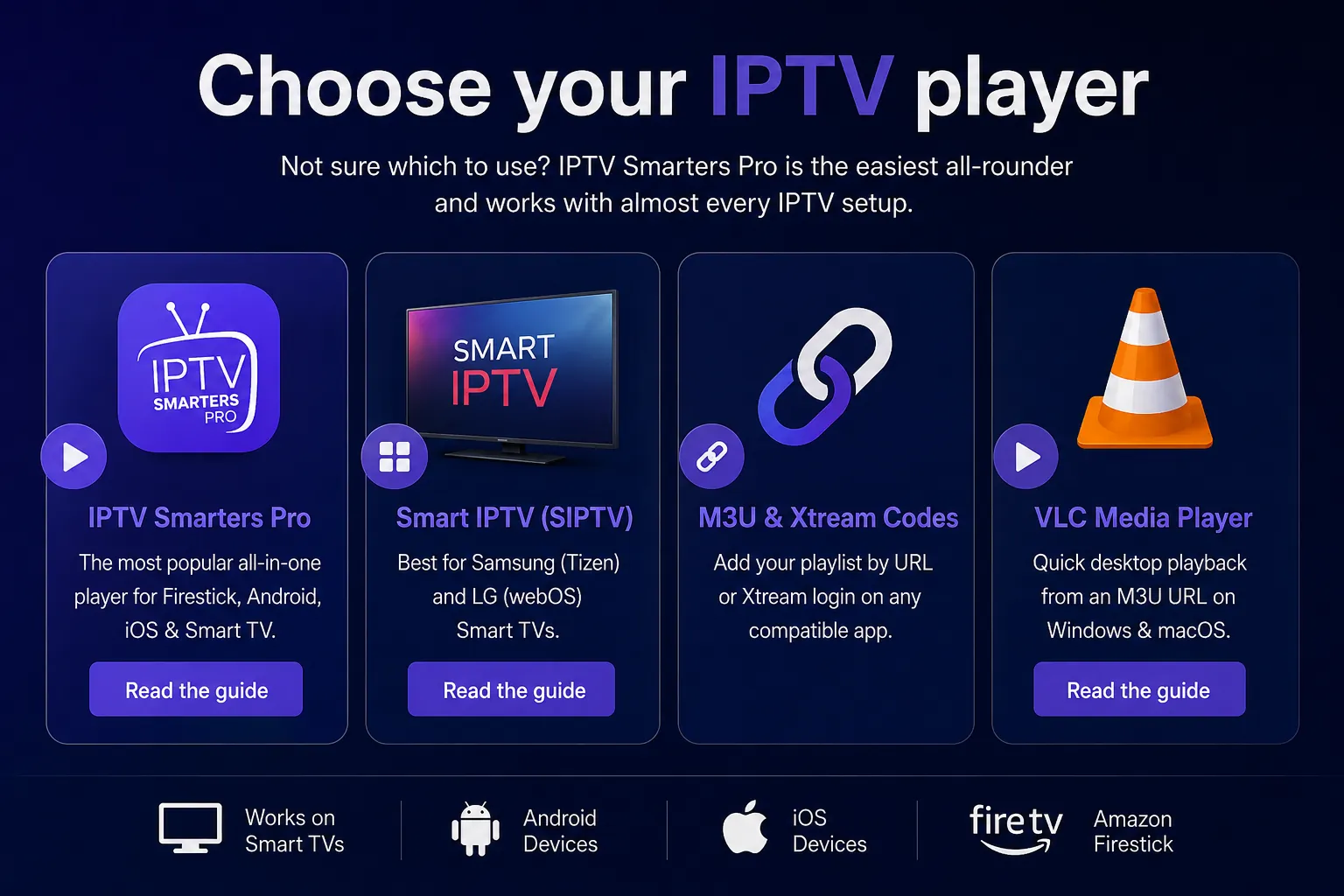
The best IPTV player depends on your device: IPTV Smarters Pro is the all-round choice, Smart IPTV (SIPTV) is made for Samsung and LG televisions, the M3U and Xtream methods work in almost any compatible app, and VLC is the quick desktop option. None is "better" in the abstract — the right one is whichever matches the screen you watch on most. The table and cards below lay out where each shines.
| Player | Best platforms | Login method | Full EPG | Best for |
|---|---|---|---|---|
| IPTV Smarters Pro | Streaming stick, Android, iOS, Smart TV | Xtream Codes / M3U | Yes | The everyday all-rounder |
| Smart IPTV (SIPTV) | Samsung (Tizen), LG (webOS) | M3U via MAC portal | Yes | Samsung & LG TVs |
| M3U / Xtream (generic) | Most compatible apps | M3U URL / Xtream Codes | Varies | Flexibility across devices |
| VLC Media Player | Windows, macOS, mobile | M3U URL | No | Quick desktop test |
IPTV Smarters Pro
The most popular all-in-one player for streaming sticks, Android, iOS & Smart TV.
TiviMate
The TV-style player for Android TV and Fire TV, with a full programme guide.
SmartOne IPTV
A smart TV player for Samsung, LG, Hisense, Android TV and Fire TV. Not the same app as Smart IPTV.
Smart IPTV (SIPTV)
Best for Samsung (Tizen) and LG (webOS) Smart TVs.
M3U & Xtream Codes
Add your playlist by URL or Xtream login on any compatible app.
VLC Media Player
Quick desktop playback from an M3U URL on Windows & macOS.
Many British households end up using more than one. The Smart TV runs SIPTV for the main event in the living room; a streaming stick in the bedroom runs IPTV Smarters Pro; a laptop keeps VLC on hand for a quick catch-up at the kitchen table. Because every one of them signs in with the same details, that is not four setups to maintain — it is one account, wearing four hats. And these four are only the start: TiviMate, IBO Player, Hot Player and Bob Player all run IPTV UK just as happily, as the next section explains.
How to set up IPTV Smarters Pro
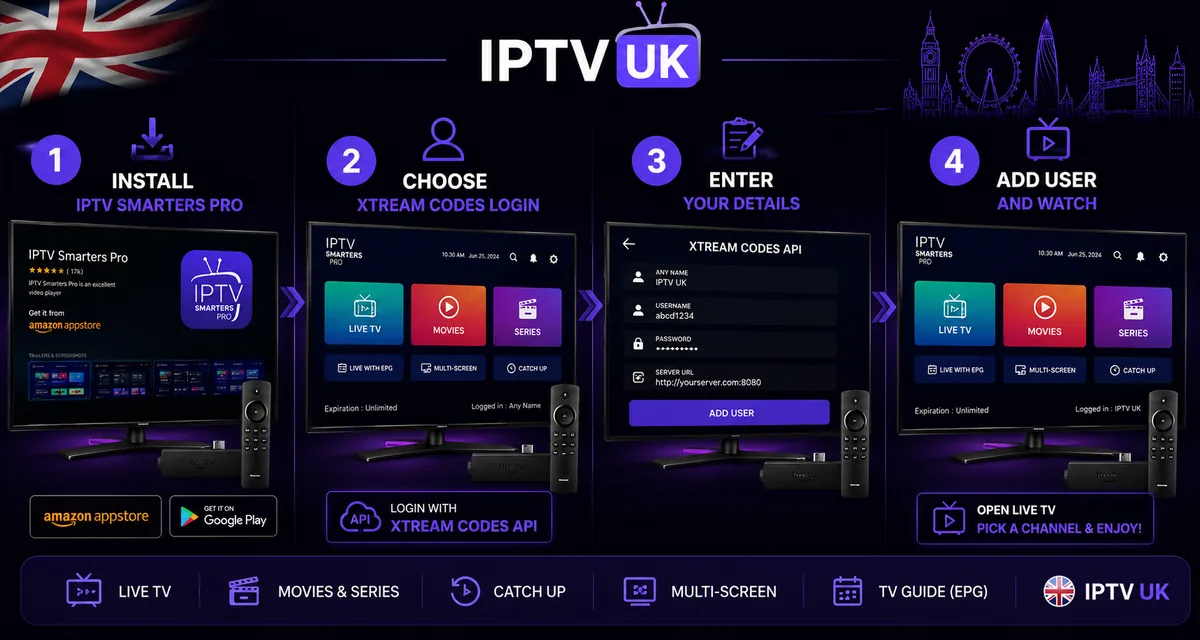
To set up IPTV Smarters Pro, install the app, choose "Login with Xtream Codes API", paste your username, password and server URL from the welcome email, and select Add User. It is the most popular IPTV player in the UK precisely because the process is this short, and because the same app runs on a streaming stick, an Android or iOS phone, and most Smart TVs — one familiar interface across every screen in the house.
Install IPTV Smarters Pro
Open your device's official app store, search for IPTV Smarters Pro and install it. On a streaming stick you'll find it in the apps section; on a phone it's in the usual store. The download is free.
Choose Xtream Codes login
Open the app, accept the terms, and select Login with Xtream Codes API. This is the option that pulls your live TV, on-demand library and full programme guide in one go.
Enter your details
Type any name you like in the first field (it's just a label), then paste your username, password and server URL exactly as they appear in your welcome email.
Add user and watch
Select Add User. The app syncs your playlist and guide, then drops you on the home screen. Open Live TV, pick a channel and you're away — usually inside a couple of minutes.
If you would rather follow exact, screenshot-ready steps for your specific device, our dedicated IPTV Smarters Pro setup guide walks through each screen in detail, and our IPTV Firestick guide covers the streaming-stick route from the very beginning. Smarters Pro is also happy to load an M3U URL instead of Xtream Codes if you prefer, though you'll get the richer guide by sticking with the Xtream method where you can.
Get the app: IPTV Smarters Pro on Google Play · Smarters Player on the App Store · Fire TV Downloader code 78522
How to set up Smart IPTV (SIPTV) on Samsung & LG
To set up Smart IPTV (SIPTV), install the app from your Samsung or LG TV's store, note the MAC address it shows, then upload your M3U URL against that MAC address on the Smart IPTV website. SIPTV is the native choice for Samsung's Tizen and LG's webOS televisions: it turns the telly itself into a complete IPTV setup, with no extra box, stick or remote to add.
Install Smart IPTV on the TV
From your Samsung or LG app store, search for Smart IPTV (SIPTV) and install it. Open it once and it will display a MAC address — write down that string of letters and numbers exactly.
Open the upload page on a computer
On a phone or laptop, go to the official Smart IPTV upload page. Enter the MAC address from your TV and paste your M3U URL from the welcome email into the playlist field.
Save the playlist
Submit the form to link your playlist to that television. A small one-off activation may apply to the app itself; your IPTV UK subscription is separate and already covers the content.
Reload on the TV
Back on the television, close and reopen Smart IPTV. Your channels load automatically, and the telly becomes a full IPTV setup — no additional hardware required.
Because SIPTV loads by MAC address and M3U rather than Xtream Codes, the experience is slightly different from a Smarters-style login, but the result is the same: a clean, native player running on the screen you already own. For a deeper, TV-specific walkthrough — including where to find the app on each brand — see our dedicated Smart IPTV setup guide for Samsung & LG.
How to set up IPTV with an M3U URL
To set up IPTV with an M3U URL, open any compatible player, choose the "Add M3U URL" or "Add playlist" option, and paste the single M3U link from your welcome email. The M3U method is the universal fallback: it works in nearly every IPTV app and media player, which makes it invaluable when you're on an unfamiliar device or simply want the quickest possible test.
An M3U URL is best thought of as your entire channel list compressed into one web link. When a player loads it, it reads the link and builds your line-up from top to bottom. The trade-off, as noted earlier, is the programme guide: a plain M3U does not always carry the full EPG, so where a richer guide matters, the Xtream Codes method is the better choice. For speed, breadth of compatibility and a no-fuss test, though, M3U is hard to beat.
The three-step M3U method
First, open your player and find the option labelled Add M3U URL, Add playlist or similar. Second, paste your M3U link exactly as it appears in the welcome email — long links are easy to truncate by hand, so copy and paste rather than type. Third, confirm and let the playlist load; your channels appear in the order they're listed. That's the whole job. Because the M3U approach is so widely supported, it's also the method we'd reach for when helping someone troubleshoot on a device none of us has seen before.
One practical tip for British homes with more than one screen: the same M3U URL can be loaded into several players at once, so there's no need to request a different link for the bedroom telly, the tablet and the laptop. One link, pasted wherever you like.
How to set up IPTV on VLC
To watch IPTV on VLC, open VLC, choose "Open Network Stream", paste your M3U URL and press play. VLC is the dependable, free media player that runs on Windows, macOS, Android and iOS, and it's the fastest way to confirm that a playlist is working before you commit to a dedicated IPTV app. It won't give you a polished channel guide, but for a quick test or a no-frills desktop watch, it's ideal.
Open VLC
Launch VLC on your computer. If you don't already have it, it's a free download from the official VideoLAN website — a trusted, open-source player used the world over.
Open Network Stream
From the Media menu (Windows) or File menu (macOS), choose Open Network Stream. A box appears asking for a network URL.
Paste your M3U URL
Paste your M3U link from the welcome email into the field and click Play. VLC loads the playlist and begins streaming the first channel.
Browse the playlist
Open VLC's playlist view to see your full channel list and click any entry to switch. There's no EPG, but every channel is there and instantly playable.
Because VLC is so lightweight and universally available, it doubles as the perfect diagnostic. If a stream plays cleanly in VLC but stutters in another app, you've learned something useful — the issue is more likely the other app or the device than your subscription or connection. As a quick, honest test of "is everything working?", VLC is the tool we reach for first.
More IPTV players: TiviMate, IBO Player, Hot Player, Bob Player and others
IPTV Smarters Pro is far from your only option — TiviMate, SmartOne IPTV, IBO Player and IBO Player Pro, Hot Player and Bob Player all run IPTV UK beautifully, and every one of them falls into just one of two setup families. Once you know which family a player belongs to, setting it up is the same short routine as everything else on this page: you either type your login straight into the app, or you activate the app on a website and then add your playlist. That single distinction is the whole secret to setting up any player you'll ever meet.
The two setup families
The first family is login-in-app players: you open the app and enter your Xtream Codes details or M3U URL directly. IPTV Smarters Pro and TiviMate work this way, as does VLC for an M3U link. The second family is portal-activation players: the app displays a MAC address and a device key (an activation code) on screen, and you link your playlist to it on the app's official website. Smart IPTV (SIPTV), IBO Player, IBO Player Pro, Hot Player and Bob Player all use this method. Neither family is harder than the other — they simply put the same details in a slightly different place.
| Player | Best platforms | Setup family | Full EPG | Best for |
|---|---|---|---|---|
| IPTV Smarters Pro | Streaming stick, Android, iOS, Smart TV | Login in-app | Yes | The easiest all-rounder |
| TiviMate | Android TV, Fire TV | Login in-app | Yes — best-in-class | Android TV power users |
| IBO Player / IBO Player Pro | Samsung, LG, Android, Fire TV | Portal activation | Yes | Smart TVs |
| Hot Player | Samsung, LG, Android | Portal activation | Yes | Smart TVs |
| Bob Player | Samsung, LG, Android | Portal activation | Yes | Smart TVs |
| SmartOne IPTV | Samsung, LG, Hisense (VIDAA), Android TV, Fire TV | Portal activation | Yes | Smart TVs, including VIDAA |
| Smart IPTV (SIPTV) | Samsung (Tizen), LG (webOS) | Portal activation | Yes | Samsung & LG TVs |
| VLC Media Player | Windows, macOS, mobile | Login in-app (M3U) | No | Quick desktop test |
TiviMate
The slickest interface and programme guide on Android TV and Fire TV. Add your playlist by Xtream Codes or M3U; a paid upgrade unlocks extra app features. Android-based devices only.
Full setup guide · Official TiviMate website · Fire TV Downloader code 272483
IBO Player & IBO Player Pro
A popular Smart TV player activated by MAC address and device key on the IBO Player website. IBO Player Pro is the newer paid variant. Runs on Samsung, LG, Android and Fire TV.
IBO Player (App Store) · IBO Pro Player (App Store) · IBO Pro Downloader code 481220
Hot Player
A lightweight portal-activation player for Smart TVs. Note its MAC address and key, add your playlist on the Hot Player website, then reload the app — your line-up appears.
Hot Player (App Store) · Fire TV Downloader code 395800
Bob Player
Another clean portal-based player for Samsung, LG and Android televisions. Activate it with its MAC address and key on the Bob Player site, add your M3U or Xtream details, and you're set.
Other players
Dozens of compatible players exist — XCIPTV, Flix IPTV, Smart STB and more. Whichever you choose, it's either a login-in-app or a portal-activation player, so the steps on this page already cover it.
Setting up a portal-activation player (IBO Player, Hot Player or Bob Player)
IBO Player, Hot Player and Bob Player share the same activation routine — learn it once and all three are effectively identical. Smart IPTV follows the same shape, too.
Install and open the app
On your television, install the player (IBO Player, Hot Player or Bob Player) from the TV's app store. Open it once and it will display a MAC address and a device key — note both down exactly.
Open the activation website
On a phone or laptop, go to the player's official activation page. Enter the MAC address and device key from your TV to register that device.
Add your playlist
Paste your M3U URL, or enter your Xtream Codes details, and save. A small one-time activation may apply to the app itself; your IPTV UK subscription is separate and already covers the content.
Reload on the TV
Restart the app on the television. Your channels, on-demand library and programme guide load automatically — the telly is now a complete IPTV setup.
Setting up TiviMate
TiviMate is built for Android TV and is the favourite of viewers who want a polished, set-top-box style programme guide. It's a login-in-app player like Smarters Pro: choose Add playlist, then Xtream Codes (recommended) or an M3U URL. It isn't available for iPhone, iPad or Samsung and LG TVs. For installing it on Firestick and Android TV, fixing the TV guide and the free-versus-paid question, see our full TiviMate setup guide.
Which should you choose? On an Android TV box or streaming stick, TiviMate and IPTV Smarters Pro are the two to try first. On a Samsung or LG television, a portal-activation player such as IBO Player, Hot Player, Bob Player or Smart IPTV is the natural fit. On a laptop, VLC is the quickest. Whichever you land on, your IPTV UK login is identical — the player is simply the window you watch through, and you can switch any time without losing a thing.
IPTV player setup, device by device
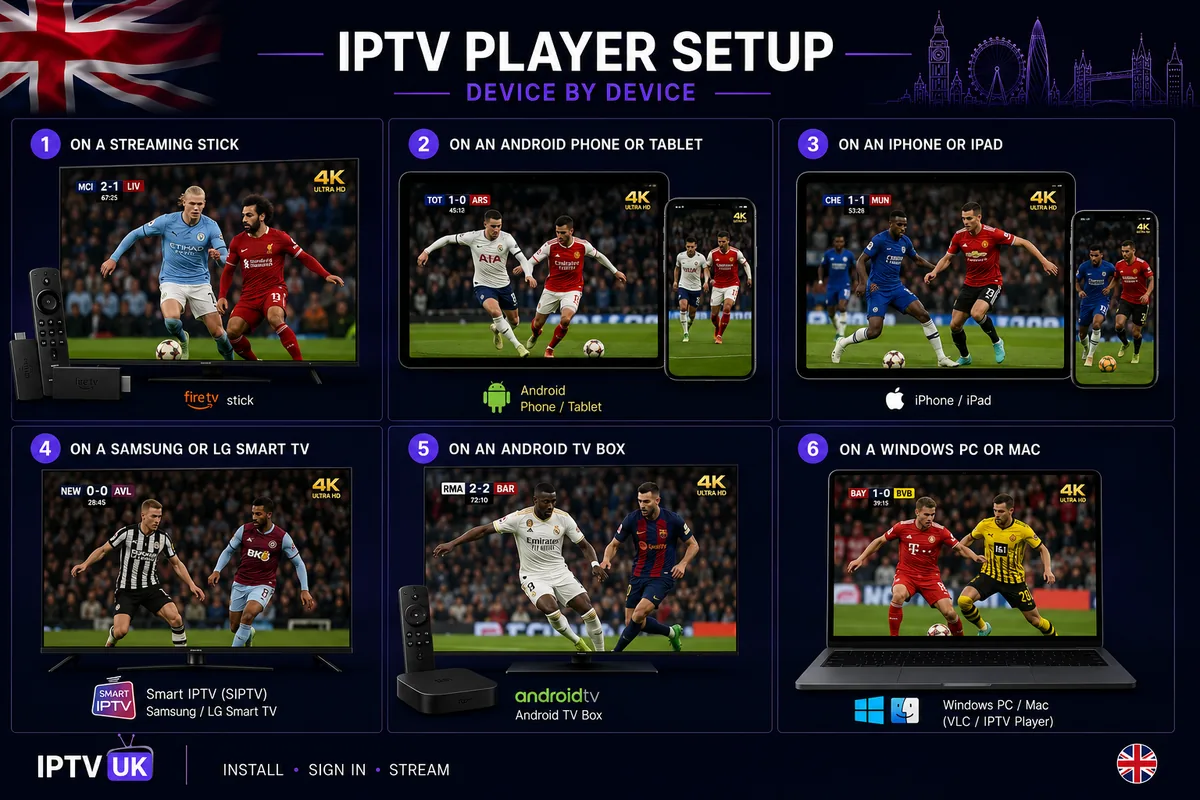
IPTV player setup works on virtually any modern screen — streaming sticks, Android and iOS phones and tablets, Samsung and LG Smart TVs, Android TV boxes, and Windows or Mac computers. The app you reach for changes slightly from one to the next, but the method never does: install, sign in, stream. Here's how it plays out on each of the devices British households actually use, and which player suits each best.
On a streaming stick
A streaming stick is the best-value route for most homes, and IPTV Smarters Pro is the natural partner. Install the app from the stick's app store, open it, choose Login with Xtream Codes API and paste your details. The whole thing tucks behind the telly and runs 4K comfortably. Because the stick is pocket-sized, it's also the device that travels — slip it into a coat pocket for a weekend away and your setup comes with you.
On an Android phone or tablet
Android handsets and tablets run IPTV Smarters Pro and most other players straight from the official app store. The setup is identical to the big-screen version — Xtream Codes or M3U, paste, done — and it turns any Android device into a portable telly for the commute or the kitchen worktop. A phone is also the quickest place to test a new login before you set up the main screen.
On an iPhone or iPad
On iOS, install a compatible IPTV player from the official store, then add your account by Xtream Codes or M3U URL exactly as you would elsewhere. Apple's tight app review means you'll sometimes find players under slightly different names, but the connection method is unchanged — three Xtream fields or one M3U link, pasted from your welcome email.
On a Samsung or LG Smart TV
Samsung (Tizen) and LG (webOS) televisions are the home of Smart IPTV (SIPTV). Rather than a username and password, SIPTV loads your playlist by MAC address and M3U URL through its upload page, as set out in the SIPTV walkthrough above. The pay-off is a native player on the screen you already own, with nothing extra to plug in — the tidiest setup of all.
On an Android TV box
An Android TV box behaves much like a streaming stick with more headroom. Install IPTV Smarters Pro (or any preferred player) from the app store, sign in with Xtream Codes, and enjoy the box's extra RAM and the option of a wired Ethernet connection for rock-steady live sport. It's the enthusiast's pick when you want the most dependable big-screen experience.
On a Windows PC or Mac
On a computer, VLC is the fastest way to watch: Open Network Stream, paste your M3U URL, play. For a more television-like experience with a guide, several desktop IPTV players accept Xtream Codes too. Either way, a laptop makes an excellent second screen for catch-up at the kitchen table while the main event plays in the living room.
IPTV player setup: performance and requirements
IPTV player setup is quick and light on bandwidth: most methods get you streaming in two to four minutes, and a single 4K stream needs only around 25 Mbps of steady throughput. The two charts below put numbers to it — how fast each connection method gets you watching, and how little bandwidth high-quality video actually demands when your line is stable.
Time to first stream, by method
Approximate minutes from opening the app to live playback. Lower is faster. Illustrative, based on typical UK setups.
Even the longest method here is quicker than making a cup of tea. The MAC-portal step for Smart IPTV adds a minute because you upload the playlist on a second device.
Bandwidth headroom by picture quality
Recommended steady throughput per single stream. Headline line speed can be far lower than you'd expect.
A typical British fibre connection clears the 4K figure comfortably. Stability matters more than headline speed — a steady line beats a fast-but-erratic one for live telly.
The takeaway from both charts is reassuring: IPTV player setup asks very little of your hardware or your broadband. The player itself is a small app, and the streams it pulls are efficiently compressed. If you can comfortably watch a standard streaming service in HD, your line already has the headroom for a polished IPTV setup — the only variable worth attending to is keeping that connection steady, which we cover in the troubleshooting section below.
Get the best picture and sound from your player
A few minutes in your player's settings — matching the resolution, choosing the hardware decoder and sorting the audio — unlocks the best picture and sound your screen and stream can deliver. Most IPTV players ship on safe defaults so they work on any device, which means a little deliberate tuning is well rewarded. None of it is technical; it's four or five toggles, done once.
Match the output resolution
Set your device's display output to the highest resolution it supports — 4K on a 4K telly, 1080p on a Full HD one. Leaving a 4K device on an "auto" or 1080p default is the commonest reason a brand-new setup looks softer than expected. Set it explicitly and the player stops second-guessing the screen.
Choose the hardware decoder
In most IPTV players you can pick how streams are decoded. The hardware decoder (often labelled HW or HW+) hands the work to your device's dedicated video chip, which plays high-quality HEVC streams smoothly and keeps the device cool. Switch to it if you see stutter on the software decoder; switch back only if a particular channel won't play.
Sort the audio output
Set the audio to match your setup — stereo for the TV's own speakers, or passthrough for a soundbar or AV receiver. Getting this right prevents the most irritating fault of all: audio drifting a fraction out of sync with the picture, which is far more noticeable on live sport than any softness in the image.
Set a sensible buffer
Many players let you adjust the buffer or cache size. A slightly larger buffer smooths over brief dips in your connection — useful on Wi-Fi — at the cost of a moment's extra delay when you change channel. On a wired connection you can leave it short; on a busy household Wi-Fi, nudging it up often cures occasional micro-stutter.
Set the right EPG time zone
If your programme guide shows the wrong times, check the player's time zone or EPG offset setting and set it to UK time. It's a small thing, but a guide an hour out is a guide you stop trusting — and getting it right means the telly tells the truth about when the football actually starts.
Advanced IPTV player setup: favourites, multi-screen and parental controls
Once the basics are in, a handful of advanced settings — favourites, multi-screen access, parental controls and playlist refresh — turn a working setup into a polished one. These are the touches that make an IPTV player feel bespoke to your household rather than a generic app, and they take only a few minutes to put in place.
Build a favourites list
Every good IPTV player lets you star channels into a favourites group. Spend two minutes adding the handful you actually watch — the sport, the news, the kids' channels — and you skip the endless scroll through hundreds of others. It's the single change that most improves day-to-day use, turning a vast list into your own short, familiar line-up.
Watch on more than one screen
Your IPTV UK login works across devices, so the same details set up the living-room telly, a bedroom stick and a tablet. Whether you can watch several at once depends on your plan's simultaneous-connection allowance — check yours if the second screen ever says a stream is in use. For a busy household juggling the match and the kids' cartoons, that allowance is worth knowing before kick-off.
Set parental controls
Most players include a PIN-protected parental control to lock adult categories or specific channels. If there are children in the house, set it during initial setup rather than later — a one-time job that keeps the kids' profile tidy and gives you peace of mind on a wet half-term afternoon.
Use an external player
If a stubborn channel won't play in your main app, most players offer an external player option — often VLC — to handle that stream instead. It's a handy fallback that uses VLC's broad format support to cover the rare stream a lighter player struggles with, without changing your everyday setup.
Reload your playlist
When new channels are added or something looks out of date, refresh the line-up: most players have a reload playlist or "refresh" option in settings. With Xtream Codes this often happens automatically; with an M3U URL a manual refresh pulls the latest list. It's the first thing to try if a channel you expect isn't showing.
Troubleshooting IPTV player setup
Almost every IPTV player setup problem comes down to one of three things: a mistyped login, a connection that isn't stable, or the wrong connection method for the feature you expected. Work through them in that order and the vast majority of issues clear in under a minute. The golden rule, as ever, is to change one thing at a time so you know which fix did the job.
My login is being rejected
This is the most common snag and almost always a typing error. Re-check the server URL first — a missing colon, an http in place of https, or a stray space is enough to fail a login. Copy and paste each field straight from the welcome email rather than typing it. If the details are definitely correct and it still won't connect, our 24/7 live support chat can verify your account in moments.
There's no programme guide (EPG)
A missing guide usually means you connected with an M3U URL rather than Xtream Codes. The M3U method doesn't always carry the full EPG. To get the proper guide, log in again using the Xtream Codes API method — username, password and server — where your player supports it, then give it a minute to populate.
The stream buffers or stutters
Buffering is nearly always a connection issue rather than a setup one. Switch the device to Ethernet if you can, or move it onto 5GHz Wi-Fi closer to the router. Restart the device, then the router. If a single channel struggles while everything else is flawless, that one source is simply busy — try it again shortly. Our companion guide on how to fix IPTV buffering runs through every fix in order.
The app won't load or feels sluggish
Clear the player app's cache in your device settings and restart it. Make sure both the app and the device's software are fully updated, since an out-of-date pairing is a frequent cause of crashes. If you're on older or under-powered hardware, a clean restart before a big match is a sensible habit — the digital equivalent of warming the telly up before kick-off.
What you can watch once your player is set up
Once your IPTV player setup is complete, a single app gives you every category of content — live sport, live channels and news, films on demand, box-sets and series, kids' programming and international channels. That breadth is the whole reward for the five minutes of setup: instead of hopping between separate apps and separate logins, everything lives behind one sign-in, tied together by the programme guide and a search box.
For most British households, the headline draw is live sport. With the player set up and your favourites starred, the Premier League weekend is a two-click affair — open the app, pick the channel, and the picture holds in crisp 4K while the rain hammers the window. The same goes for the big fight night or the rugby: no dish to lose signal, no scramble for a working stream at five to kick-off, just the match exactly when you want it.
Then there's the on-demand library — films and box-sets you can start any time, with no ad breaks and no waiting for a download. It's what turns a grim winter Tuesday into a proper binge, and a Bank Holiday Monday into a guilt-free marathon. Because the on-demand catalogue sits in the same player as the live channels, you drift from the football to a film to the next episode of a series without ever leaving the app.
The rest of the household is covered too. Live channels and news keep the rolling coverage and the documentaries to hand; a kids and family section keeps the little ones happy on a wet half-term morning; and an international selection brings channels from across Europe, Asia and beyond for homes that want a taste of elsewhere. One setup, one app, every member of the family served.
| Category | What's inside | Top quality |
|---|---|---|
| Live sport | Football, the Premier League weekend, boxing, rugby, racing and big PPV nights | Up to 4K |
| Live channels & news | Entertainment, documentaries, rolling news and music | HD–4K |
| Films (on demand) | New releases and a deep back-catalogue, watch any time | Up to 4K |
| Box-sets & series | Full seasons for an ad-free binge, episode after episode | HD–4K |
| Kids & family | Cartoons, family films and the programme of the moment | SD–HD |
| International | Channels from across Europe, Asia and beyond | SD–HD |
The practical upshot is that your choice of player matters less than getting any one of them set up well. Whether you settled on IPTV Smarters Pro, Smart IPTV, a generic M3U player or VLC, the content behind your login is identical — the player is simply the window you watch it through. For a fuller breakdown of everything available, see our IPTV channels and content guide.
Get your login and start streaming
Every setup on this page needs just one thing: your IPTV UK details. Start a free trial or pick a plan and we'll email your Xtream Codes login and M3U URL straight away — then any player above is a five-minute job. Our team is on hand around the clock if you'd like a hand getting connected.
IPTV player setup across a British year
A well-set-up IPTV player should simply disappear, leaving you with steady telly through every fixture, film and Bank Holiday the calendar throws at it. The point of getting the setup right once is that you never think about it again — which is exactly what you want from the screen in the corner of the room.
It earns its keep first on a Premier League weekend. Saturday lunchtime kick-off, mates round, the kettle on: you open the player, the channel list is already there, and the picture holds in crisp 4K while the rain lashes the window. There's no dish to lose signal and no aerial to rattle loose — the stream arrives down the line whatever the British weather is doing. The only argument is about the formation, not the feed. That's the pub-banter test, and a properly set-up player passes it without anyone noticing it's there.
Then comes the long dark stretch of winter, when the evenings draw in by half four and a box-set becomes a survival strategy. The on-demand library turns a grim Tuesday into a binge with no ad breaks. By the time a Bank Holiday Monday rolls around — that gloriously empty day with nowhere to be — the same player carries you through films, catch-up and whatever the kids have decided is the programme of the moment, all from the one app you set up months ago and haven't touched since.
And when summer arrives and the family decamps to a cottage in Cornwall or a villa abroad, the setup travels too. Install the player on whatever screen is there, paste the same login, and you're home from home in minutes. That's the quiet reward of getting IPTV player setup right: do it once, properly, and it serves you season after season, asking nothing in return. It is, in the end, the same promise the telly has always made — that whatever the weather, whatever the fixture, the screen in the corner will be ready when you are. The only difference now is that the box doing the work is a free app you set up in five minutes, signed in with details from a single email, and never had to think about again. Get that right and the technology fades into the background, exactly where good technology belongs, leaving only the watching.
Keeping your IPTV player setup secure and legitimate
A secure IPTV player setup comes down to three habits: install players only from official app stores, never buy "pre-loaded" hardware, and keep your account details to yourself. Get those right and your setup is as safe as any mainstream streaming app — clean software, your own login, nothing dubious in the chain.
Install from official app stores
Always install your IPTV player from the device's official app store. A player downloaded from an official source is a clean, empty app that contains no channels until you sign in — which is exactly how a legitimate setup should look. Sideloaded copies from unknown websites are the usual route to tampered or out-of-date software, and they're entirely unnecessary when the genuine app is a free, trusted download.
Avoid "pre-loaded" boxes and clones
Treat any device or app advertised as "fully loaded" or "pre-configured" with content as a red flag. A legitimate service gives you a clean player and your own details to enter; it never ships channels baked in. IPTV UK distributes only rights-cleared content in the regions it serves, delivered through standard apps and your personal sign-in, so there's never anything to pre-load. Our guide on whether IPTV is legal in the UK sets out the distinction in plain terms.
Look after your account details
Your Xtream Codes login and M3U URL are personal to your account — treat them like a password and don't share them around. If you ever think your details have been seen by someone else, our team can reset them quickly. Keeping the welcome email somewhere safe (and not forwarding it on) is all the account hygiene most households will ever need.
IPTV player setup glossary
A quick, plain-English glossary of the terms you'll meet during IPTV player setup — so nothing on the screen is a mystery. Keep it to hand the first time you set a player up; by the second time, you won't need it.
IPTV player. The app that displays your subscription — it fetches your channel list, draws the programme guide and plays each stream. IPTV Smarters Pro, Smart IPTV and VLC are all players.
M3U URL. A single web link containing your entire channel and on-demand playlist. Paste it into a player and it builds your line-up. Quick and universal, though it doesn't always carry the full guide.
Xtream Codes API. A login method using three fields — username, password and server URL — that pulls live TV, on-demand and the full programme guide automatically, and keeps itself updated. The recommended method where supported.
EPG (Electronic Programme Guide). The on-screen schedule that shows what's on now and next. It populates automatically with Xtream Codes; a plain M3U URL may not include it.
MAC address. A unique identifier shown by Smart IPTV (SIPTV) on Samsung and LG televisions. You link your playlist to that MAC address on the SIPTV upload page so the TV knows which line-up to load.
VOD (Video on Demand). The on-demand library of films and box-sets you can start any time, as opposed to live channels that broadcast on a schedule.
HEVC (H.265). The efficient video codec behind modern 4K. The hardware decoder in most devices unpacks it smoothly, which is why choosing the hardware decoder in your player matters.
Buffering. The brief pause while a player loads more of a stream. Occasional buffering points to the connection rather than the setup — usually Wi-Fi rather than your subscription.
Welcome email. The message IPTV UK sends after you subscribe or start a trial, containing your Xtream Codes username, password and server URL, plus your M3U link. Every setup on this page starts here.
Frequently asked questions
How do I set up an IPTV player?
Install an IPTV player app such as IPTV Smarters Pro, choose "Login with Xtream Codes API", and enter the username, password and server URL from your IPTV UK welcome email. The playlist syncs and you can start streaming — usually in under five minutes.
Which IPTV player is best?
IPTV Smarters Pro is the most widely used because it runs on Firestick, Android, iOS and Smart TV and logs in with simple Xtream Codes credentials. Smart IPTV (SIPTV) suits Samsung and LG TVs; VLC is fine for quick desktop playback from an M3U URL.
What is an M3U URL and where do I get one?
An M3U URL is a single link containing your full channel and VOD playlist. IPTV UK sends your M3U URL — along with your Xtream Codes username, password and server — in your welcome email after you subscribe or start a trial.
What's the difference between Xtream Codes and M3U?
Xtream Codes uses three fields — username, password and server URL — and pulls live TV, on-demand and the full programme guide automatically. An M3U URL is a single link that loads your playlist quickly but doesn't always carry the complete EPG. Use Xtream Codes wherever your player supports it.
How do I set up IPTV Smarters Pro?
Install IPTV Smarters Pro, open it and choose "Login with Xtream Codes API". Enter any display name, then paste your username, password and server URL from the welcome email and select Add User. The app loads your channels and you can start watching. Full steps are in our IPTV Smarters Pro guide.
How do I set up Smart IPTV (SIPTV) on a Samsung or LG TV?
Install Smart IPTV from your TV's store and note the MAC address it shows. On a computer, open the Smart IPTV upload page, enter that MAC address and your M3U URL, and save. Restart the app on the TV and your playlist loads. See our Smart IPTV guide for details.
Can I use VLC for IPTV?
Yes. VLC plays an IPTV M3U URL on Windows, macOS, Android and iOS. Open VLC, choose "Open Network Stream", paste your M3U URL and play. VLC is ideal for a quick test, though it doesn't provide a polished channel guide like a dedicated IPTV player.
Why is my IPTV login being rejected?
A rejected login is almost always a typing error: a mistyped character, a stray space, or http and https confused in the server URL. Copy and paste the details directly from your welcome email rather than typing them. If it still fails, our 24/7 support team can verify your account.
Do I need a VPN for IPTV player setup?
No. IPTV UK distributes only rights-cleared content in the regions it serves, so no VPN is required for normal use at home. A player app, your login and a stable internet connection are all you need.
Why is there no programme guide after setup?
A missing EPG usually means you connected with an M3U URL rather than Xtream Codes. For the full programme guide, log in with the Xtream Codes API method where your player supports it, then allow a minute for the guide to populate.
How much internet speed do I need for IPTV?
Around 25 Mbps of steady throughput is comfortable for a single 4K stream, 10 Mbps for Full HD and 5–6 Mbps for HD. A stable connection matters more than a high headline figure — a steady 30 Mbps line outperforms an erratic 200 Mbps one for live television.
Is TiviMate or IPTV Smarters Pro better?
TiviMate has the most polished interface and the best programme guide on Android TV and Fire TV, but it's Android-based only. IPTV Smarters Pro is the better all-rounder because it also runs on iOS and most Smart TVs. Both are login-in-app players that connect with Xtream Codes or an M3U URL, so you can try either and switch freely.
How do I set up IBO Player, Hot Player or Bob Player?
These are portal-activation players. Install the app on your TV and note the MAC address and device key it shows. On a computer, open the player's official activation website, enter that MAC address and device key, and add your M3U URL or Xtream Codes details. Restart the app on the TV and your playlist loads. A small one-time activation may apply to the app; your IPTV UK subscription is separate.
What is a device key or activation code?
A device key (or activation code) is a unique string that a portal-based player such as IBO Player, Hot Player or Bob Player displays on screen. You enter it, together with the device's MAC address, on the app's official website to link your playlist to that television. It identifies your specific device during a one-time activation.
Related guides and trusted references
For the official background on the technology, the Wikipedia overview of the M3U format explains the playlist standard in neutral terms, and the open-source VLC media player from VideoLAN is a trusted free download. For our own step-by-step guides, each one written for British viewers and kept up to date, start with the pages below.