Player setup · SmartOne IPTV · 2026

How to set up SmartOne IPTV

SmartOne IPTV turns a Samsung, LG, Hisense or other smart TV, an Android TV box or a Fire TV Stick into an IPTV player. This guide covers installing it, linking your playlist to your TV's MAC address, what a licence costs, and how to fix the problems people run into most.

Answer

To set up SmartOne IPTV, install the app from your TV's own app store, open it and note the MAC address it shows, then go to the Upload Playlist page on the SmartOne website, enter that MAC address with your Xtream Codes, M3U or Stalker portal details, and restart the app. Your channels then load on the TV.

Runs on
Samsung, LG, Hisense (VIDAA), Android TV, Fire TV
Playlist types
Xtream Codes, M3U, Stalker portal
Licence
€12.99 lifetime or €2.50 a year, per TV
Channels included?
No, it's a player only
A smart TV in a living room at night showing an IPTV player menu over a cooking programme, with a remote and phone on the coffee table

What SmartOne IPTV is

SmartOne IPTV is a media player app built mainly for smart TVs. It plays live channels, films and series from a playlist you add, and gives you a programme guide, catch-up for channels that offer it, favourites and a parental lock. Its developer also includes a few extras of its own, such as internet radio stations and live sports scores, and the app can be switched between several languages and colour themes.

What you watch in SmartOne always comes from a playlist that you supply. The playlist comes from an IPTV provider; SmartOne only displays it.

SmartOne IPTV doesn't include channels

This catches a lot of people out, so it's worth being direct about it. SmartOne IPTV doesn't sell or supply channels, subscriptions or streams of any kind. Paying for a SmartOne licence unlocks the app on your TV, not any content. SmartOne's own help pages are blunt on this point: if you pay for activation and wait for a channel list, none will arrive. To watch anything, you need a playlist from an IPTV provider, such as the login that comes with an IPTV Extended free trial or subscription.

SmartOne IPTV isn't the same app as Smart IPTV (SIPTV)

The names are almost identical, but SmartOne IPTV and Smart IPTV, often shortened to SIPTV, are separate apps from different developers. Each has its own website, its own prices and its own activation, and a MAC address registered on one does nothing in the other. If your TV is running Smart IPTV, follow our Smart IPTV (SIPTV) setup guide instead. There's a side-by-side comparison further down this page.

Which TVs and devices SmartOne IPTV runs on

SmartOne IPTV runs on most major smart TV platforms, as well as Android TV, Google TV and Amazon Fire TV. The table below summarises SmartOne's own installation articles, which name the app store and model years covered for each platform.

PlatformWhere you install itModels covered in SmartOne's articles
Samsung (Tizen)Samsung's TV app store2016–2021 models (K, M, N, Q, R and T series); 2015 J series by USB
Samsung (Orsay)Developer mode or USBOlder non-Tizen models from 2012–2015
LG (webOS)LG Content Store2014–2025 models (webOS 1.0 to webOS 25)
LG (NetCast)LG Smart World2012–2014 models
Hisense and other VIDAA TVsVIDAA app storeAll VIDAA-powered TVs
Android TV and Google TVGoogle PlayAndroid 5.0 and later
Amazon Fire TV and Fire TV StickAmazon AppstoreFire OS 5 and later

Samsung smart TVs

SmartOne's Samsung article covers Tizen TVs made between 2016 and 2021, the K, M, N, Q, R and T model years, which install the app straight from Samsung's app store. 2015 J-series Tizen sets use a USB method instead, and older Orsay (non-Tizen) models from 2012 to 2015 need developer mode or a USB stick. If your Samsung is newer than 2021, search for SmartOne IPTV in your TV's app store; if you can't find it there, check with SmartOne's support before paying for anything.

LG smart TVs

LG TVs running webOS install SmartOne IPTV from the LG Content Store. SmartOne lists every webOS version from webOS 1.0 on 2014 models to webOS 25 on 2025 models. Older LG NetCast TVs from 2012 to 2014 install it from LG Smart World instead.

Hisense, Toshiba and other VIDAA TVs

SmartOne supports TVs powered by VIDAA, the smart TV system used on Hisense TVs and on many models from other brands, including Toshiba and Loewe. You install it from the VIDAA app store. Hisense also sells some TVs that run Android TV instead of VIDAA; on those, install SmartOne IPTV from Google Play.

Other smart TV brands

SmartOne's help centre has separate installation articles for TVs from Philips, Panasonic, TCL, Sony, Sharp, JVC and Xiaomi, and for smart TV platforms such as Foxxum, Vestel, Zeasn and Whale OS. The store and menus differ between these brands, so follow SmartOne's own article for your make of TV.

Android TV, Google TV and Fire TV

On Android TV and Google TV devices running Android 5.0 or later, SmartOne IPTV installs from Google Play. On Amazon Fire TV devices, including the Fire TV Stick, it installs from the Amazon Appstore on Fire OS 5 or later. On these devices you also have other good options, such as TiviMate or IPTV Smarters Pro, which take your login directly in the app rather than through a website.

What you need before you start

If your TV has an Ethernet port, connect it to your router with a cable. A wired connection is steadier than Wi-Fi, especially during live sport. You can check your line with our speed test before you start.

How to install SmartOne IPTV

Always install SmartOne IPTV from your TV's own app store, or by following SmartOne's help centre for older models that can't use the store. Once it's installed, open it from your TV's apps screen, and it shows the details you need for the next step.

On a Samsung TV

  1. Open Samsung's app store on your TV and search for SmartOne IPTV.
  2. Install the app.
  3. Go back to your apps, scroll to SmartOne IPTV and open it.

On a 2015 J-series TV or an older Orsay model, the app isn't installed from the store. SmartOne's help centre explains those methods step by step in its Samsung Tizen and Samsung Orsay installation articles.

On an LG TV

  1. Open the LG Content Store and search for SmartOne IPTV. On a 2012–2014 NetCast TV, use LG Smart World.
  2. Install the app.
  3. Open SmartOne IPTV from your apps.

On a Hisense or other VIDAA TV

  1. From the VIDAA home screen, go to My Apps and search for SmartOne IPTV.
  2. Install it from the VIDAA store.
  3. Open SmartOne IPTV from your apps.

On Android TV, Google TV or Fire TV

Search for SmartOne IPTV in Google Play on an Android TV or Google TV device, or in the Amazon Appstore on a Fire TV or Fire TV Stick. Install it, then open it from your apps. Because it's available in both official stores, there's no need to sideload it.

Find your TV's MAC address

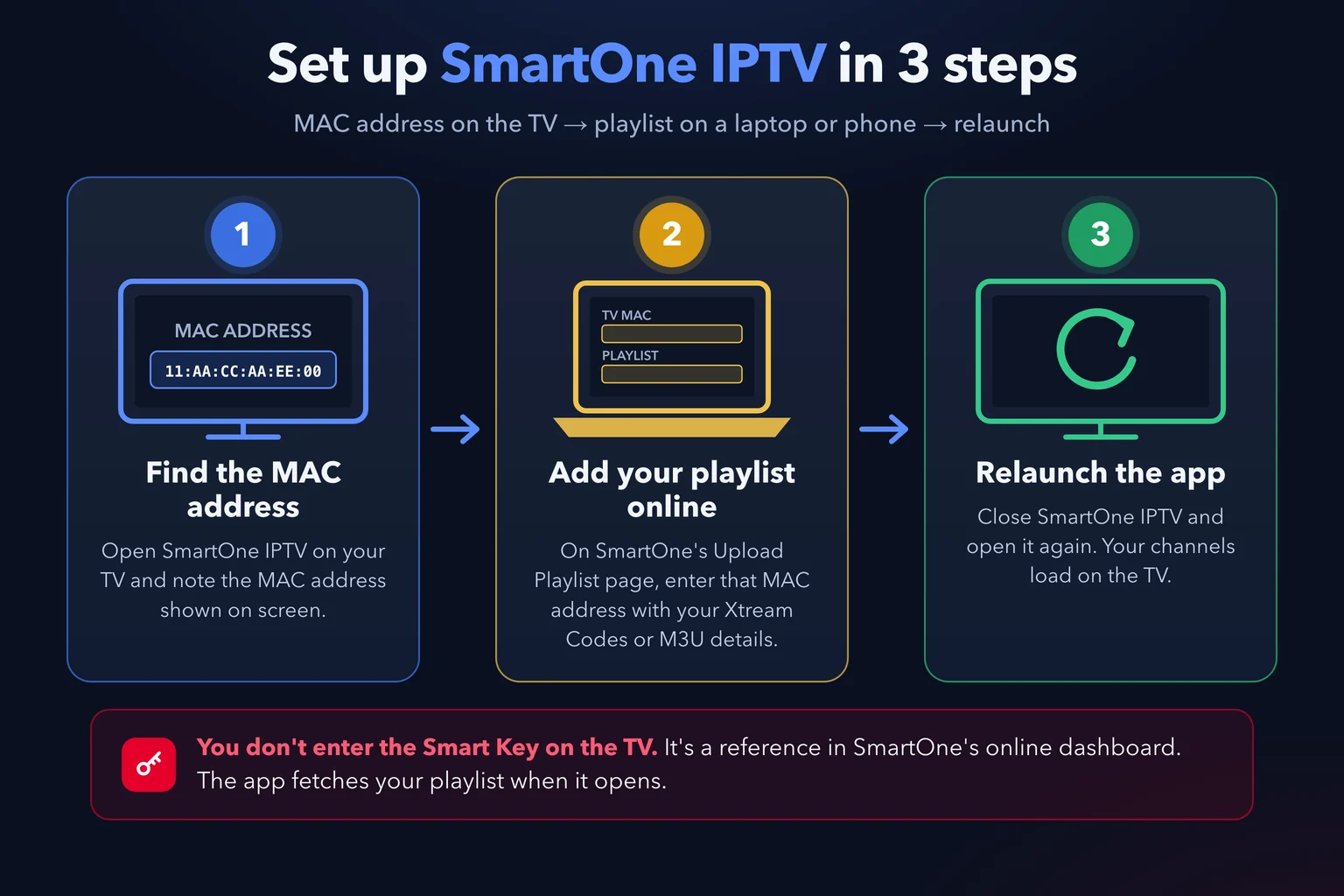
SmartOne IPTV identifies your TV by its MAC address, a unique hardware ID. Everything you do on the SmartOne website, from adding a playlist to buying a licence, is attached to that address. Open the app and look for the MAC address it displays, then write it down exactly as shown. It's a series of letter and number pairs separated by colons, in the format 11:AA:CC:AA:EE:00.

Why your TV has two MAC addresses

Most TVs and streaming devices have two MAC addresses: one for the Ethernet port and one for Wi-Fi. SmartOne uses whichever connection is active when the app starts. According to SmartOne, if you later switch from Wi-Fi to a cable, or back again, the other MAC address is activated automatically once you restart the app. It's still worth noting which address you used, because your playlist is added against a specific one. The troubleshooting section below explains why that matters.

LG webOS TVs that show a device ID

Some LG webOS TVs don't let apps read the MAC address. On those sets, SmartOne shows a device ID instead, assigns the TV a unique MAC address of its own and activates it automatically when the app first launches. Because that address belongs to the TV rather than to a network connection, it stays the same if you switch between Wi-Fi and Ethernet.

How to add your playlist on the SmartOne website

SmartOne doesn't make you type a long playlist address with a TV remote. Instead, you add the playlist on SmartOne's website from a phone or computer, against your TV's MAC address, and the app picks it up the next time it starts. You'll find the form on SmartOne's Upload Playlist page.

  1. Open SmartOne IPTV on your TV

    Open the app from your TV's apps screen and write down the MAC address it shows.

  2. Go to the Upload Playlist page

    On a phone, tablet or computer, open smartone-iptv.com and choose Upload Playlist.

  3. Choose your playlist type

    Pick the tab that matches your login: Xtream Server Info or Xtream Playlist for an Xtream Codes login, M3u Playlist for an M3U link, or Stalker Portal.

  4. Enter your TV's MAC address and a name

    Type the MAC address exactly as your TV shows it, then give the playlist a name you'll recognise.

  5. Add your login details

    Enter the details from your welcome message. If you have a separate TV guide (EPG) link, add it in the optional EPG URL field.

  6. Save the playlist and restart the app

    Select Add Playlist, then close SmartOne IPTV on your TV and open it again. Your channels load.

With an IPTV Extended login, Xtream Codes is the simplest choice in SmartOne. The TV guide comes through with your channels automatically, so there's no extra link to add.

Adding an Xtream Codes login

SmartOne supports Xtream Codes and panels that use the same connection method, such as XUI. Choose one of the Xtream tabs on the upload page and enter the server address, username and password from your welcome message. With an Xtream Codes login, your films and series appear in the app alongside live channels, and the programme guide arrives through the same connection, so you can leave the EPG field empty.

Adding an M3U playlist

An M3U playlist is a single link to a list of channels. Choose the M3u Playlist tab and paste the link. SmartOne plays M3U playlists well, but an M3U link doesn't always carry the TV guide with it. If your provider gives you a separate guide link in XMLTV format, paste it into the optional EPG URL field. SmartOne recommends keeping that guide file under 5 MB. Alternatively, use a playlist that already includes the guide address in its header, which SmartOne reads automatically.

Adding a Stalker portal

Stalker Portal is one of the playlist types on SmartOne's upload page, for providers that deliver their service through a portal rather than a playlist link. Choose that tab and enter the portal details your provider gives you. With IPTV Extended, Xtream Codes is the easier route in SmartOne, but contact our support team if you'd rather use a portal.

What is the Smart Key?

When you add a playlist, SmartOne creates a Smart Key for it. The Smart Key is a reference for that playlist in SmartOne's online dashboard, used to find and track it. You don't type it into your TV: the app fetches your playlist automatically whenever it starts.

Managing several TVs with a SmartOne account

You can add a playlist without an account, but registering on the SmartOne website lets you manage several TVs, their playlists and their licences from one place. Use an email address you can access, because SmartOne sends a verification link before the account's tools are unlocked.

If you paid for a TV or added a playlist before creating your account, SmartOne lets you import that MAC address and licence into the account using the details of your original payment. To bring an existing playlist under your account, reset the playlists on the TV first (Settings, then Setup, then Reset App), add the playlist again from your account, and restart SmartOne on the TV.

SmartOne IPTV price, free trial and activation

SmartOne IPTV isn't free to use indefinitely. You get a trial to test it on your TV, then you pay for a licence for each TV or device you want to keep using it on.

SmartOne IPTV licenceOfficial price per TV or device
Lifetime€12.99, paid once
1 year€2.50
Free trial15 days to test before paying
Prices checked on 14 September 2026 on SmartOne's official activation page. Prices can change, so check that page for the current price before you pay. These are SmartOne's own prices for the app licence; they're separate from your IPTV subscription.

How long is the free trial?

SmartOne's activation page says you have 15 days to test the app before paying. A couple of SmartOne's own help articles still mention 14 days, so plan on about two weeks from when you first open the app, and treat the activation page as the up-to-date figure.

Test properly before you pay

SmartOne asks you to confirm that the app works on your TV before you buy, and its help centre says payments aren't refunded, because everyone gets the trial first. So use the trial fully. Load your playlist, watch a few live channels, start a film, check that the programme guide fills in, and watch for a while at the time of day you normally do. If something doesn't work during the trial, paying for a licence won't fix it.

How to activate SmartOne IPTV

  1. On the SmartOne website, open the Activation page.
  2. Enter your TV's MAC address.
  3. Choose a lifetime or one-year licence.
  4. Confirm that you've tested the app and it works for you, then complete the payment.

A licence covers that one TV or device. A second TV, or a streaming stick, needs its own licence.

What activation does and doesn't include

Activation unlocks the SmartOne player on your TV. It never includes channels, films or a playlist. Your channels come from your IPTV provider: with IPTV Extended, they're part of your plan, and you can try the service free before choosing one.

Settings worth changing in SmartOne IPTV

SmartOne's options live under Settings in the app's main menu. These are the ones that make the most difference day to day.

A viewer holding a TV remote while browsing an IPTV player's channel list and programme guide on a large smart TV
Favourites, pinned categories and EPG Info make a big playlist much quicker to browse with a remote.

Show TV guide details in the channel list

Go to Settings, then Setup, then EPG Info, and choose Enable. The channel list then shows what's on as you scroll, without opening the full guide.

Choose which playlist opens first

If you've added more than one playlist, SmartOne opens the first one in the list. To change it, go to Settings, then Accounts, highlight the playlist you want and press the blue button on your remote, or choose Set default.

Remove a playlist you no longer use

Go to Settings, then Accounts, highlight the playlist and press the red button. SmartOne deletes it both from the app and from your playlists on the website, so only do this for one you really don't need.

Favourites, categories and search

You can add channels, films, series and radio stations to favourites, pin the categories you use most to the top of the list, hide categories or whole sections you never open, and search across your playlist. On a large playlist, hiding the categories you don't watch makes browsing much quicker with a remote.

Language and theme

SmartOne supports several languages, including English, French, Spanish, Arabic and German, and lets you change the app's colours and theme from its settings.

SmartOne IPTV not working? Common problems and fixes

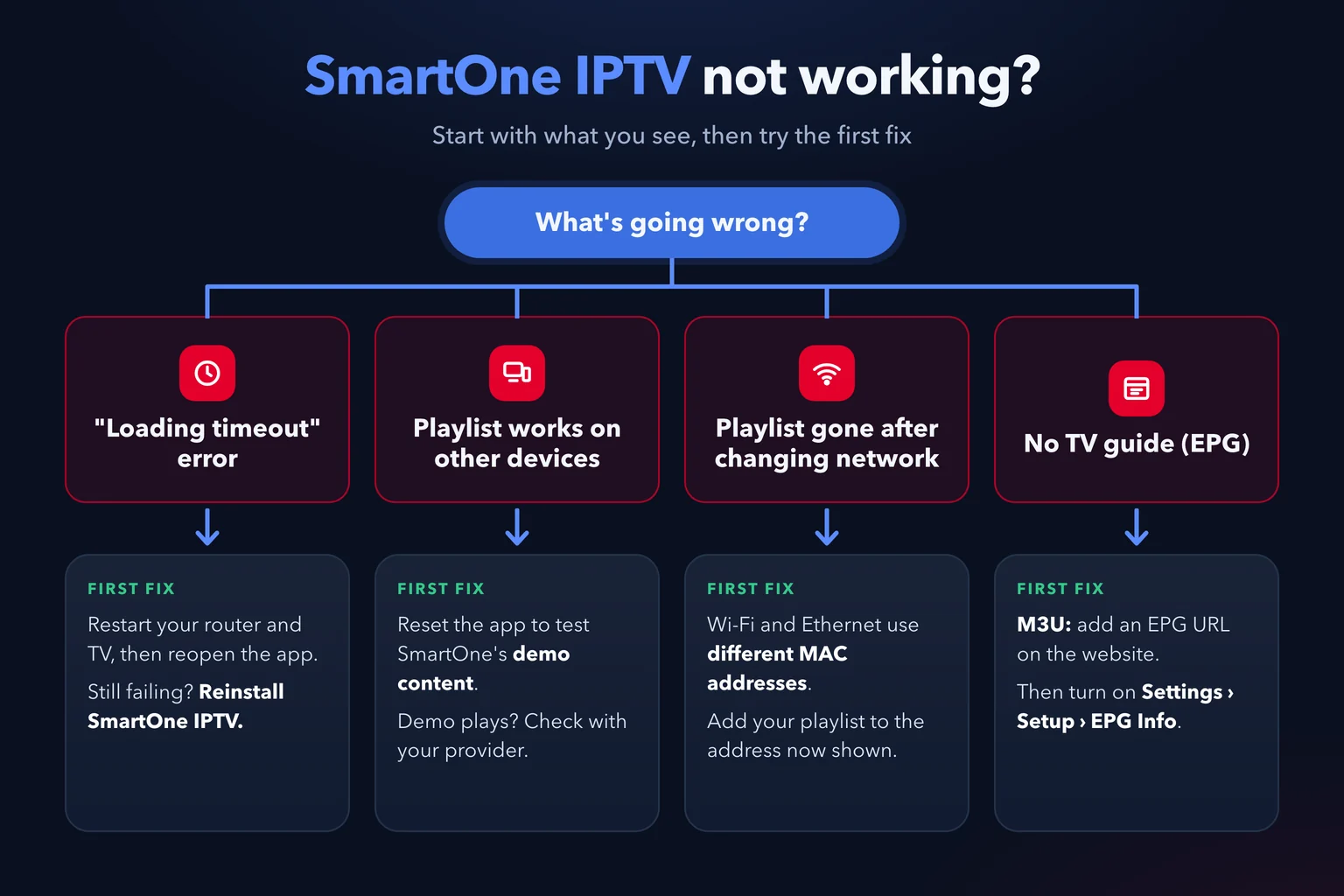
Most SmartOne problems come down to one of three things: the connection, the playlist itself, or which MAC address the playlist is attached to. The fixes below follow SmartOne's own help articles, in the order worth trying.

"Loading timeout" error

SmartOne says a loading timeout comes from the connection between your TV and the server, not from a fault in the app. Work through these in order:

  1. Restart your router, switch the TV off completely, turn it back on and open SmartOne again.
  2. If the error comes back, uninstall SmartOne IPTV, restart the TV, reinstall the app and open it.
  3. As a last resort, SmartOne suggests resetting the TV and reinstalling the app. A TV reset erases everything on the TV, so try the first two steps properly before this one.

If the error keeps returning, test your line with our speed test, use an Ethernet cable if you can, and contact SmartOne's support.

Your playlist works on other devices but not in SmartOne

First, check whether the app itself is working. SmartOne says that if you reset the app and open it without adding a playlist, it plays built-in demo content. If the demo plays, SmartOne is fine and the problem is with the playlist or its streams. Every TV brand and model handles video formats differently, so a stream that plays on a phone won't necessarily play on a particular TV. Some providers also block certain countries, broadband providers or apps.

If you're using an IPTV Extended login, contact our support team with your TV's make and model, and we'll check your account and suggest the best playlist type for your TV.

Your playlist disappeared after switching between Wi-Fi and Ethernet

This usually happens because your TV has a different MAC address for each connection. SmartOne says the licence moves across automatically once you restart the app, but your playlist is linked to the MAC address you entered on the website. Open SmartOne and check which MAC address it shows now. If it's different from the one you used, add your playlist to that address as well, or switch back to the connection you used originally.

Channels play, but there's no TV guide

Start by turning on EPG Info (Settings, then Setup, then EPG Info, then Enable) so guide details appear in the channel list. With an Xtream Codes login, the guide comes through automatically. With an M3U playlist, the guide needs a separate XMLTV link in the EPG URL field on the website, or a playlist that includes the guide address itself. After changing anything on the website, restart the app.

You've paid, but there are no channels

Activation only unlocks the SmartOne app. It never includes a channel list, so if you've paid and see nothing, you still need to add a playlist from an IPTV provider on the SmartOne website. If you don't have one yet, start with our free trial.

Resetting SmartOne IPTV

If the app still misbehaves, you can reset it: go to Settings, then Setup, then Reset App. SmartOne lets you reset just your playlists, your app settings or one type of favourites, or everything at once. A full reset clears your playlists from the app along with your favourites, theme and language, so you'll need to set it up again afterwards.

For problems that aren't specific to SmartOne, such as buffering on every app, our IPTV troubleshooter and guide to fixing IPTV buffering go into more depth.

SmartOne IPTV vs Smart IPTV (SIPTV) vs IPTV Smarters Pro

These three apps are mixed up constantly, partly because of their names. Here's how they differ.

SmartOne IPTVSmart IPTV (SIPTV)IPTV Smarters Pro
Best suited toSmart TVs, including Hisense and other VIDAA models; also Android TV and Fire TVSamsung and LG smart TVsStreaming sticks, Android, iPhone and iPad
How you add your playlistOn SmartOne's website, by MAC addressOn the Smart IPTV website, by MAC addressTyped into the app
Login typesXtream Codes, M3U, Stalker portalM3U linkXtream Codes or M3U
Our setup guideThis pageSmart IPTV guideSmarters Pro guide

Choose SmartOne IPTV if you want to use an Xtream Codes login, with films and series, directly on a smart TV, or if you have a Hisense or other VIDAA TV, which SmartOne supports. Stick with Smart IPTV if it's already installed and working well on your Samsung or LG. On a Firestick or Android TV box, player apps that take your login directly, such as TiviMate or IPTV Smarters Pro, are usually quicker to set up, because there's no website step. Our IPTV player setup hub compares every option.

SmartOne IPTV FAQ

Is SmartOne IPTV free?

Not permanently. You can test it free for a trial period (15 days, according to SmartOne's activation page), then you need a paid licence for each TV. The app never includes channels: you add your own playlist.

How much does SmartOne IPTV cost?

On 14 September 2026, SmartOne's official activation page listed €12.99 for a lifetime licence or €2.50 for one year, for each TV or device. Prices can change, so check the activation page before you pay.

Is SmartOne IPTV the same as Smart IPTV (SIPTV)?

No. They're separate apps from different developers, with their own websites, prices and activation. A MAC address registered with one doesn't carry over to the other.

Does SmartOne IPTV include channels?

No. SmartOne IPTV is a player only. Its licence unlocks the app, not any content, so you need a playlist from an IPTV provider.

Does SmartOne IPTV work on a Firestick?

Yes. SmartOne IPTV is available in the Amazon Appstore for Fire TV devices, including the Fire TV Stick, running Fire OS 5 or later.

How do I add Xtream Codes to SmartOne IPTV?

On SmartOne's Upload Playlist page, choose an Xtream tab, enter your TV's MAC address and a playlist name, add your Xtream Codes login details, then restart the app on your TV.

Do I enter the Smart Key on my TV?

No. The Smart Key is a reference for your playlist in SmartOne's online dashboard. The app fetches your playlist automatically when it starts.

Why did my SmartOne playlist disappear after I changed network?

Your TV has separate MAC addresses for Wi-Fi and Ethernet, and your playlist is linked to the address you entered on SmartOne's website. Check which MAC address the app now shows and add your playlist to it, or switch back to your original connection.

Related guides