How to set up IPTV on a MAG box
A MAG box doesn't use an app. It connects to a portal, which recognises the box by its MAC address. Once we've registered your box, setup is one address typed into one menu.
Answer
To set up IPTV on a MAG box, send your provider the box's MAC address so they can register it, then press Setup on the remote, go to System settings, Servers, then Portals, and enter the portal URL you're given in Portal 1 URL. Restart the portal and your channels load.
- You need
- MAC address + portal URL
- Menu
- System settings → Servers → Portals
- Made by
- Infomir
- Best connection
- Ethernet cable
What a MAG box is
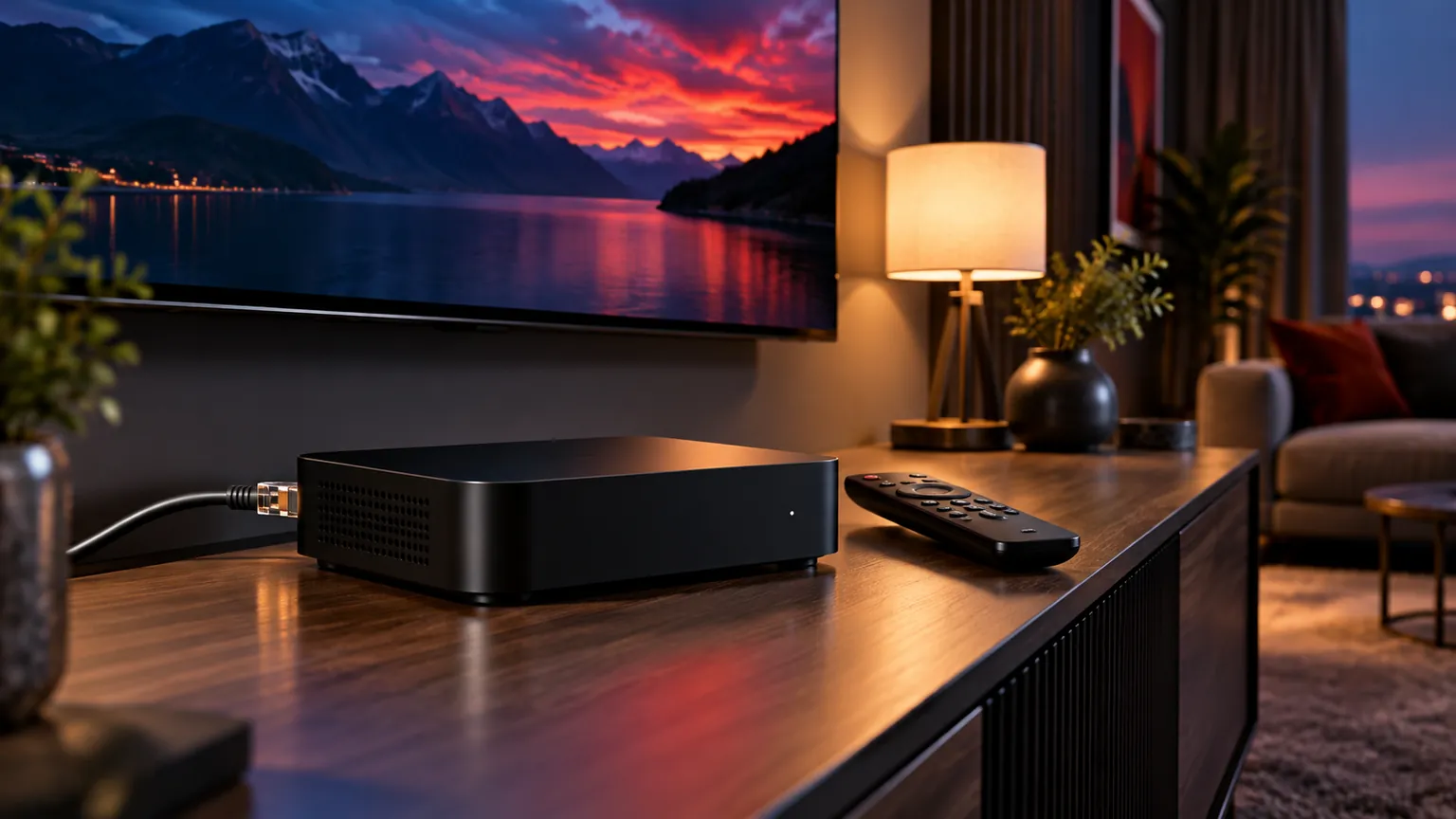
A MAG box is an IPTV set-top box made by Infomir, a European electronics company that has built MAG devices since 2001. Instead of installing an app and typing in a login, you point the box at a portal. The portal recognises the box by its MAC address and sends it your channels and TV guide.
Infomir's current range includes the MAG540 and MAG540w3, the MAG544 and MAG544w3, the MAG540 RDK and the MAG555. Older models such as the MAG322 are still in use. The steps on this page follow Infomir's own documented menus. The MAG555 runs Google TV, so it is set up differently from the models described here.
What you need before you start
Your box's MAC address
Every MAG box has a MAC address, a unique ID that our portal uses to recognise it. To find it, press Setup on the remote, open System settings and choose Device info. Infomir MAC addresses start with 00:1A:79. It is usually printed on the base of the box as well.
Your portal URL
The portal URL is the address your box connects to. With IPTV Extended, send your MAC address to our team when you start a free trial or order. We register the box on our portal and send you the portal URL to enter.
A network connection
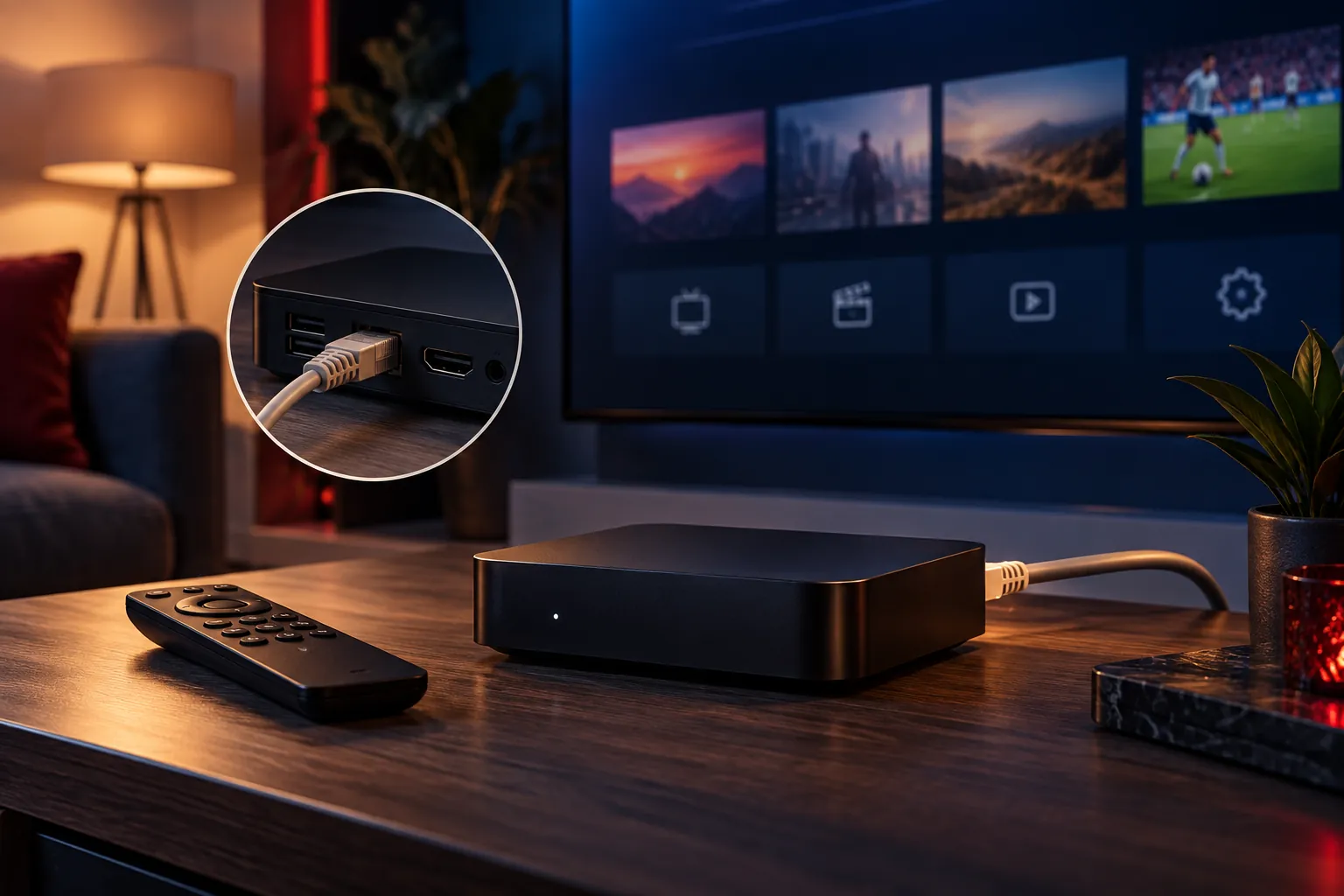
Connect the box to your router with an Ethernet cable if you can. A wired connection gives the steadiest picture, especially for live sport. Wi-Fi works on models that support it.
Set up the portal, step by step
Open System settings
Press Setup on the remote. On some older remotes the button is labelled Services or SET. You can also open the main menu, then Settings, then System settings.
Go to Servers, then Portals
In System settings, select Servers, then Portals.
Enter your portal URL
In Portal 1 URL, type the portal address exactly as we sent it, including the http:// or https:// at the start. You can give the portal a name too.
Save and restart the portal
Save your changes, then choose Restart portal in System settings. The box loads the portal, and your channels and TV guide appear.
MAG, Formuler and Enigma2 are not the same thing
These three names are often listed together, but they are different systems with different setups.
- MAG boxes are made by Infomir and connect through a portal using the box's MAC address, as described on this page.
- Formuler is a separate manufacturer. Its current Z12, Z11 and Z10 models are Android-based media players that use Formuler's own MYTVOnline app, so the steps here don't apply to them.
- Enigma2 is receiver software used on set-top boxes from various makers. It isn't a MAG model and has its own setup.
When your MAG box won't play
"STB blocked" on screen
This message comes from the portal, not from a fault in the box. It means the portal isn't accepting your box, most often because the subscription or trial has ended, or because the MAC address isn't registered or doesn't match the one on your account.
Contact our support team with your MAC address from Device info and a photo of the message, and we'll check your account. Don't try to change the box's MAC address yourself.
A page loading error instead of your channels
Work through these in order:
- Check the box is online in System settings → Network info.
- Check the Portal 1 URL is typed exactly as we sent it, with no spaces.
- Make sure Use DHCP portal isn't overriding your portal address.
- Choose Restart portal and try again.
If it still won't load, contact support and tell us exactly what the screen says.
No picture at all
Check the TV is set to the right HDMI input and the cable is firmly plugged in at both ends. Then unplug the box's power for 30 seconds and plug it back in.
Stuttering or buffering
Use an Ethernet cable if you can, test your line with our speed test, and work through our guide to fixing IPTV buffering.
Is a MAG box still the right choice in 2026?
If you already own a MAG box, there's usually no need to replace it. It's a simple, remote-friendly way to watch, and once the portal is set it just loads.
If you're buying new hardware, compare it with a streaming stick or Android TV box first. Those let you choose between player apps such as TiviMate and IPTV Smarters Pro. Our IPTV box guide lays out the trade-offs.
MAG box FAQ
What is a portal URL on a MAG box?
It's the address your MAG box connects to for your channels and TV guide. Your provider gives it to you after registering your box's MAC address, and you enter it in System settings under Servers, then Portals.
Where do I find my MAG box's MAC address?
Press Setup on the remote, open System settings and choose Device info. Infomir MAC addresses start with 00:1A:79, and the address is usually printed on the base of the box as well.
What does STB blocked mean on a MAG box?
It means the provider's portal isn't accepting your box. The usual reasons are that the subscription or trial has ended, or that the MAC address isn't registered or doesn't match the one on your account. Contact your provider with your MAC address.
Can I use TiviMate instead of a MAG box?
TiviMate runs on Android TV and Fire TV devices rather than on MAG boxes. It can log in with a Stalker portal as well as Xtream Codes, so a streaming stick running TiviMate is an alternative to a MAG box.
Does a MAG box support 4K?
It depends on the model. Infomir lists 4K and HEVC support for the MAG540, for example. Check your model's specifications on Infomir's website.
Do I need a VPN on a MAG box?
No. A MAG box connects straight to our portal over your normal internet connection, so there's nothing extra to set up. We distribute rights-cleared content, which is why no VPN is needed — our guide explains whether IPTV is legal in the UK.